Guide
After the game: the podium and the results
The last question is not the end of the game’s use. The podium gives the room its finish, and then the results are yours to keep: which questions the class found easy and which it did not, and how every player did on each one. This guide goes from the podium to the exported results, with the real pictures an export makes, and shows what to do with each of them.
6 steps · about 3 min · written for a computer
Step 1: The podium
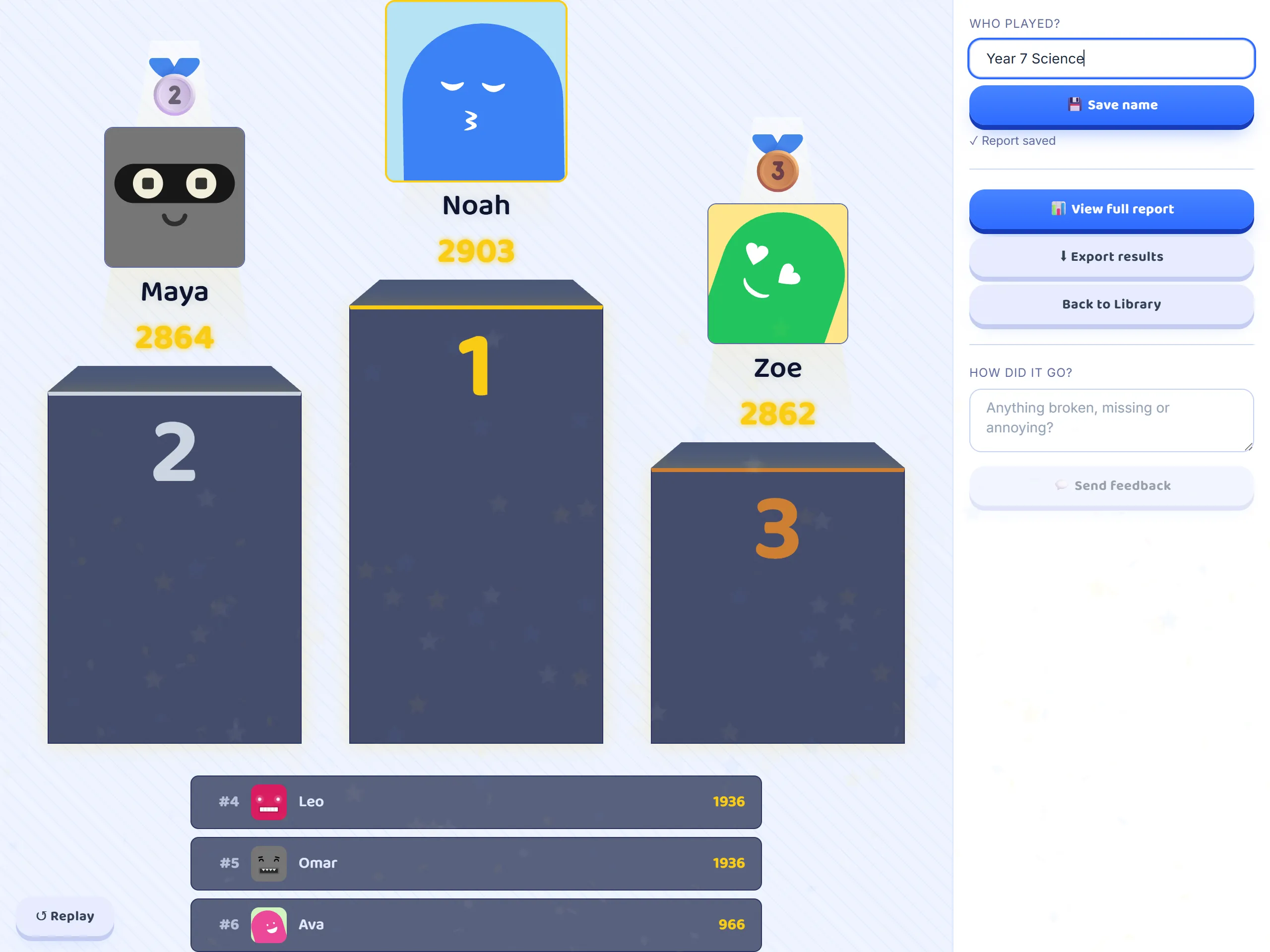
After the last question, press Finish Game. The podium rises one place at a time, third, then second, then the winner, with the next five players listed underneath, so more of the room hears their name. Skip jumps straight to the end of it, and Replay plays it again from the start, which is handy if half the class was still looking at their phones.
Step 2: Every player sees their place
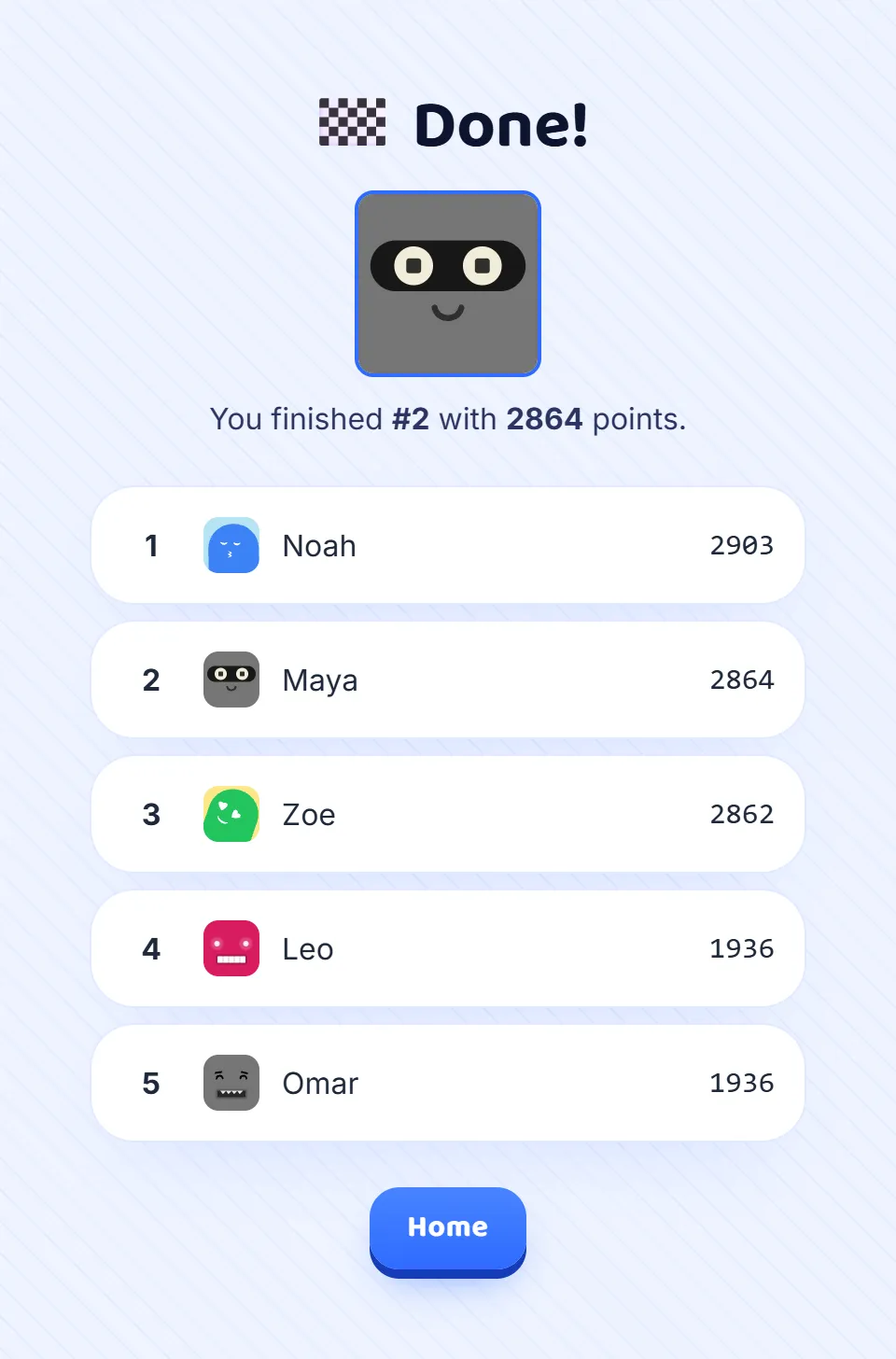
At the same moment each player’s screen says where they finished and with how many points, above the top five of the final table. A player further down the list still sees their own place, not only the winners’. Home takes them back to the start, ready for the next game.
Step 3: Name the game
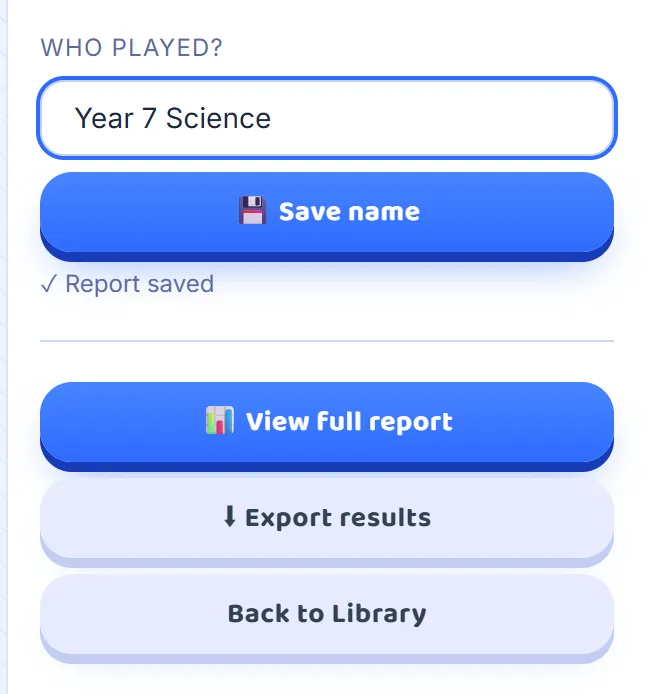
The report of the game is saved as it is played, and Report saved appears under the box once it is. Type who played under Who played?, such as the class, the group or the date, and press Save name, so the game is easy to tell apart from the others later. From here, View full report opens every player’s answers question by question.
Step 4: Export the results
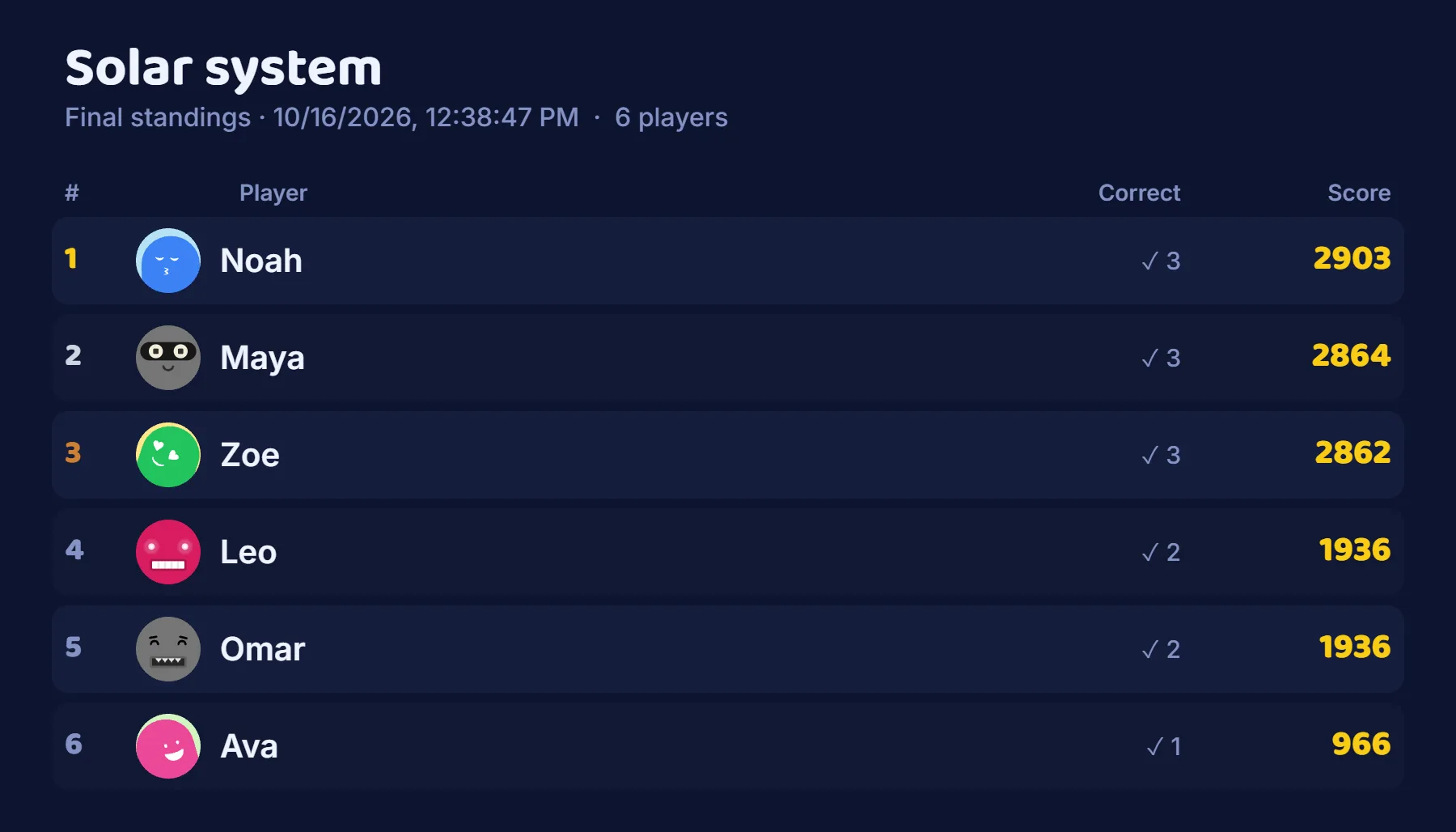
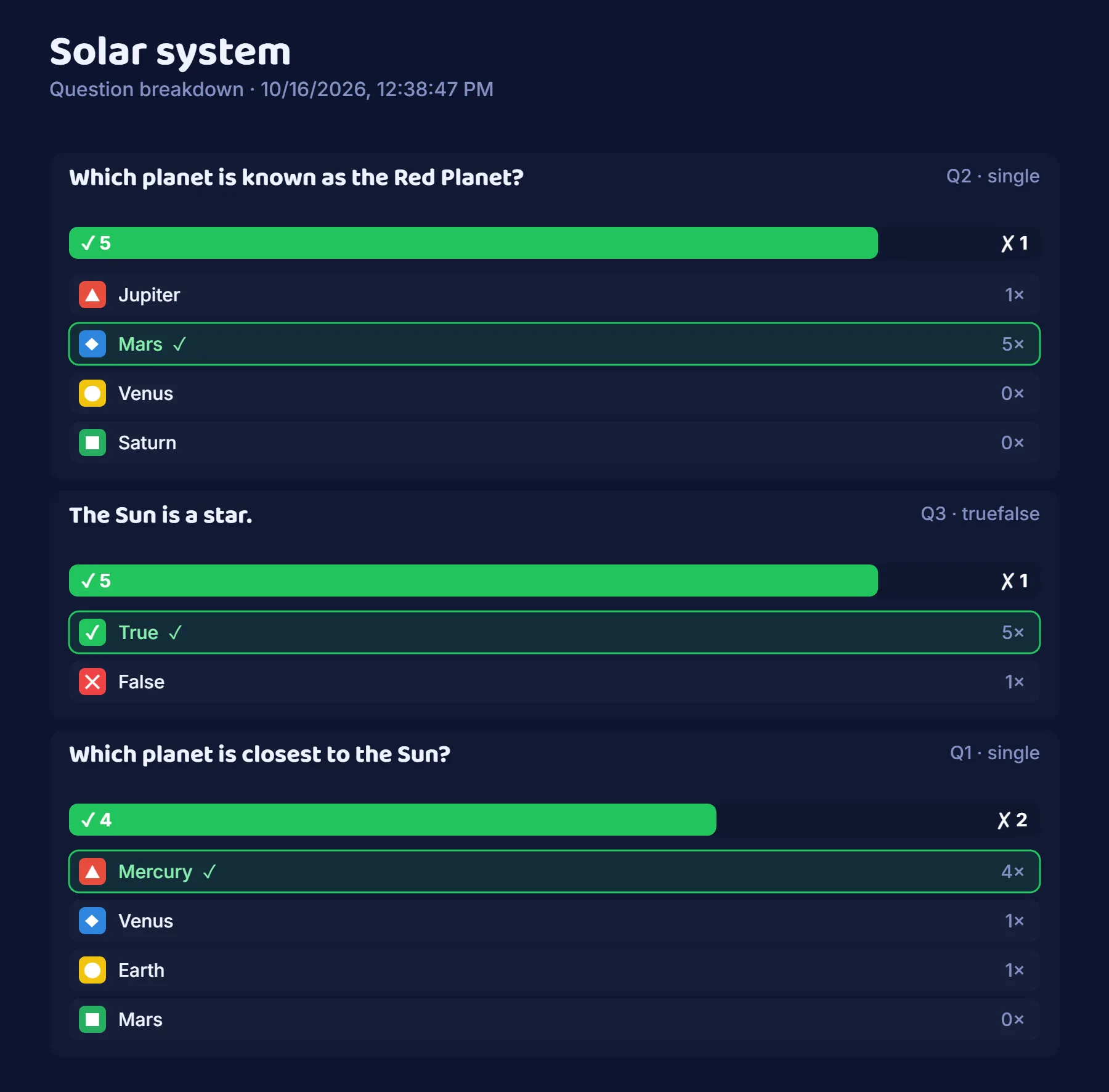
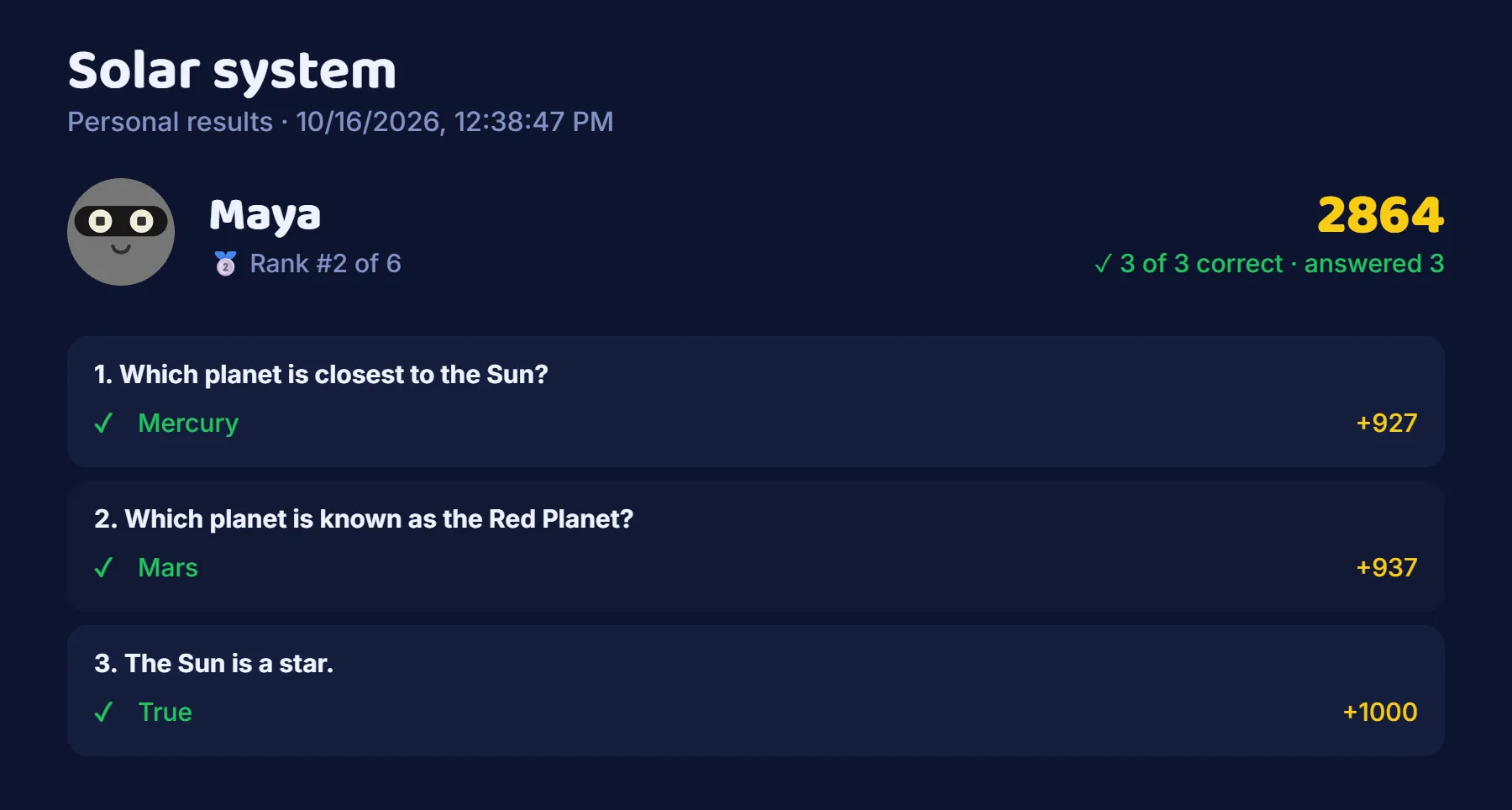
Press Export results and a ZIP file downloads, named after the set and the time the game finished. Open it to find three things: the final standings, with every player’s place, score and number of right answers; a breakdown of every question; and a folder called players with a result card for each player. Everything is made in your browser from the game that has just finished.
Step 5: See which questions were hard
The question breakdown shows how many players got each question right and wrong, and how many chose each answer, with the right one marked. It is ordered from the question the most players got right to the one the fewest did, so the question the class found hardest is at the bottom, and the wrong answer most of them chose tells you what to go over in the next lesson.
Step 6: Give each player their card
In the players folder, each player has a card of their own: their name and picture, their place and score, how many they got right, and then every question with the answer they gave, a tick or a cross, and the points it earned. Send a student their own card, add it to their work, or use it to talk through a result with them or with their parents, without showing anyone else’s.
Good to know
- The report of every game is kept under Reports in the sidebar, where you can open it again and export the same pictures later.
- The report is saved to your account, so you need to be signed in while you host for it to be kept.
- The pictures are ordinary PNG images, so they open on any computer or phone and can go into a document, a slide or a message.