Guide
Run a group for your class
A group keeps one class together across many games. Students join it once, with a code in the room or a link sent home, and from then on every group game you host adds to the group’s leaderboards, you can set homework they play in their own time, and you can see how each of them is doing. This guide sets up a group from the beginning and follows it through a live game and a homework, with pictures of the real screens, from your side and from your students’.
12 steps · about 6 min · written for a computer
Step 1: Create a group
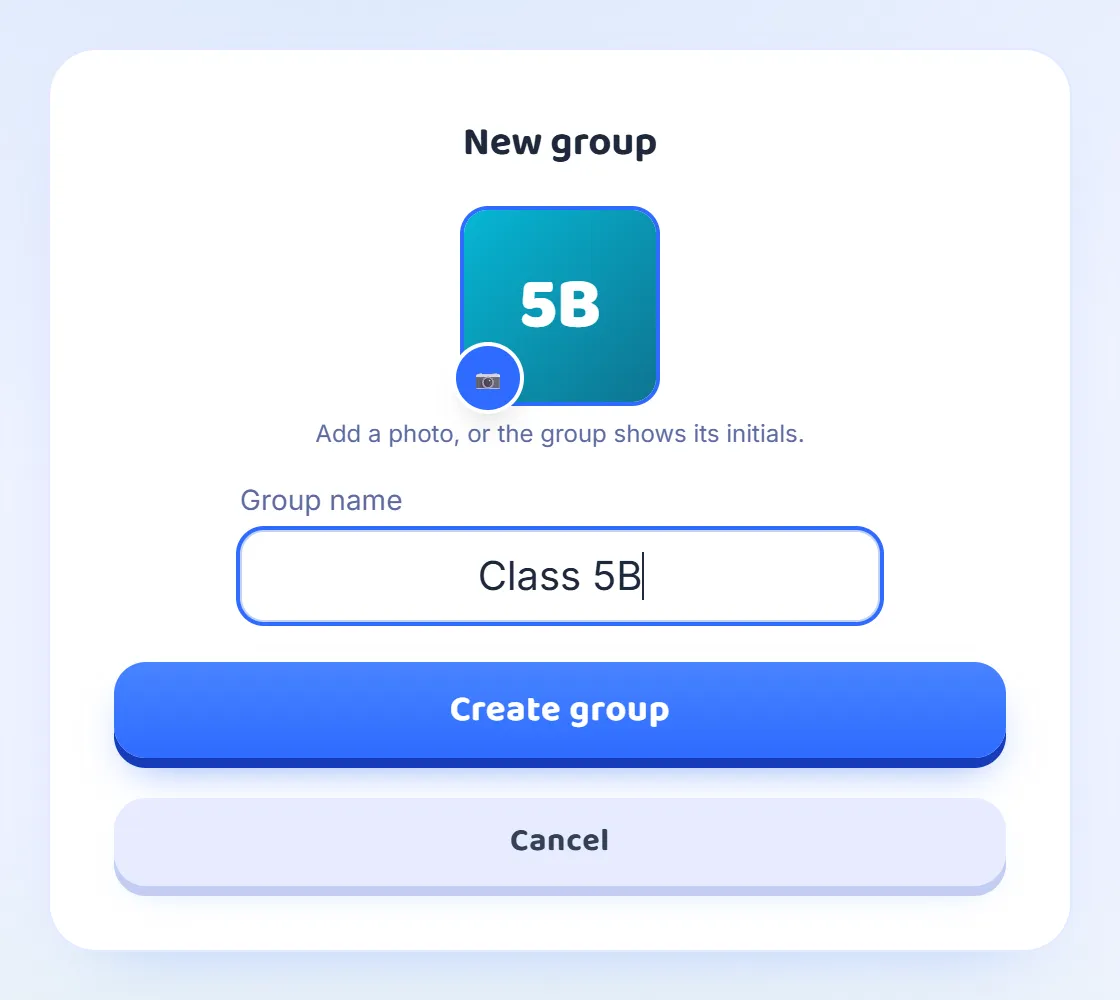
Open Groups in the sidebar. It opens on the students’ side, with a box for a join code, so press ⚙ Manage groups at the top, then + New group. Give the group a name, such as the name of the class, and add a photo if you like. Without one, the group shows its initials, so Class 5B becomes 5B. Press Create group and the group’s own page opens.
Step 2: Invite the students in the room
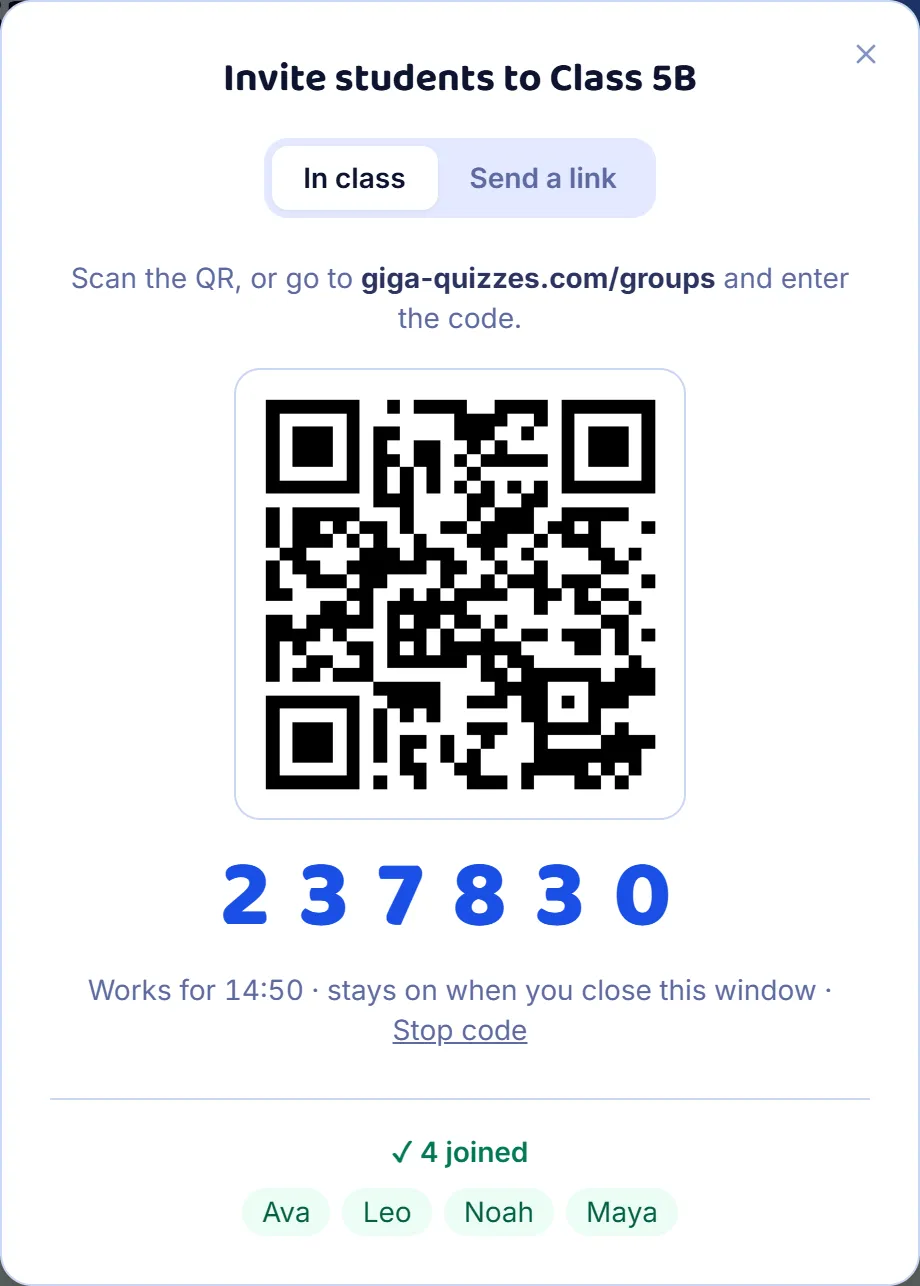
Press Invite students and put the window on the big screen. Students scan the QR code with a phone, or go to giga-quizzes.com/groups and type the six-digit code. A code works for 15 minutes and stays on when you close the window, so a latecomer can still use it; Stop code switches it off sooner. Everyone who joins appears at the bottom of the window as they arrive, so you can see when the whole class is in.
Step 3: Or send them a link
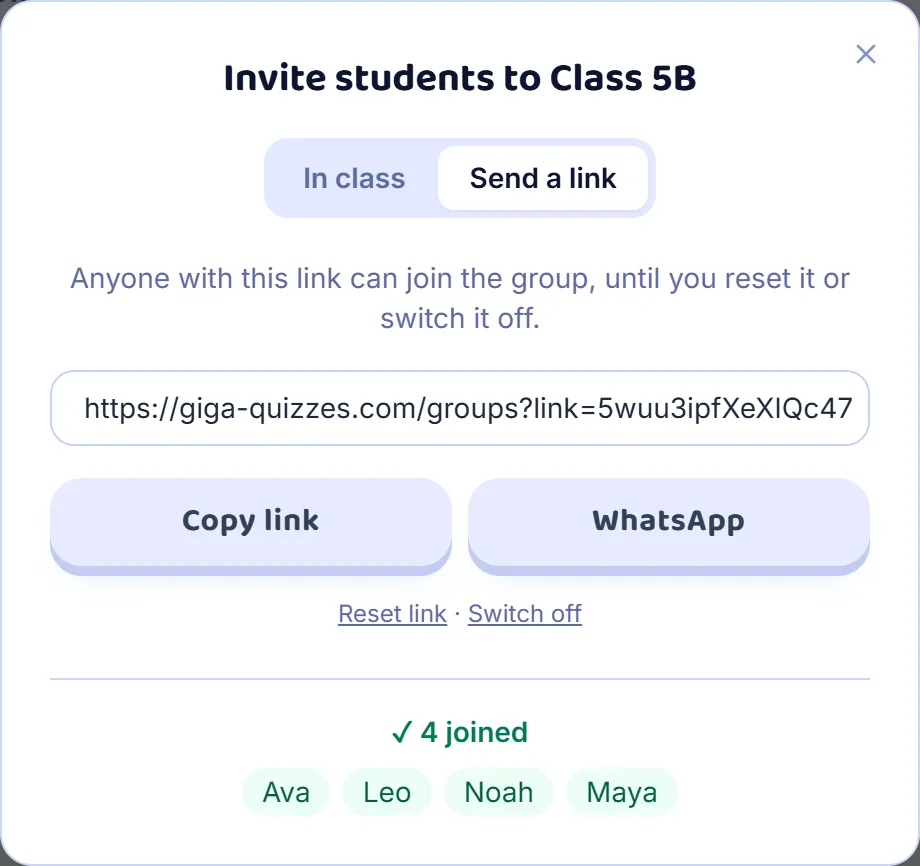
For students who are not in the room, open the Send a link tab and press Create a link. Copy link puts it on your clipboard, ready to paste into an email or a class chat, and WhatsApp opens a message with the link in it. Unlike the code, the link does not run out: it works until you press Reset link, which makes a new link and stops the old one, or Switch off. It is there again whenever you open the window.
Step 4: What a student does
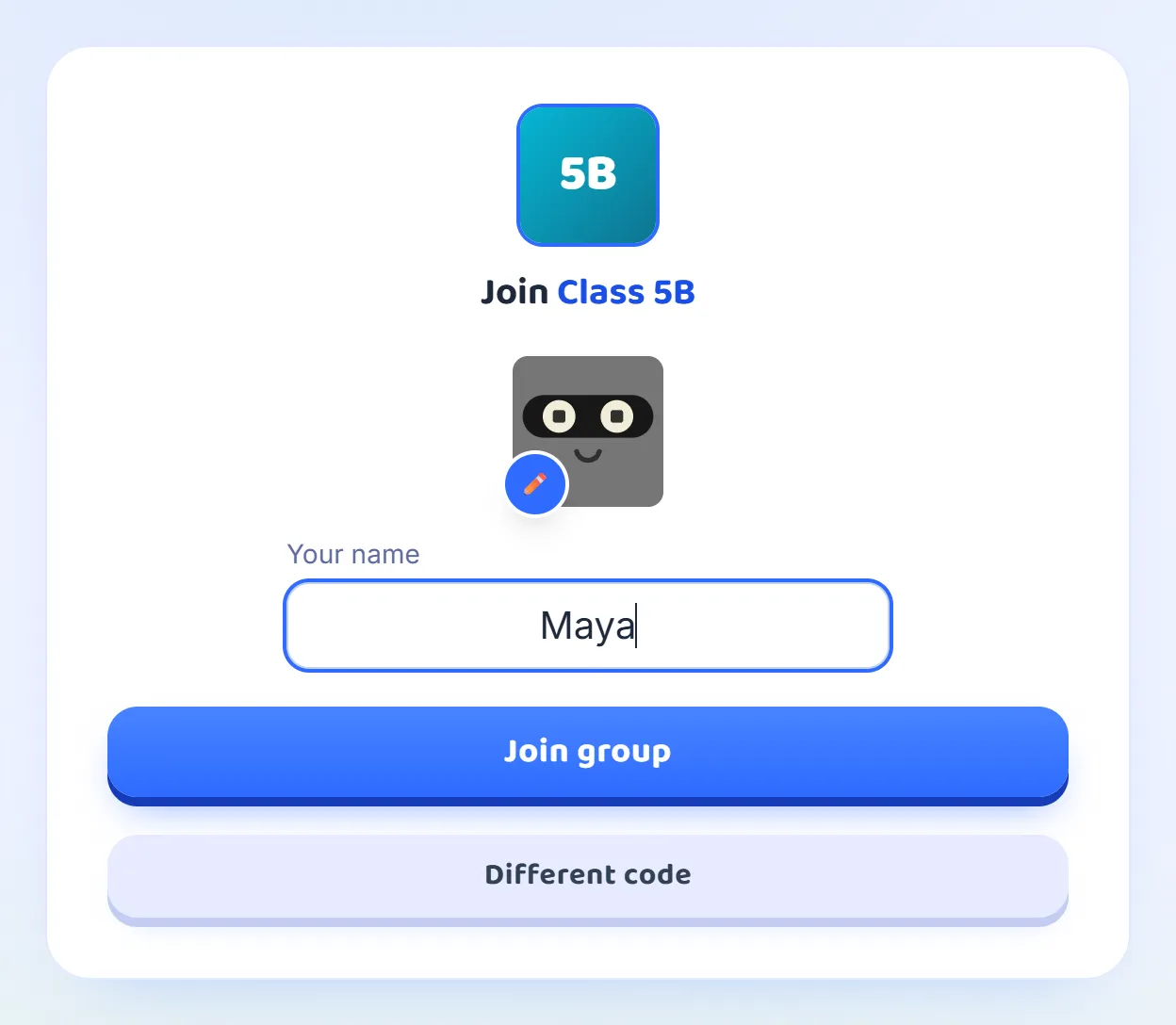
The code or the link shows the group’s name and picture first, so a student can tell they are joining the right one. They type the name the class knows them by, change their avatar with the pencil if they like, and press Join group. They do not need an account. Without one, their membership is kept on the phone or computer they joined with; a student who signs in keeps it on their account, and has it on any device.
Step 5: Start a group game
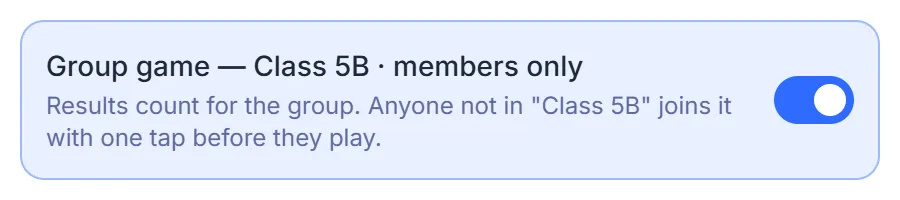
On the group’s page, press Start group game and choose a set. Game settings has one extra box, Group game, which is on: the game counts for the group and is for its members. Turn it off to let anyone play, and the members who play are still counted. Everything else is an ordinary live game, with a room code on the big screen, and when it ends each member’s score is added to the group’s leaderboards.
Step 6: A student who is not in the group yet
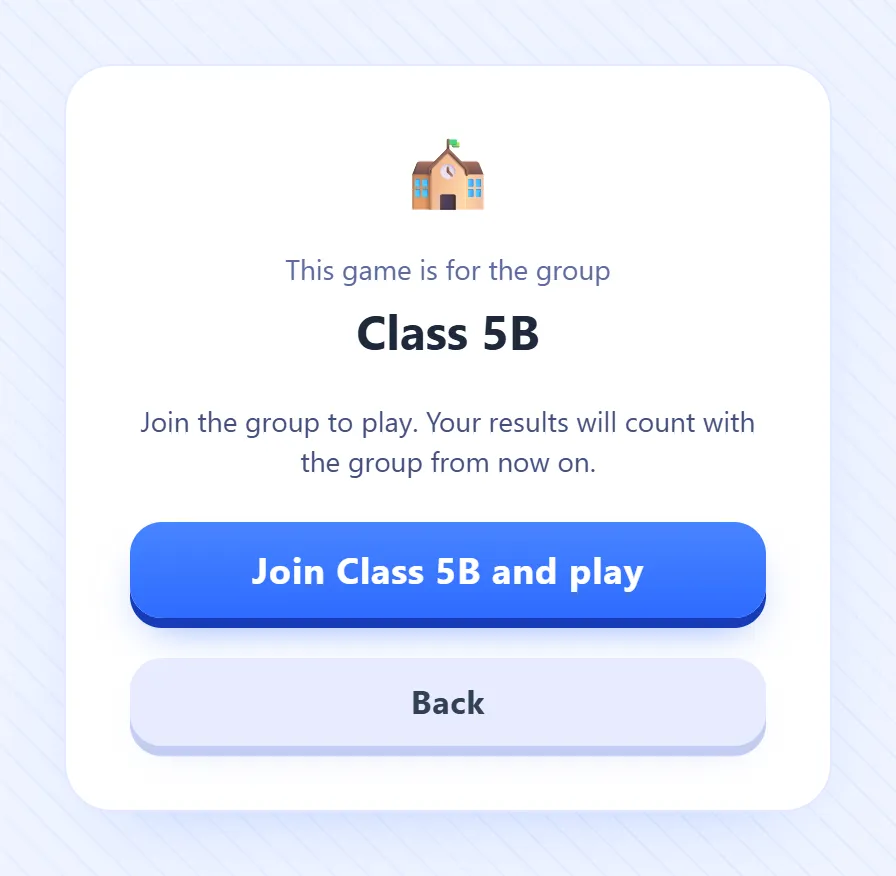
With Group game on, a student who comes into the room without being a member, such as a new student or one on a different phone, is not left outside. Their screen shows the group’s name and a button to join it and play. One tap makes them a member, with the nickname and avatar they chose for the game, and takes them into the lobby. From then on their results count with the group. Back takes them out of the game instead.
Step 7: What your students see
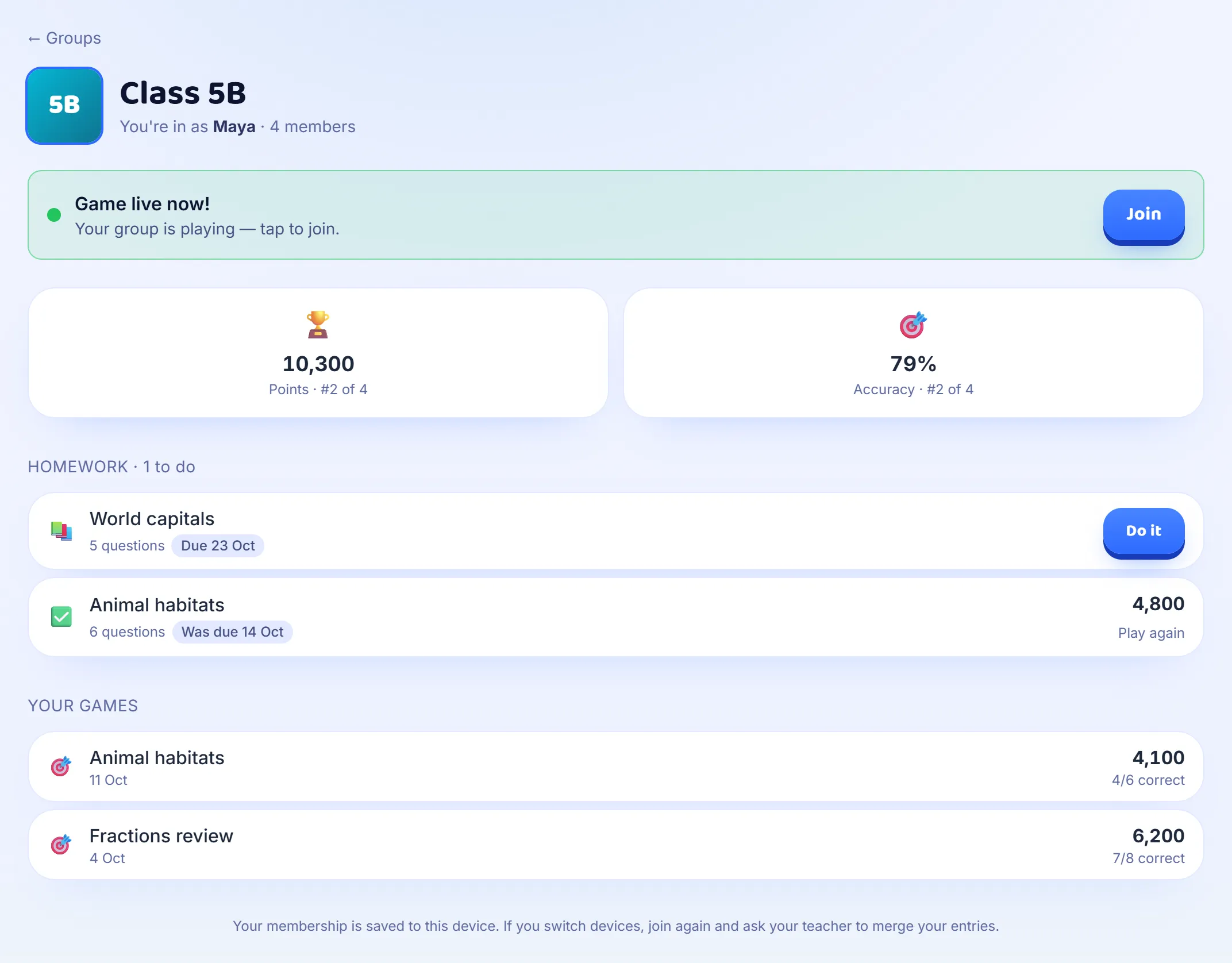
Students find the group under Groups, on the device they joined with. While a group game is on, their group page shows Game live now! with a Join button, which opens the join page with the room code filled in. Below it are their points and accuracy with their place in the group, the homework they have to do, and every group game they have played, with their score. They see only their own place until you turn on Members can see full leaderboards, in the group’s settings under ⚙.
Step 8: Set homework
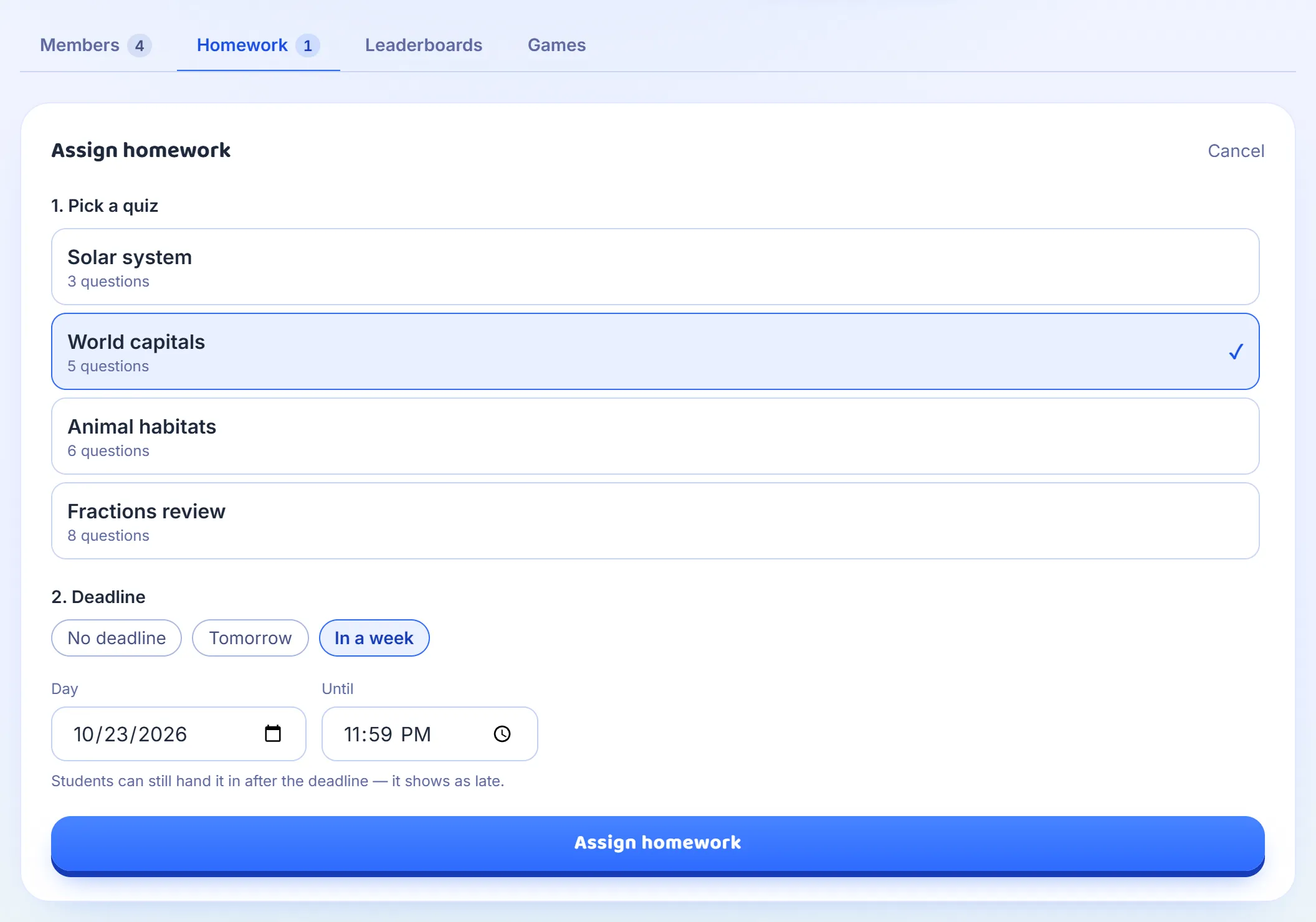
Homework is a set that students play on their own, at home or anywhere else, in their own time. Open the Homework tab, press + Assign homework, pick one of your sets and choose a deadline: Tomorrow, In a week, No deadline, or any day and time you set yourself. A deadline ends at 23:59 unless you change it, in your own time zone. Students can still hand it in after the deadline, and it is marked late. The homework is a copy of the set as it is when you assign it, so editing the set afterwards does not change it.
Step 9: See who has done it
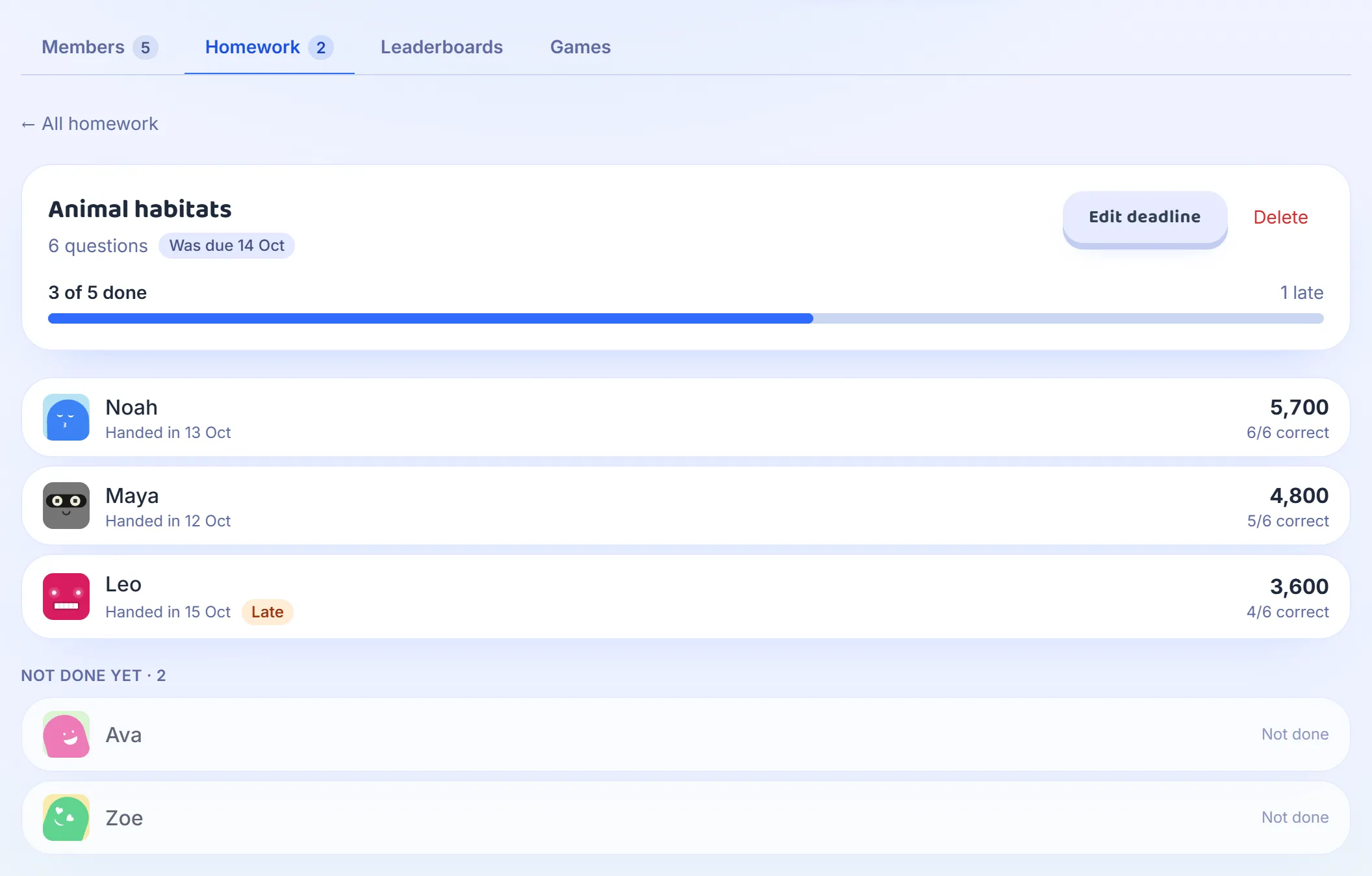
A student presses Do it on their group page, plays the set alone with the usual timer on each question, and hands it in at the end; their screen says Handed in once it has reached you. They can play it again, and their best score is kept. On the Homework tab, each homework shows how many students have done it. Open one to see each student’s score, how many they got right and the day they handed it in, with Late beside anyone who handed it in after the deadline, then the students who have not done it yet. Edit deadline moves the deadline or removes it, and Delete removes the homework along with everyone’s results.
Step 10: Follow the leaderboards
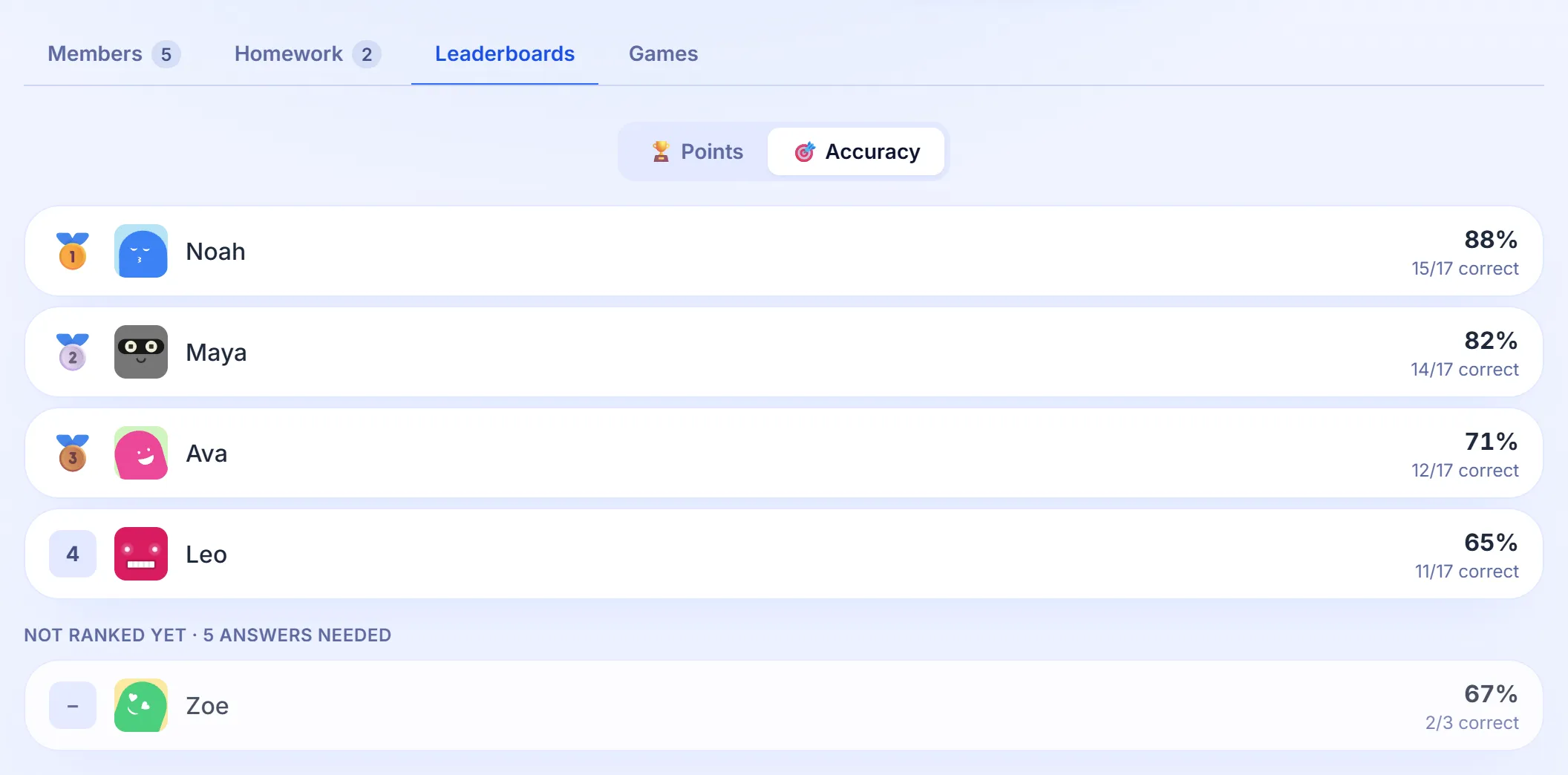
The Leaderboards tab ranks the group over all its games, not just the last one. Points adds up each member’s scores from every Classic group game. Accuracy is the share of questions they answered correctly, and a student is ranked on it once they have answered at least five, so one lucky answer cannot put anyone on top; until then they are listed under Not ranked yet. The leaderboards count live group games, and homework results stay on the Homework tab.
Step 11: Look back at past games
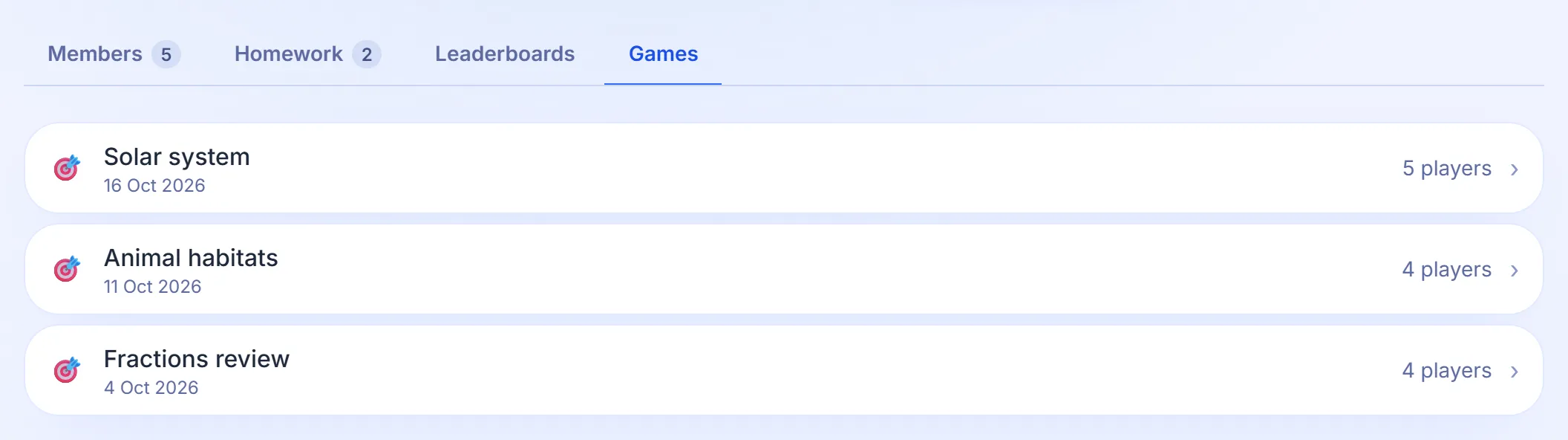
The Games tab lists every game you have hosted for the group, newest first, with its date and how many played. Open one to see its full report, the same one kept under Reports, with every question and every player’s answers.
Step 12: Keep the member list tidy
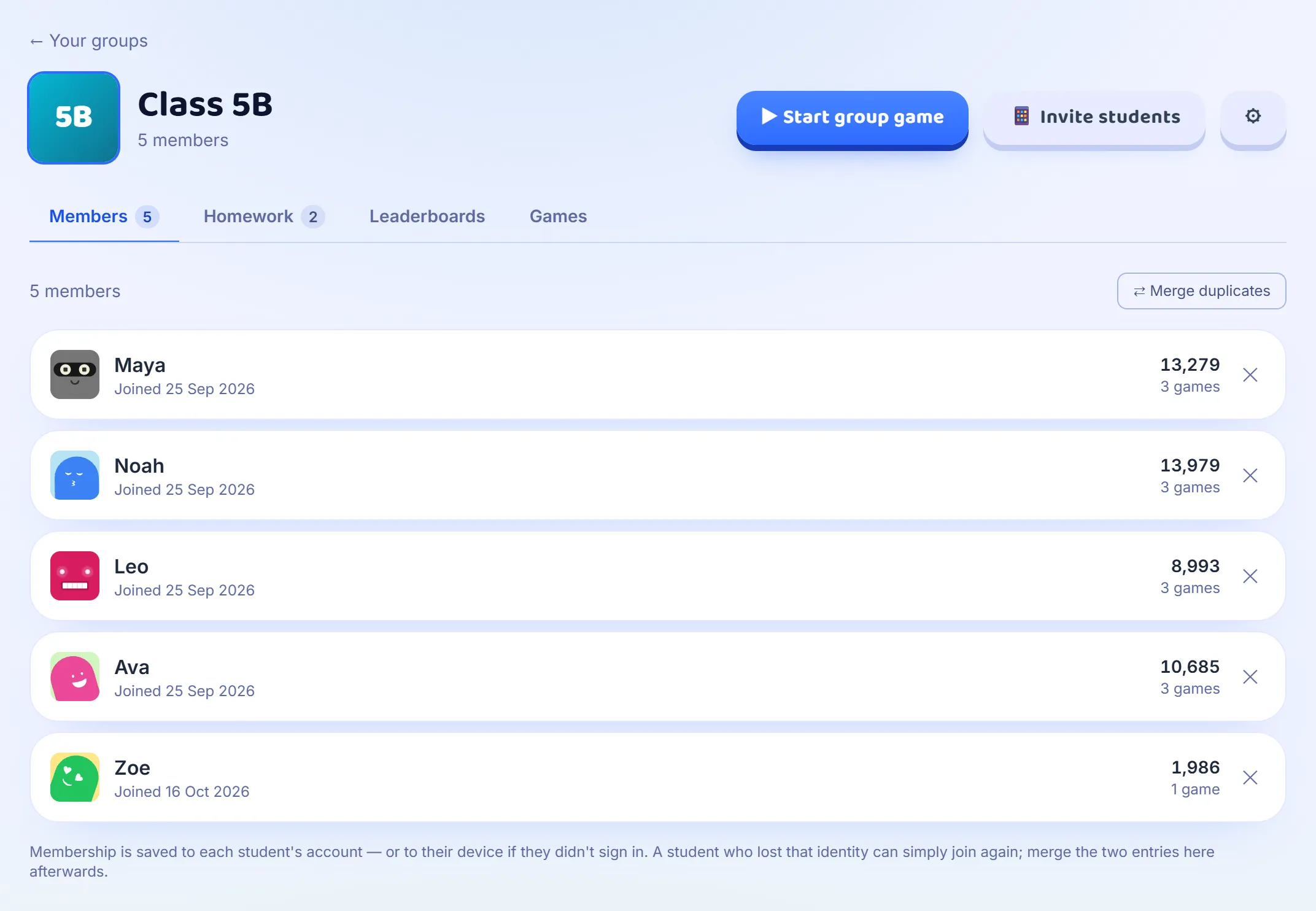
The Members tab lists everyone in the group, with the day they joined, their points and how many games they have played. The ✕ at the end of a row removes that student and their results from the group. A student who joins again from another phone or computer can appear twice: press ⇄ Merge duplicates, pick the entry to keep, then the duplicate, and press Merge. Their games and points come together under one name, and where both entries played the same game, the better score is kept.
Good to know
- You need an account to make and run groups, so a group and its history are never lost. Students do not need one.
- A student can be in several groups, for example one for each subject you teach them.
- To rename a group or change its photo, press ⚙ on its page. The same window deletes the group: its members and leaderboards go with it, and the reports of its games stay in Reports.
- A homework result that cannot reach you straight away, on a weak connection, is kept on the student’s device and sent the next time they open the group.