Guide
Find ready-made quizzes on Discover, and share your own
Not every game needs a set you wrote yourself. Discover is the public shelf of ready-made quizzes on Giga Quizzes, free to play and free to host, and every one of them can also be copied into your Library and changed for your class. This guide finds a quiz, looks inside it, hosts it and copies it, borrows a few of its questions for a set of your own, and then goes the other way: submitting a quiz of yours for everyone else to play.
7 steps · about 4 min · written for a computer
Step 1: Find a quiz
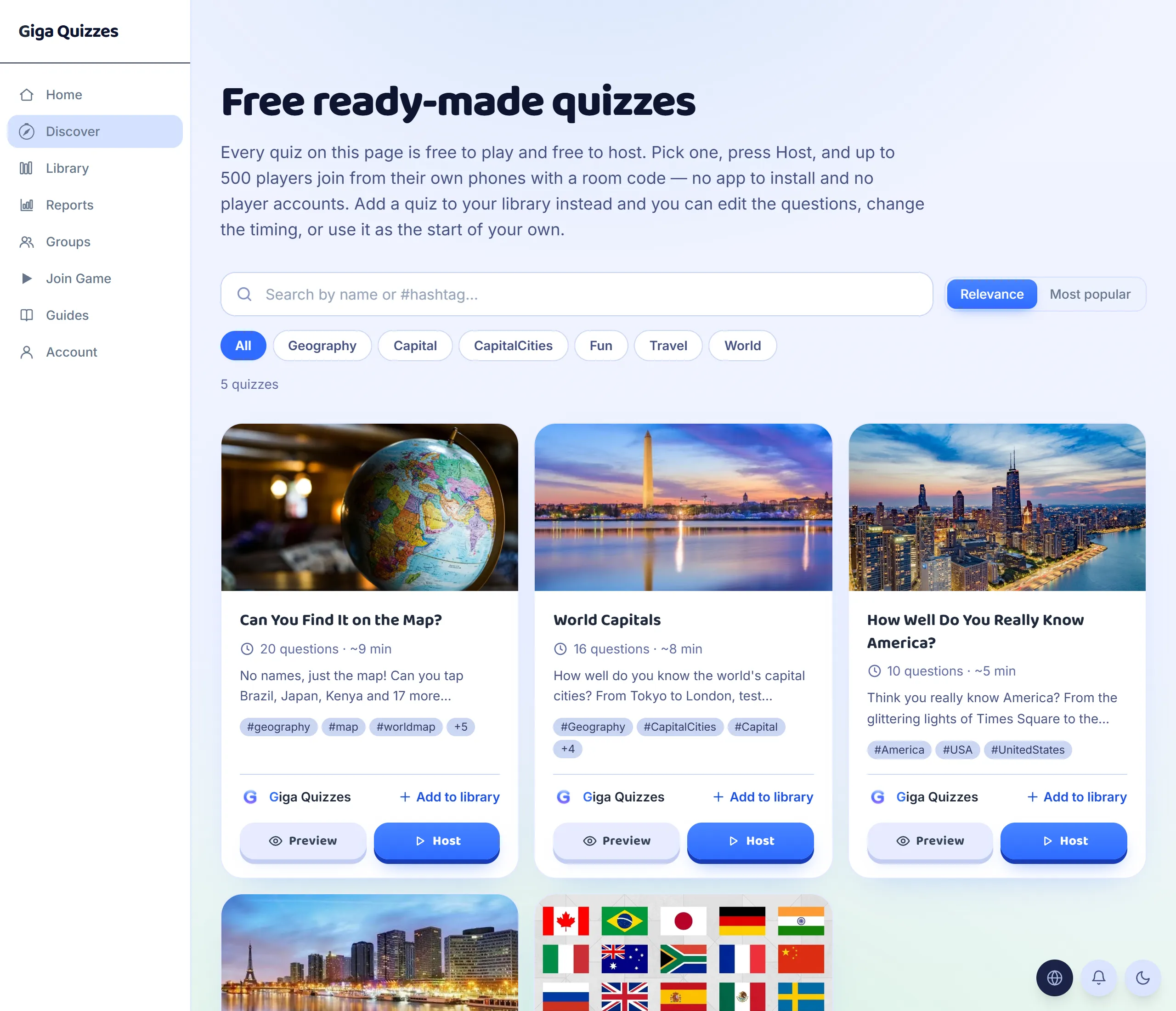
Open Discover in the sidebar. Every quiz is a card with its cover, its name, how many questions it has and roughly how long it takes, and its hashtags. Type in the search box to find one by its name or a #hashtag, sort by Relevance or Most popular, or press a topic under the search to see only that kind of quiz.
Step 2: Look inside first
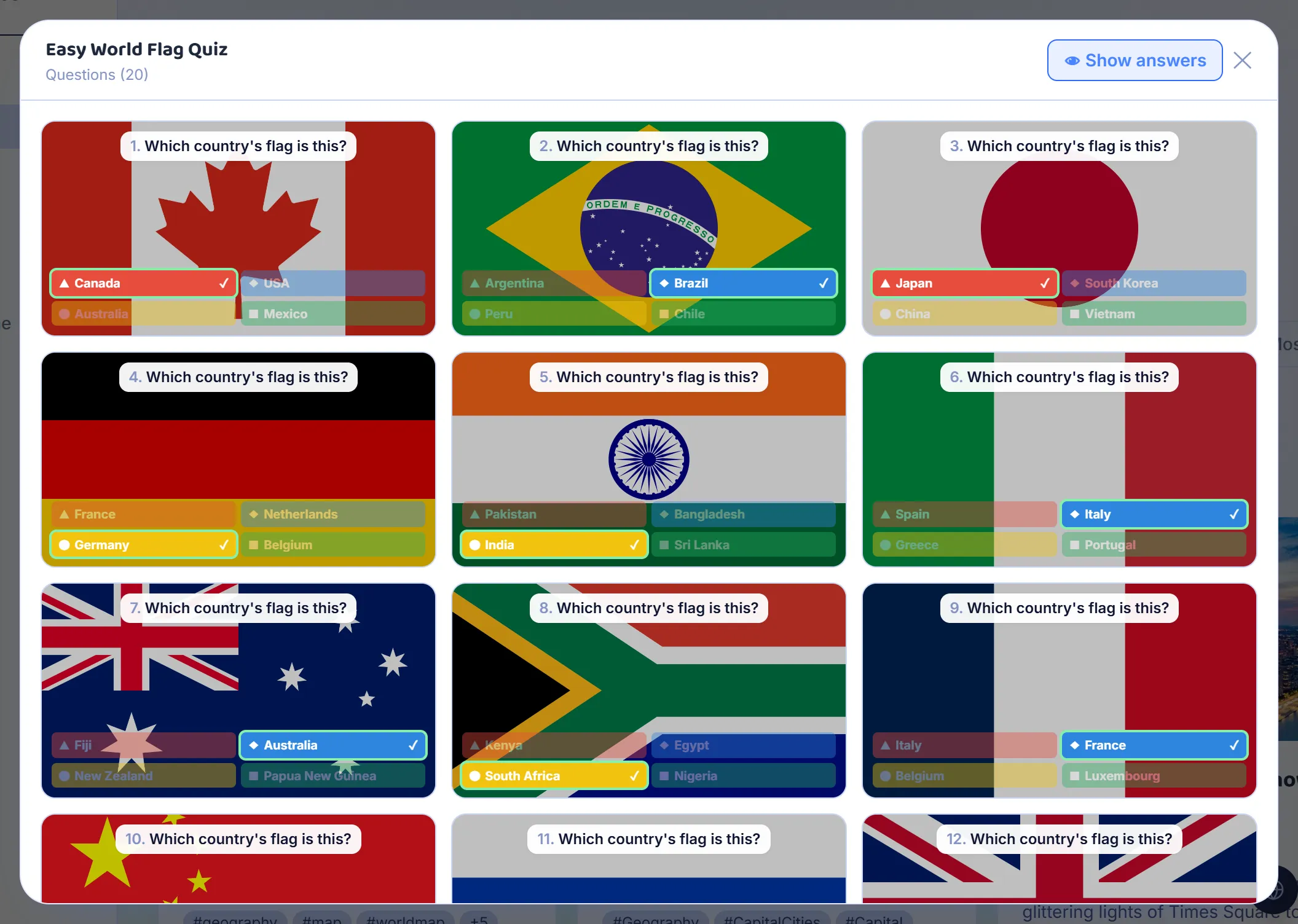
Press Preview on a card to see every question in the quiz, with its answers, without leaving the page. It is the quickest way to check that a quiz suits your class, the words it uses, how hard it is, and whether the pictures load, before a room full of players sees it for the first time.
Step 3: Host it as it is
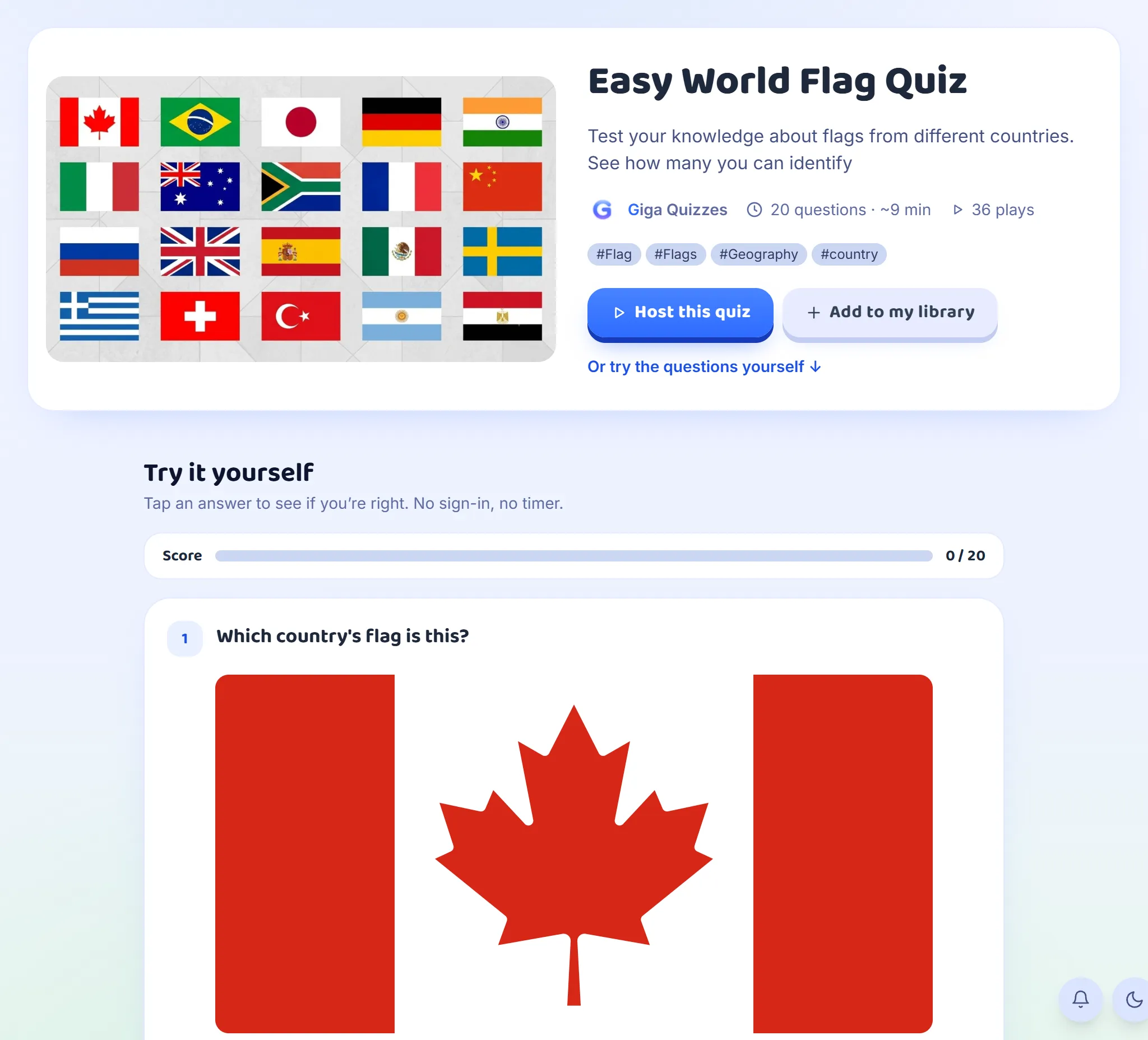
Click the name of a quiz for its own page, with its description and, under Try it yourself, its questions to answer right there: tap an answer to see if it is right, with no sign-in and no timer. Host this quiz, or Host on its card, goes to Game settings and on to a room code like any other game, without adding the quiz to your Library. Some quizzes are marked #customizable: click their number of questions to play fewer of them, a different random selection each time.
Step 4: Make it your own
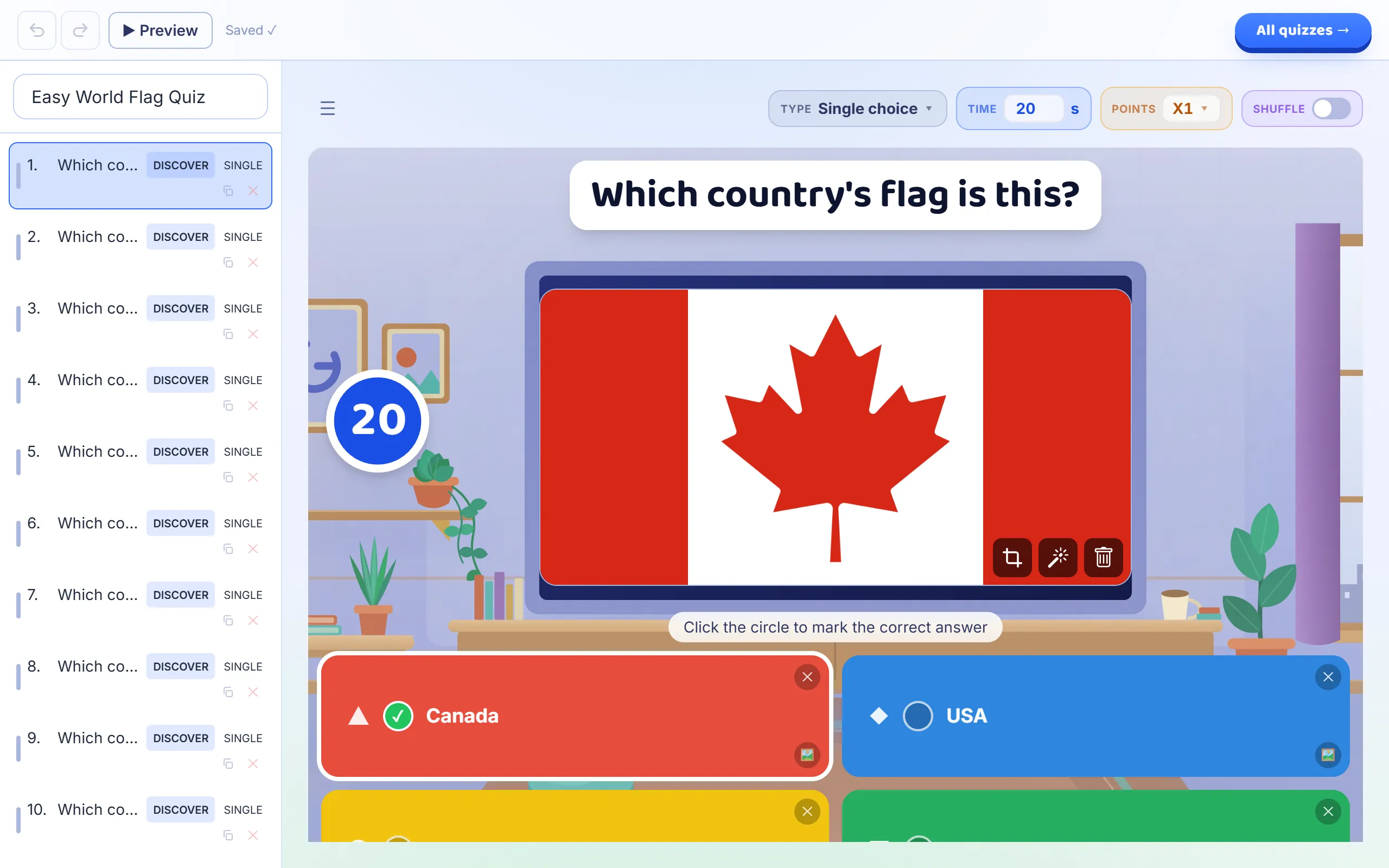
Add to my library copies the quiz into your own Library and opens the copy in the editor. From there it is yours: rewrite a question, change the time or the points, delete what does not suit your class, or add questions of your own. The quiz on Discover does not change, and nobody else sees your copy.
Step 5: Borrow a few questions
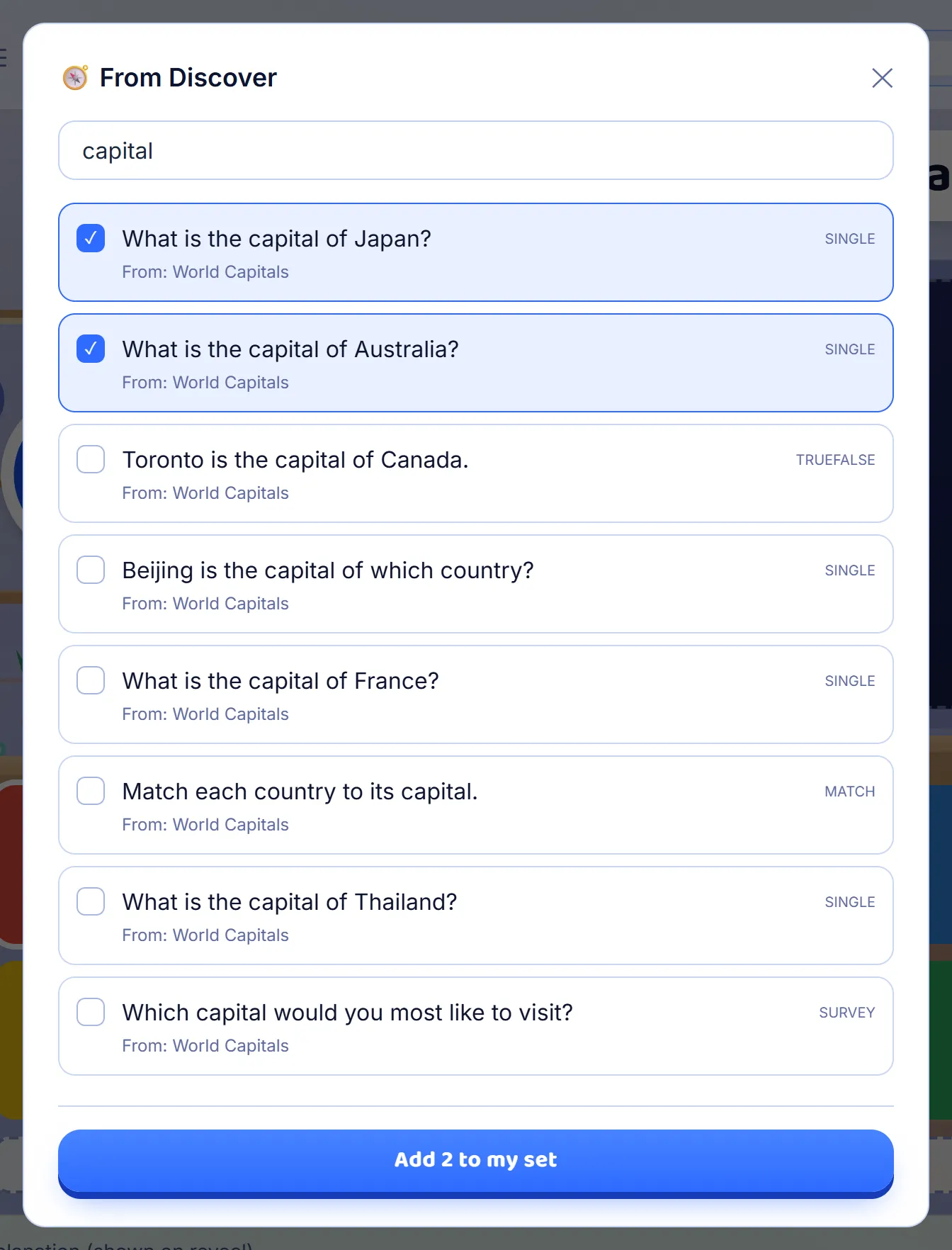
Sometimes you want three good questions, not a whole quiz. In the editor, press + Add question and choose From Discover. Search by the name of a quiz, a #hashtag or the words of a question, tick the questions you want, and press Add to my set. They are added to the end of your set, answers and pictures included, as questions you can change.
Step 6: Submit a quiz of your own
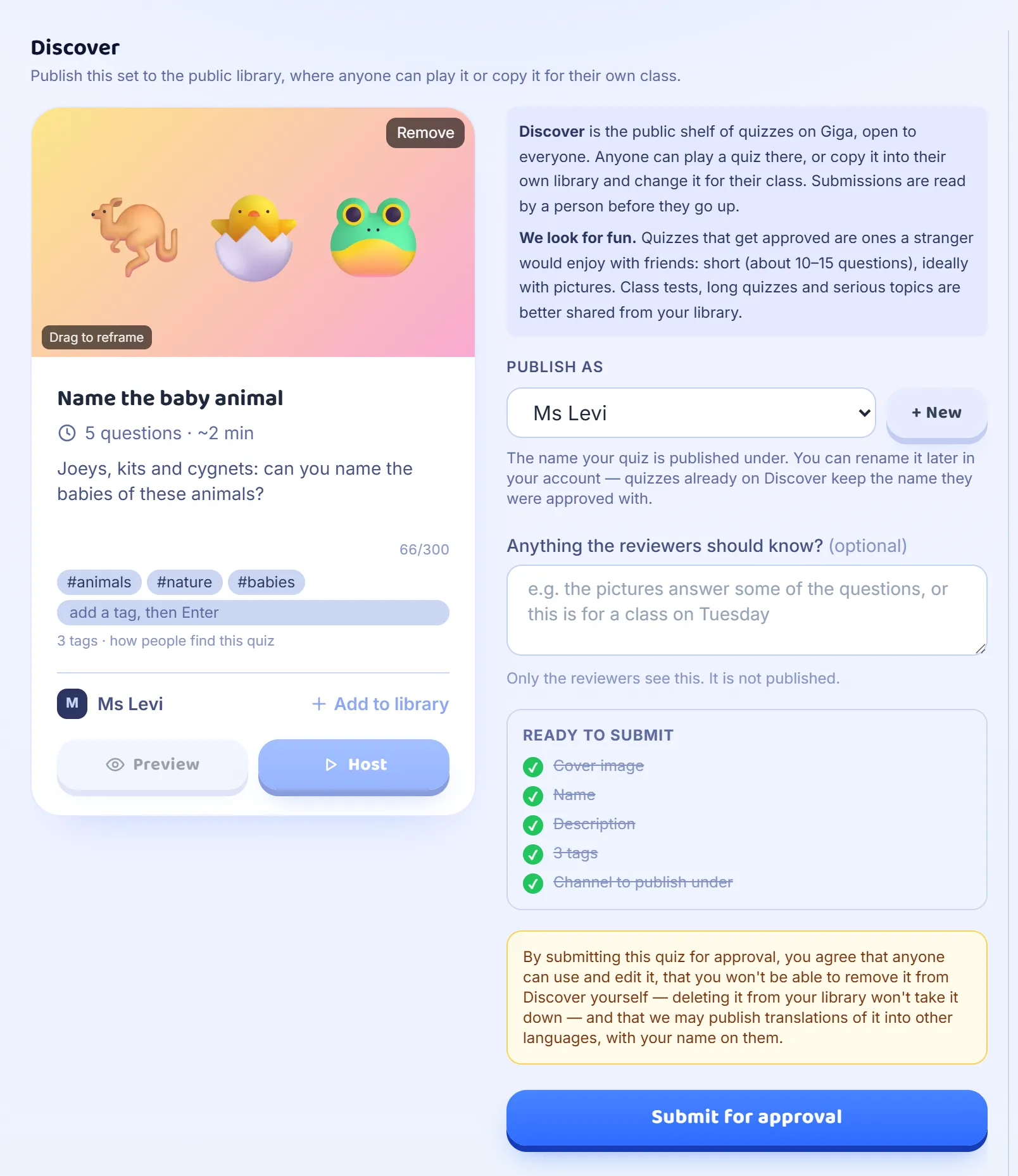
Open the set in the editor, press Set settings and choose Discover. Fill in the card as it will appear on the shelf: a cover picture, a name, a description of at least 20 characters and at least three hashtags, which is how people find it. Under Publish as, choose the channel it goes out under; the first time, type a name for one, such as your own, and press Create. Add a note for the reviewers if you like. The list underneath ticks off what is still missing. Read the terms above the button: anyone can use and edit a published quiz, and it stays on Discover even if you delete your own copy.
Step 7: A person reads it
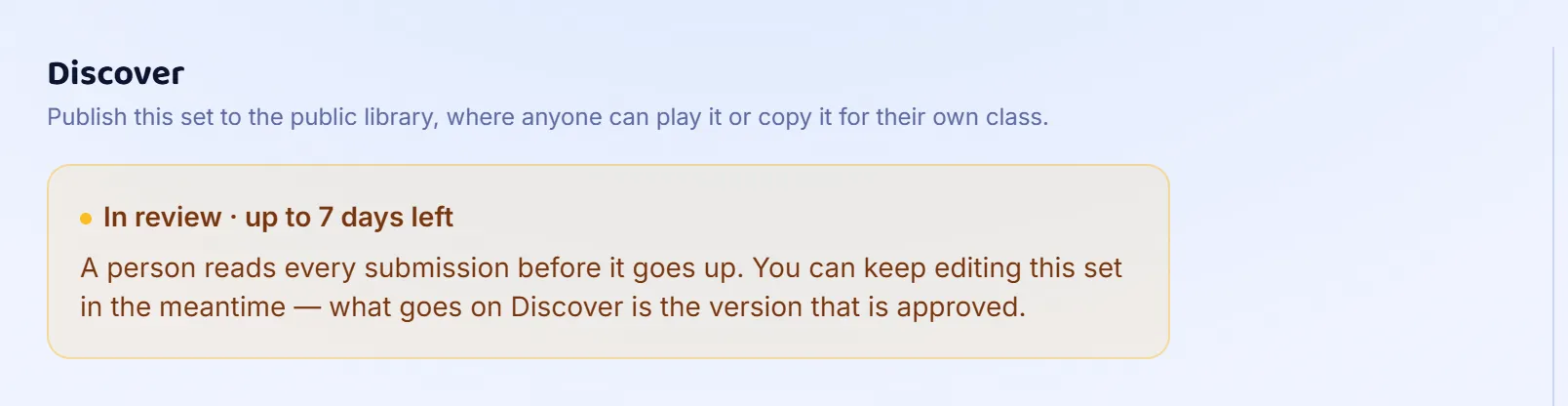
After you submit, the Discover page of the set says In review. A person reads every submission, and what goes up is the version they approve, so you can keep editing your set in the meantime. The shelf is for quizzes a stranger would enjoy with friends: short, about ten to fifteen questions, ideally with pictures. A class test is better shared from your Library. If a quiz is not approved, the reason is shown on the same page, with a button to appeal.
Good to know
- A quiz hosted straight from Discover plays exactly as it was published. To change a question first, add it to your Library.
- Copying a quiz, or submitting one, needs an account, so the quiz has somewhere to live.
- The name a quiz is published under is a channel. Set one up, rename it or change its picture in your Account, under Discover channels.