Guide
Share a quiz, or save it as a PDF
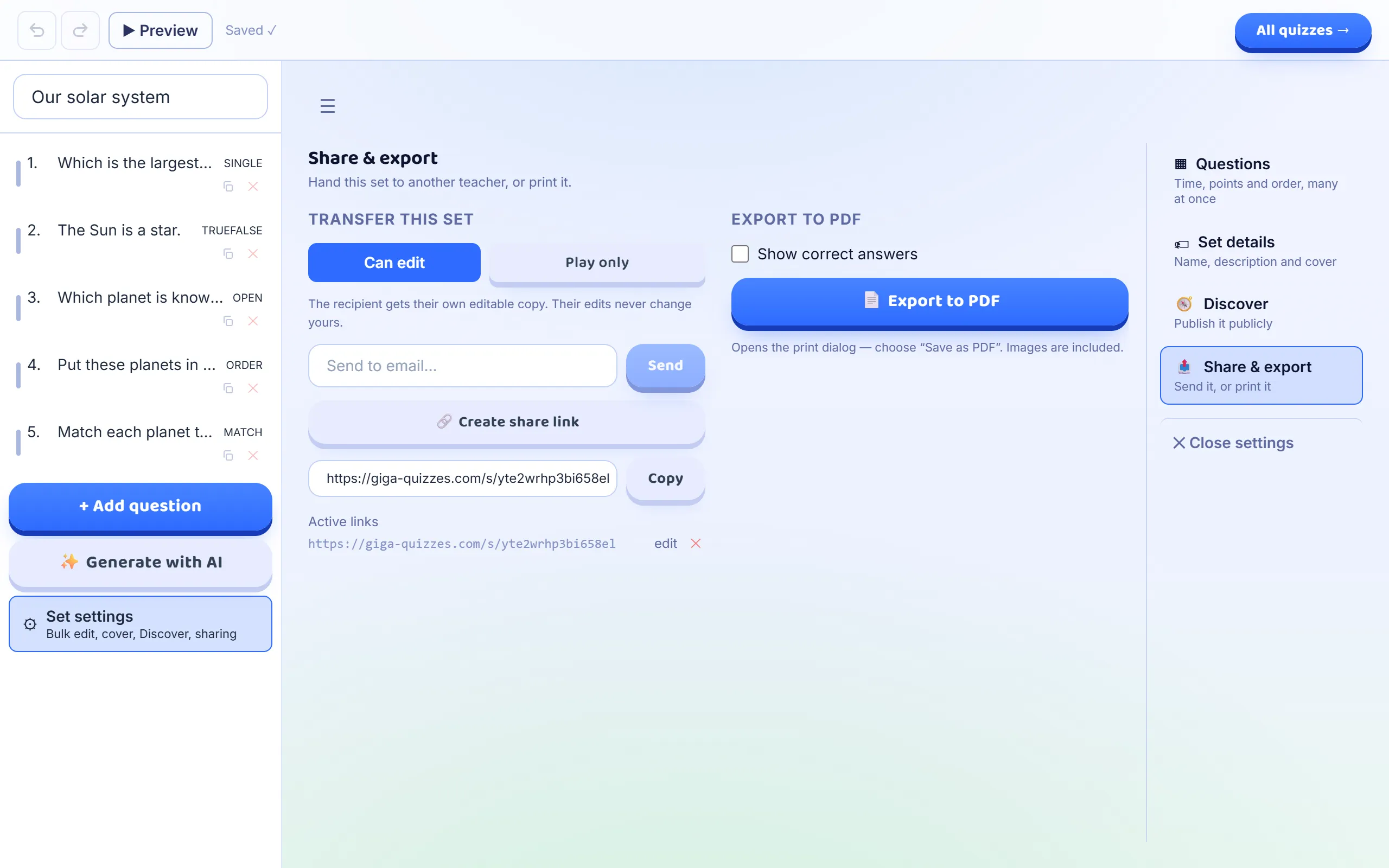
A set you have made does not have to stay in your Library alone. You can hand a copy to another teacher, by email or with a link, and choose whether they can change it or only host it. You can also print any set, as a worksheet for the class or as an answer key for yourself, and save it as a PDF from your browser. Both start from the same place, Share & export in the set’s settings, and this guide goes through each of them with pictures of the real screens.
7 steps · about 3 min · written for a computer
Step 1: Open Share & export
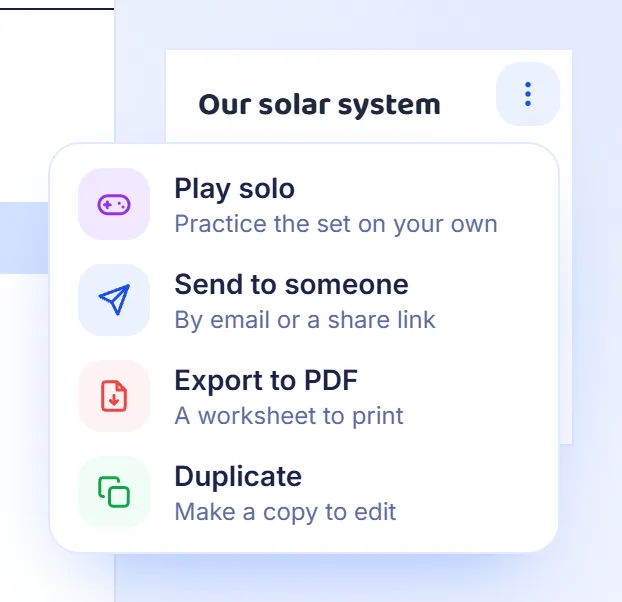
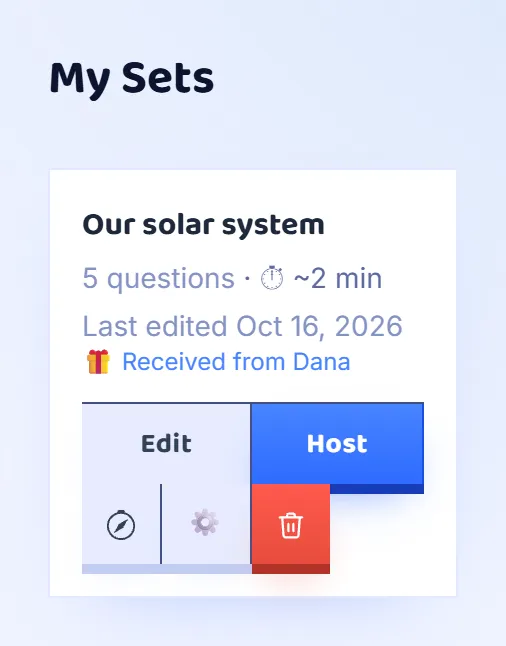
In the Library, open the menu with the three dots on a set and choose Send to someone. It takes you to the set’s settings, on the Share & export page; in the editor, the same page is under Set settings on the left. The menu also has Export to PDF, which prints the set as a worksheet straight away.
Step 2: Choose what they can do with it
Choose Can edit or Play only first. With Can edit, the other teacher gets a copy of their own: they can change it however they like, and their changes never touch yours. With Play only, they can host it and delete it, but not change it or pass it on. You need to be signed in to share, and the set needs at least one question.
Step 3: Send it to a teacher’s email
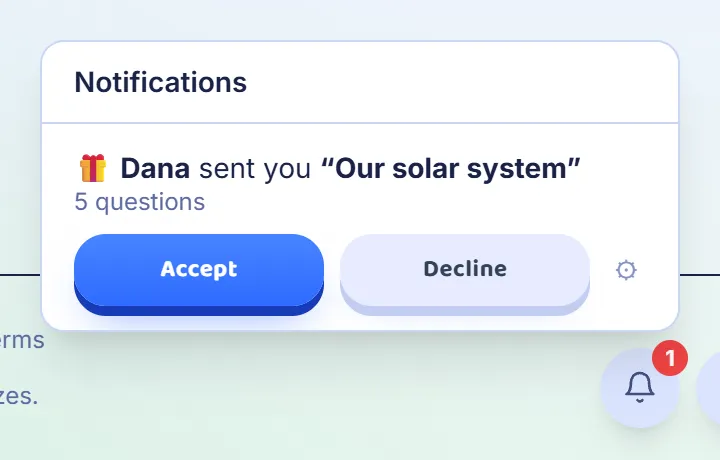
Type the other teacher’s email address and press Send. The set waits for them under the bell in the bottom corner of the screen, once they are signed in to Giga Quizzes with that address, and they can Accept it into their Library or Decline it. Anyone who would rather not be sent sets can turn that off in their account, under Allow others to send me sets.
Step 4: Or share a link
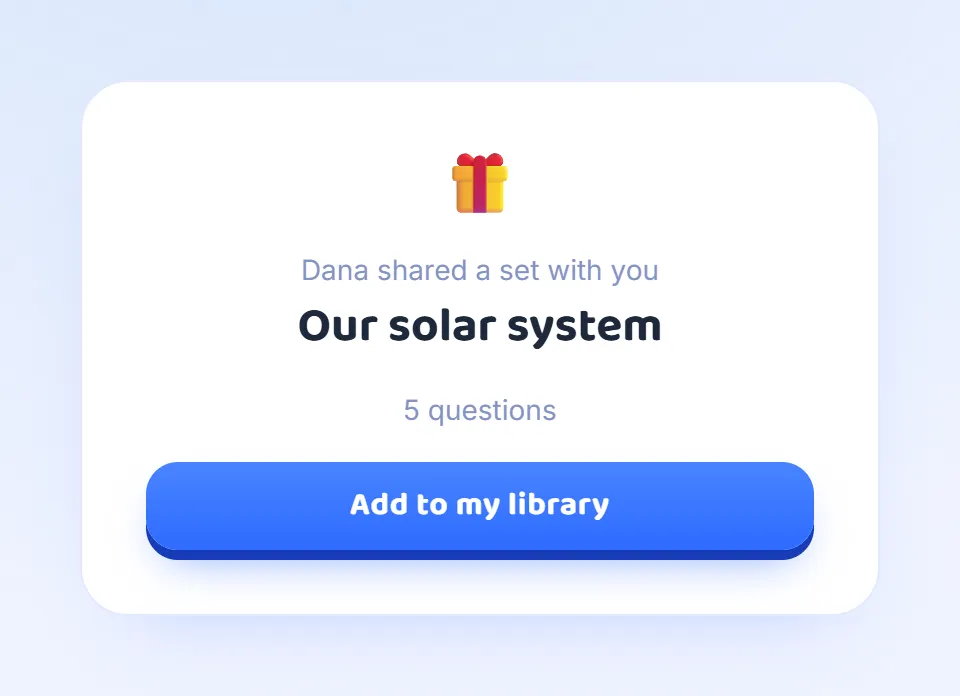
Create share link makes a link to paste anywhere: an email, a chat, a staff group. Whoever opens it sees who shared the set, its name and how many questions it has, and Add to my library puts a copy in theirs, after they sign in. One link works for any number of people. Every link you have made is listed under Active links, and the ✕ beside one switches it off.
Step 5: What the other teacher gets
The copy appears in their Library marked Received from, with your name, ready to host like any set of their own. It is a copy of the set as it was when you shared it: changes you make afterwards do not reach copies already given, and a link keeps giving the version it was made from. To pass on a newer version, create a new link.
Step 6: Print a worksheet
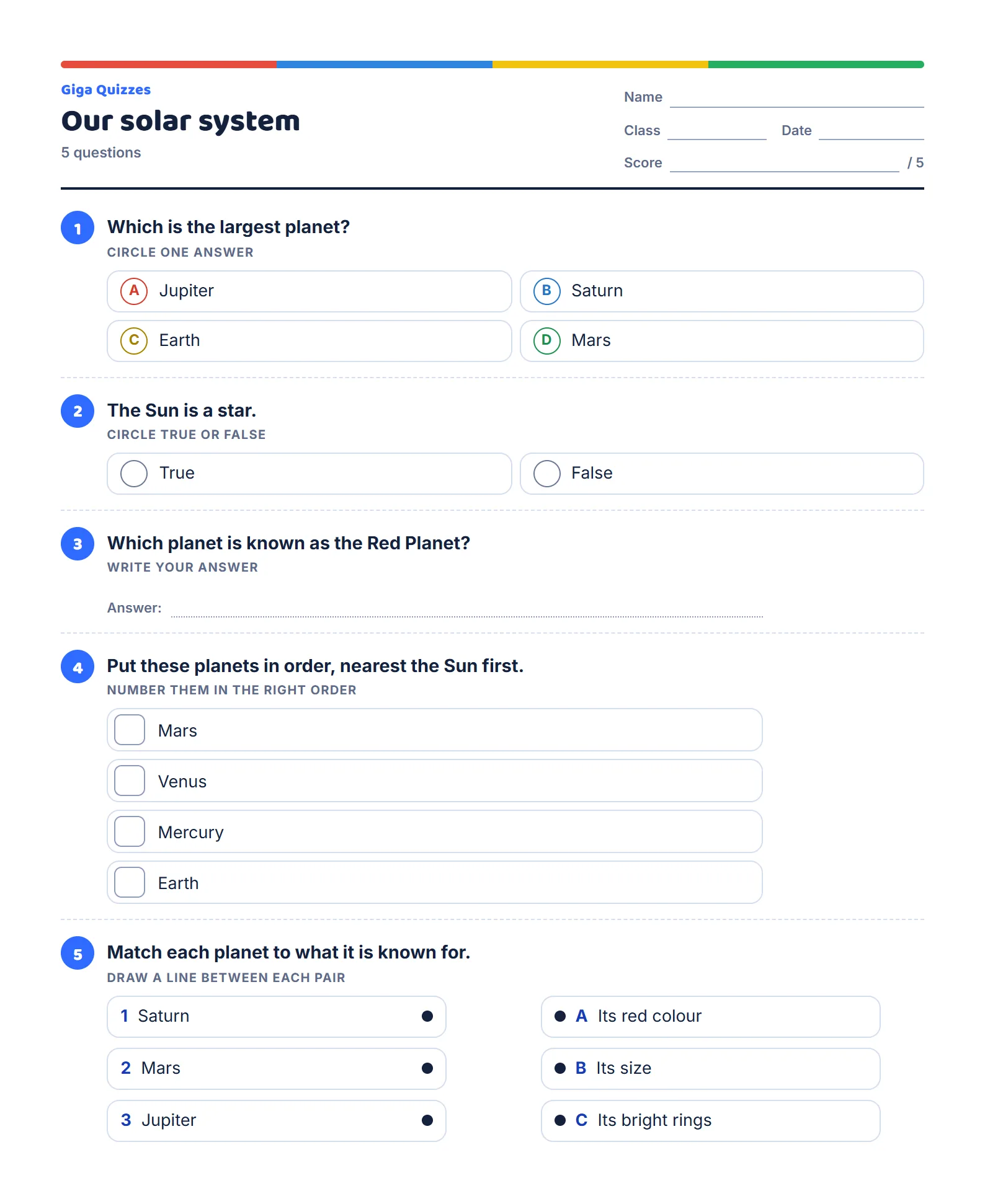
Back on Share & export, Export to PDF opens the set as a printable page and brings up the browser’s print window. Choose Save as PDF as the destination to keep a file, or pick a printer. As it is, it prints a worksheet: every question with its answers to choose from and a line to write on where the answer is typed. The items of an ordering question and the right-hand side of a matching question are printed mixed up, so the sheet does not give the answers away.
Step 7: Print the answer key
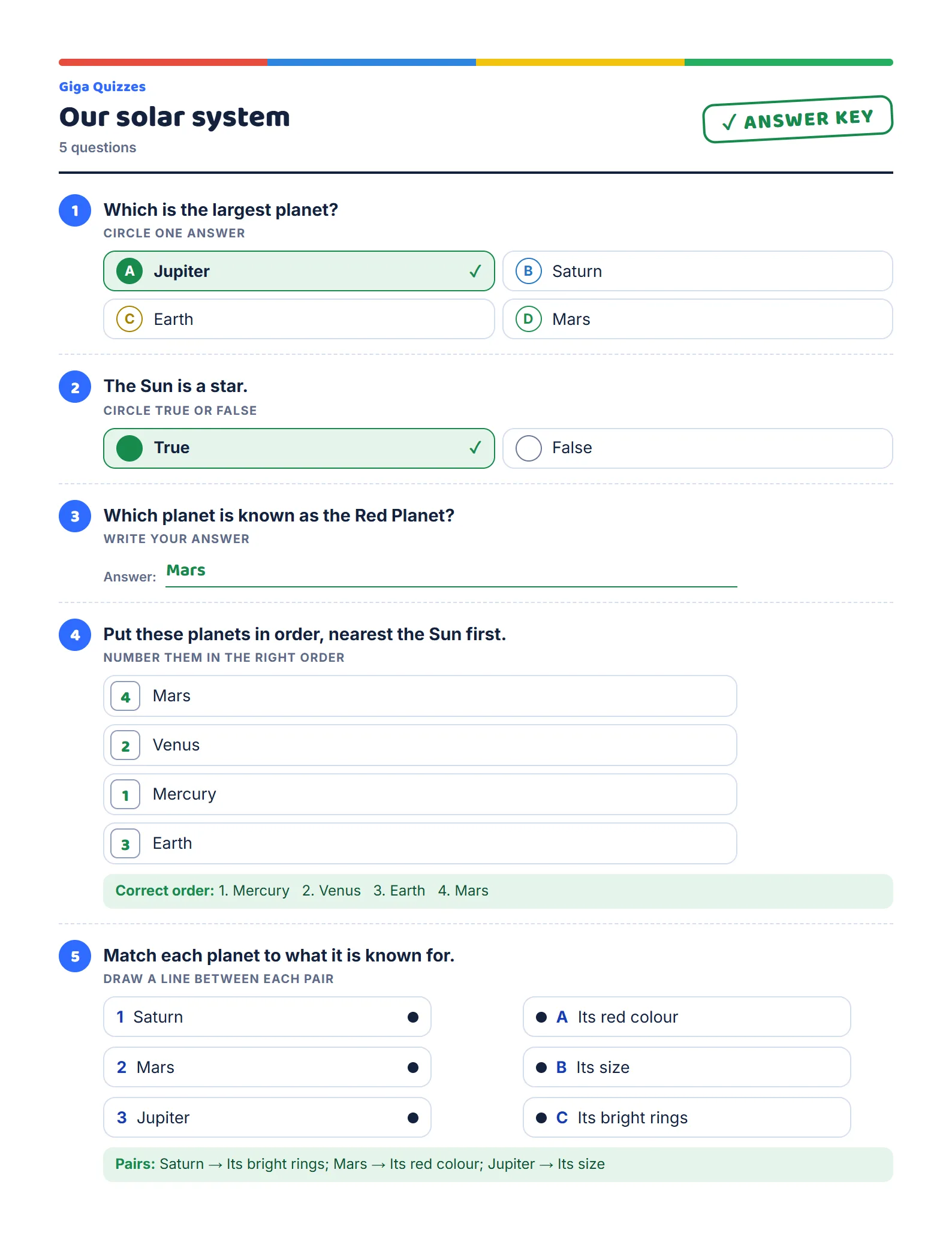
Tick Show correct answers before pressing Export to PDF and the same page prints as an answer key: the right answers are ticked and in bold, typed answers are filled in, the right order and the right pairs are written under their questions, and any explanation you added comes with them. It says Answer key at the top, so it is easy to tell apart from the worksheet, and it lists everything in the same order as the worksheet it marks.
Good to know
- Pictures in the set are printed with it, and a set written in Hebrew or another right-to-left language prints from right to left.
- A set received as Play only cannot be shared on again.
- If nothing opens when you press Export to PDF, the browser has blocked the new window: allow pop-ups for giga-quizzes.com and press it again.
- Sharing hands a copy to people you choose. To publish a set for every teacher to find, use Discover, which is on the same settings screen.