Guide
Build and host a quiz, start to finish
A walkthrough that follows you through the real screens — it waits while you work and moves on once you have done each part.
8 steps · about 4 min
Step 1: Let's make a quiz
What follows is the same path the guided tour walks, written out. Four minutes is the honest figure for a first set of a handful of questions, and there is no penalty for stopping halfway: a set exists and is saved from the moment you create it.
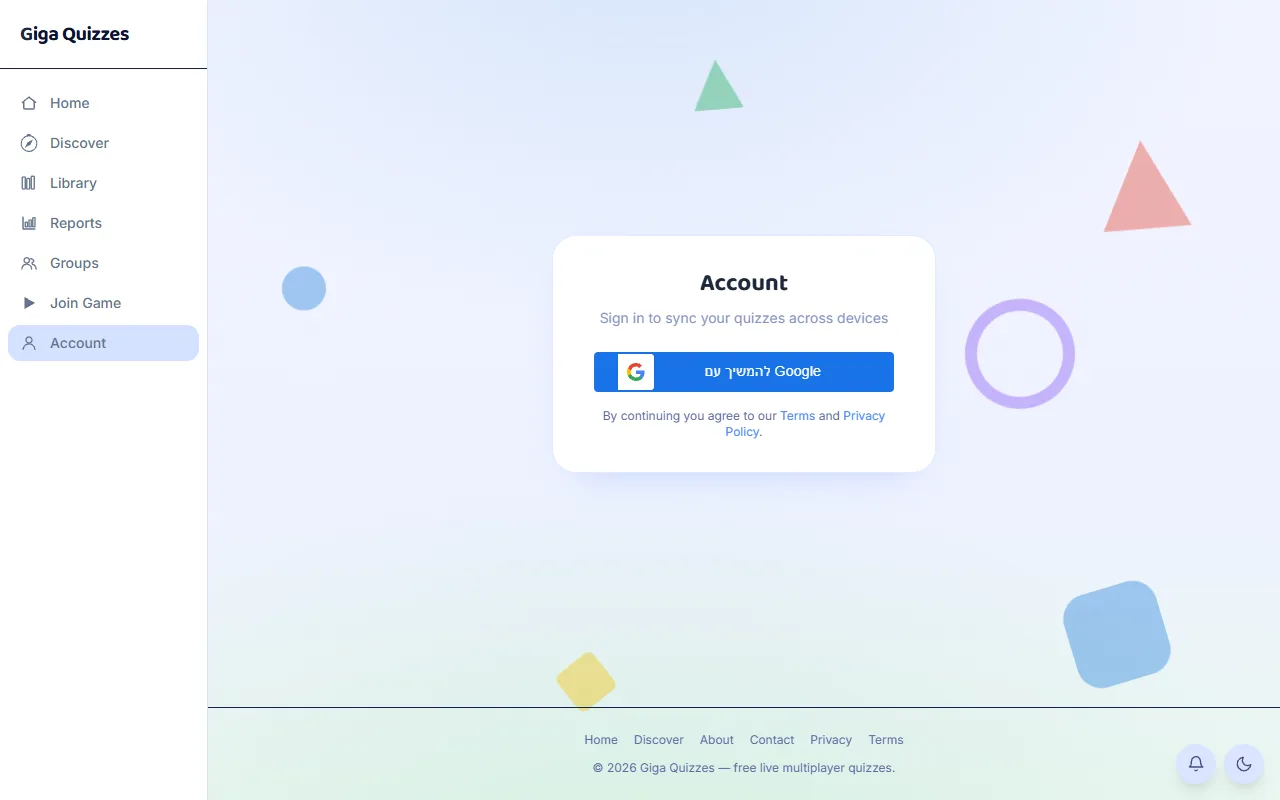
Step 2: Create your account
Sets are kept on the account rather than in the browser, so one built on a school computer opens later on your phone. Signing in with Google takes a tap and leaves you no new password to remember. This is only for whoever builds and hosts a game — players never need an account.
On a computer 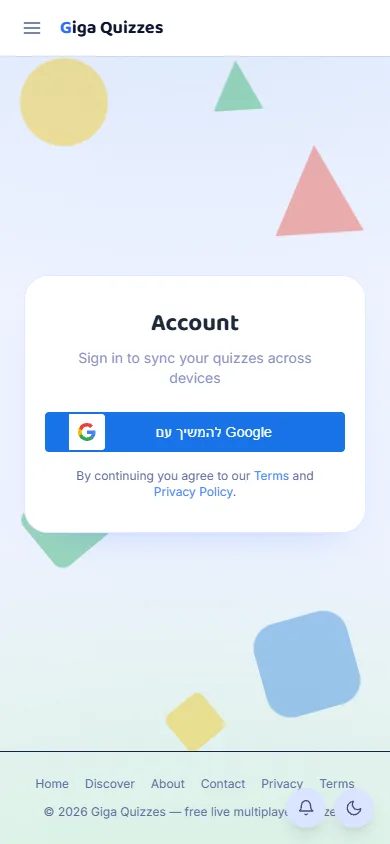
On a phone Step 3: Open your Library
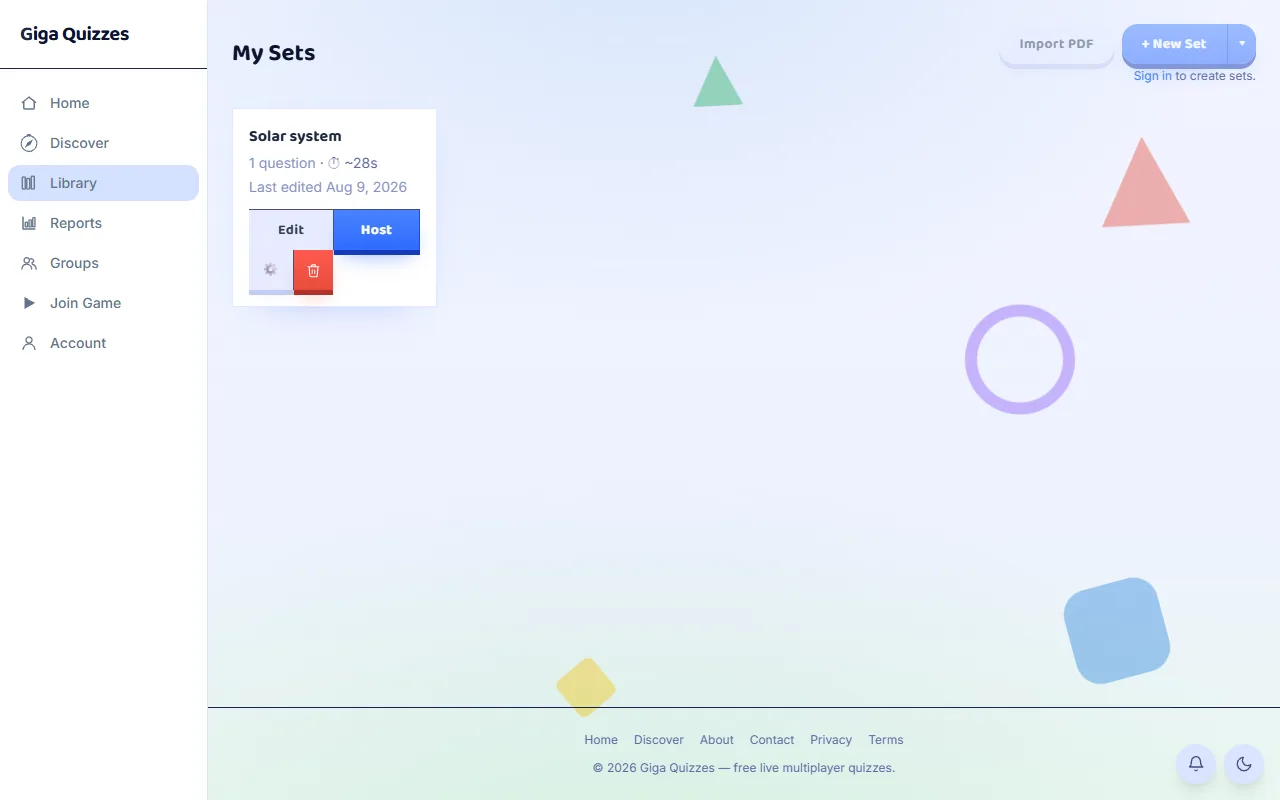
The Library is the list of your own sets, in the sidebar under Discover. A set is not shown to other users until you host it or share it, so an unfinished one stays out of sight.
On a computer 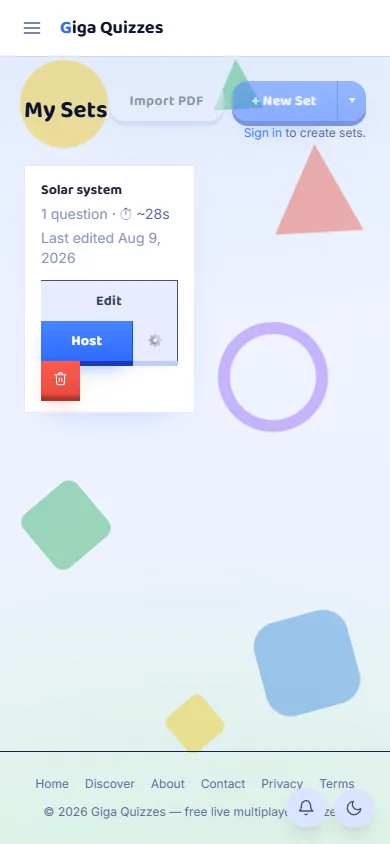
On a phone Step 4: Start a new set
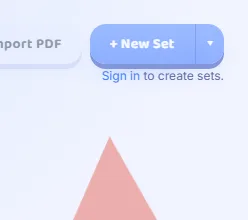
New Set opens an empty one: a title, a text direction, and a list of questions. Typing them out is not the only way in — the editor can draft questions from a topic with AI, or import them from a PDF exported out of Blooket, Hebrew and right-to-left included.
On a computer 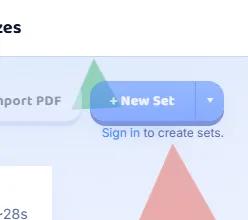
On a phone Step 5: Add your first question
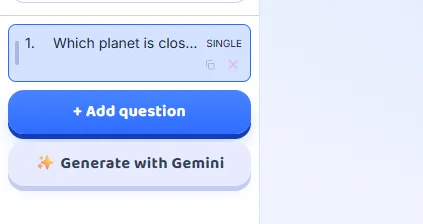
Add question, on the left, is where the type is chosen. Eleven ship: multiple choice, multiple answers, true or false, type the answer, a number, fill in the blank, put in order, matching pairs, a hotspot on an image, a poll, and a number line. There is also an information slide, shown to players without being scored. One set can mix all of them.
On a computer 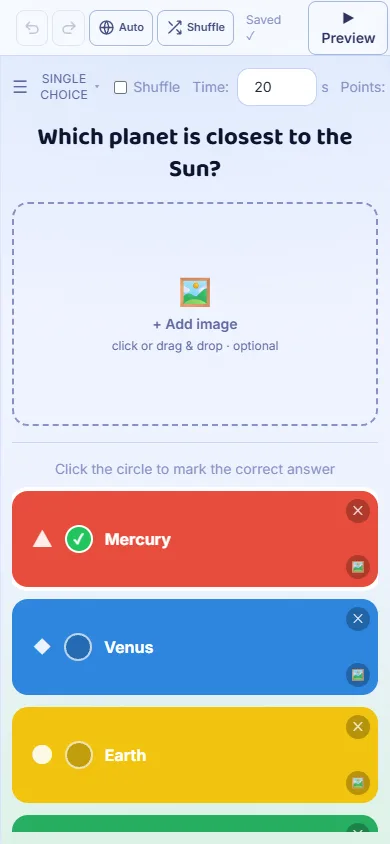
On a phone Step 6: Write it out
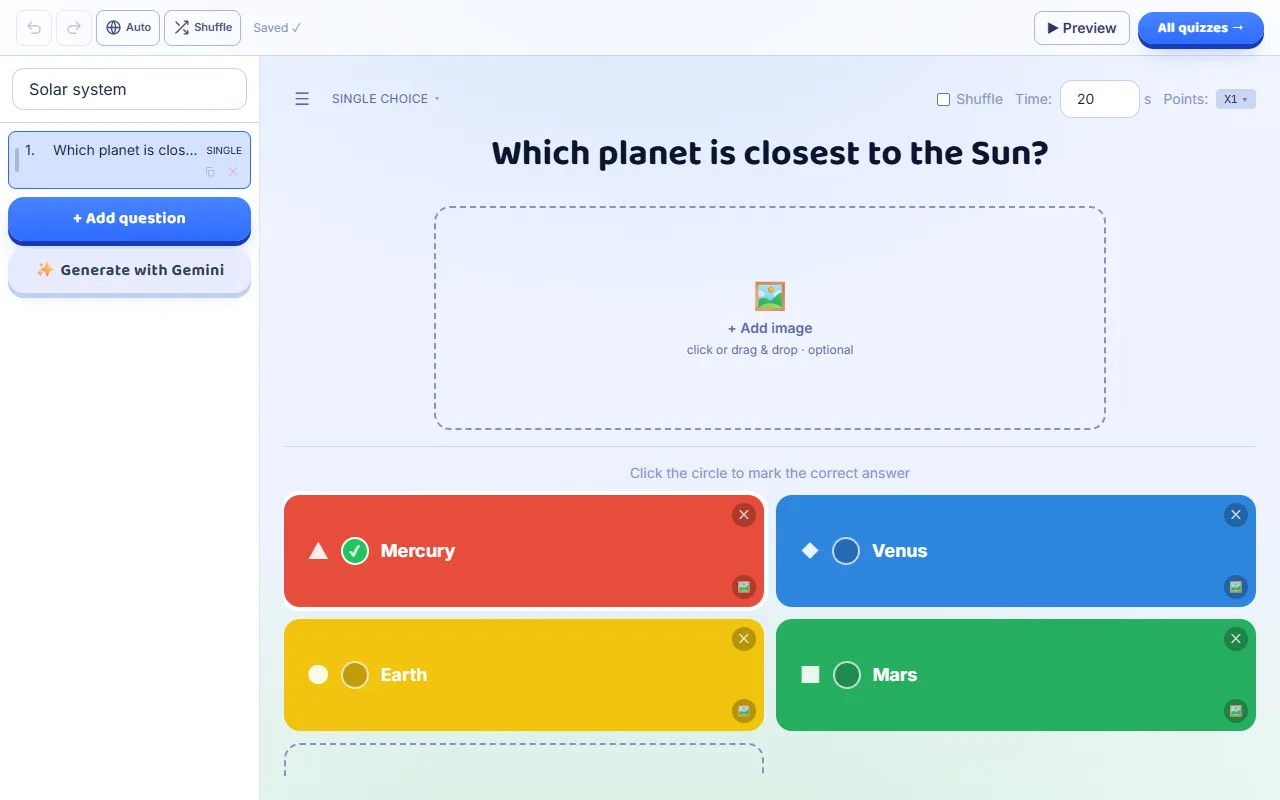
The question goes at the top and the coloured tiles hold the answers; tick the one that is right, or several of them where the type allows it. The time limit and the points sit above the tiles and belong to that question alone, so a hard one can be worth more and given longer. A tile can carry an image instead of text.
On a computer 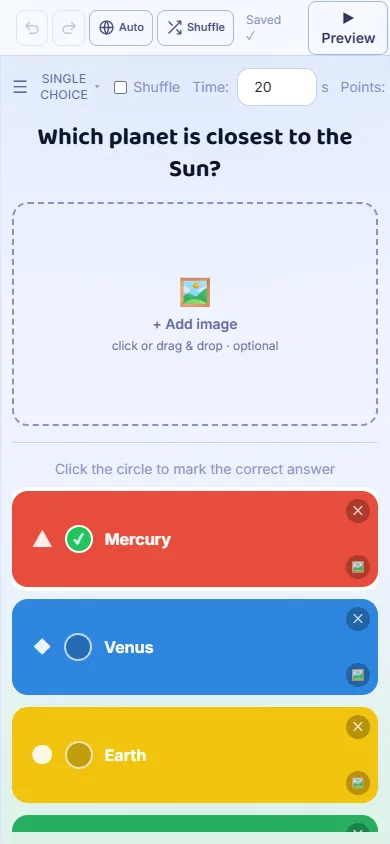
On a phone Step 7: It saves itself
There is no save button because every change is written as you make it. Nothing is lost if the tab closes or the battery goes: reopen the set from the Library and it is where you left it.
Step 8: Host it live
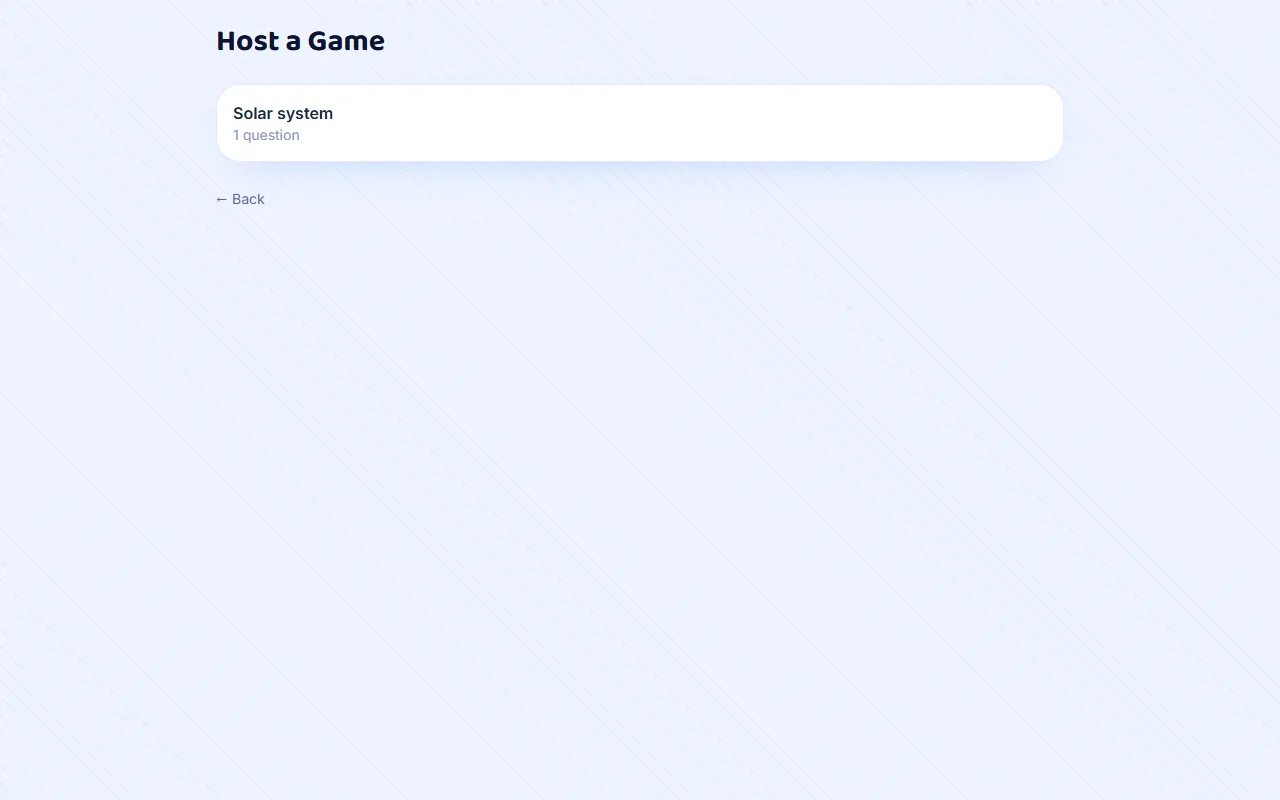
Host opens a lobby with a room code and a QR code on screen. Players open the join page on their own phones, type the code and pick a nickname; there is no app to install and no account to make. From there the game runs device to device between you and them.
On a computer 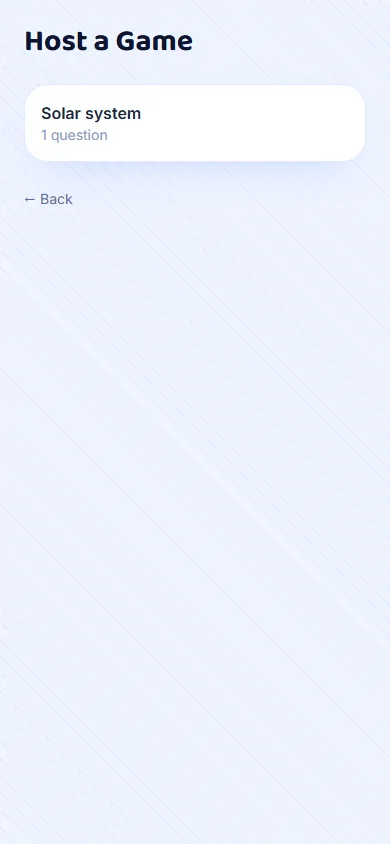
On a phone