Guide
Host a live quiz game
A live game is a quiz everyone plays at the same moment. The questions go up on a big screen, and players answer from their own phones, tablets or laptops. You need a computer connected to a screen or projector, and a set with at least one question in it; players need nothing but a browser and the room code. This guide walks through one whole game, with a picture of every screen you will see, and it works the same way for a class of twenty or a hall of five hundred.
7 steps · about 3 min · written for a computer
Step 1: Pick a set and press Host
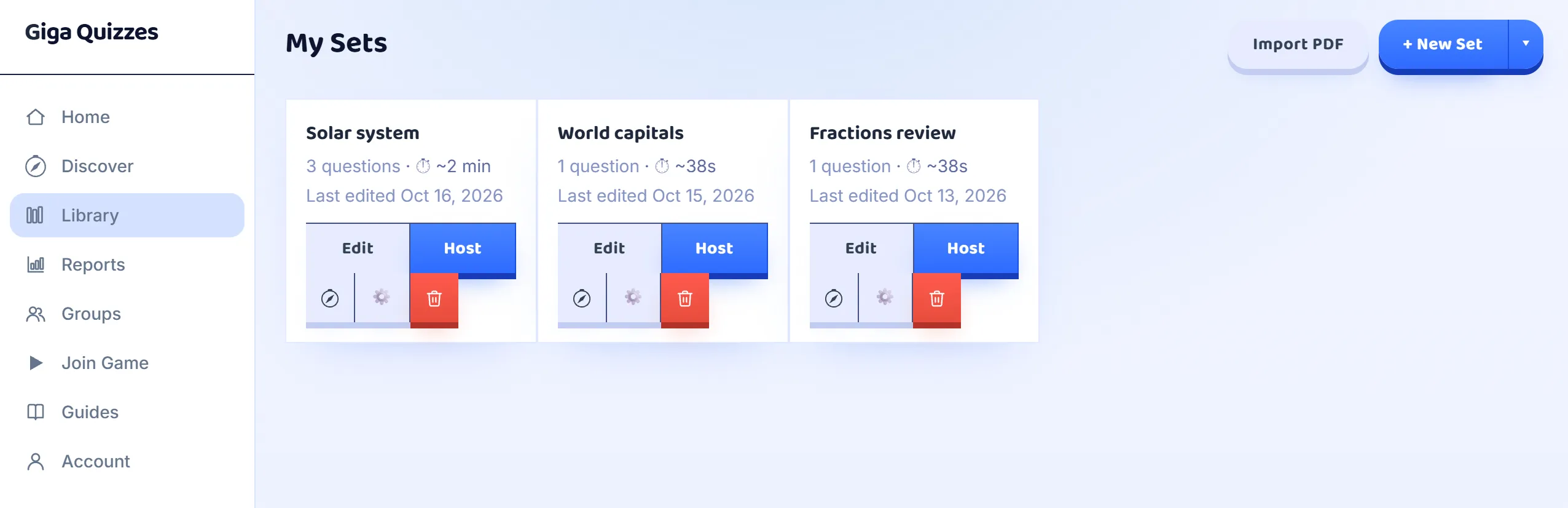
Open the Library from the sidebar. Every set you have made or imported is a card there, and each card has a Host button: press it on the set you want to play. Hosting does not change the set, so the same one can be played again with another class tomorrow. A ready-made quiz from Discover can be hosted the same way, with Host this quiz on its page, and it plays without being copied into your Library.
Step 2: Choose the mode and the settings
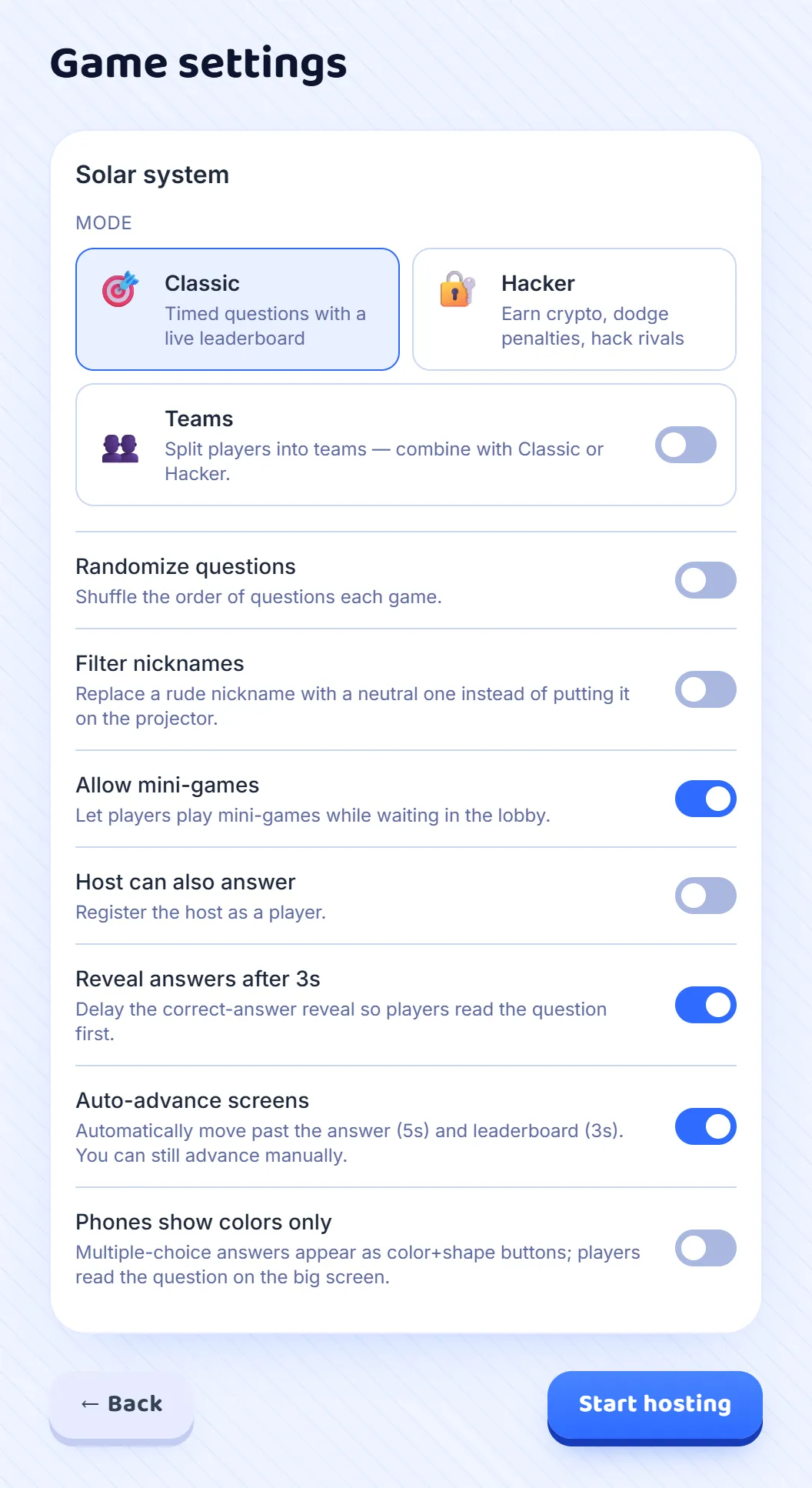
Game settings comes next. Classic is the familiar format: a timer on every question and a leaderboard between them. Hacker is a different game on the same questions, where players earn crypto, dodge penalties and hack their rivals; the Hacker mode guide follows one such game from start to finish. Pirate Plunder is played the same way, at each player’s own pace, but right answers open treasure chests of coins, plunders and mutinies, and the Kraken; it has a guide of its own too. Teams splits the room into two to six teams and works with Classic and Hacker. Below them are the options for this game: shuffle the order of the questions, replace a rude nickname with a neutral one, and let players play mini-games while they wait. Classic adds a few more: play along yourself, show the answers three seconds after each question so everyone reads it first, move on by itself after the answer and the leaderboard, and show only the coloured shapes on the players’ screens, so the question is read from the big screen.
Step 3: Put the room code on the big screen
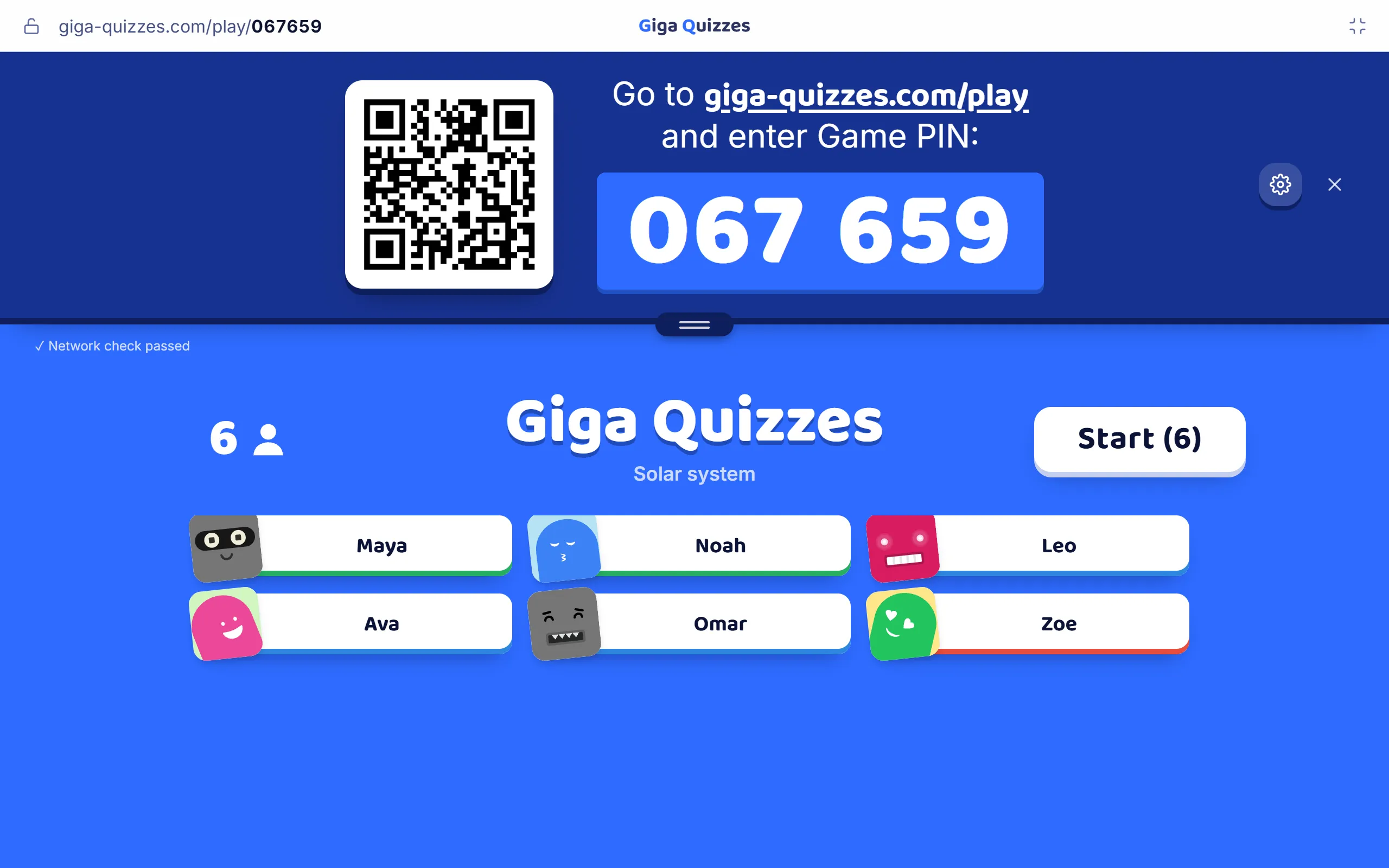
Press Start hosting and the lobby opens in full screen, with a banner across the top: a QR code, the address giga-quizzes.com/play and a six-digit room code. Players type the code there, or point a phone camera at the QR code. Drag the handle under the banner to make the code and the QR code bigger for the back of the room, or click the QR code to show it across the whole screen. Click the code to copy a join link you can paste into a chat or a video call instead. Each player appears under the banner with a nickname and an avatar as they arrive, and the Start button counts them.
Step 4: Start, and play the questions
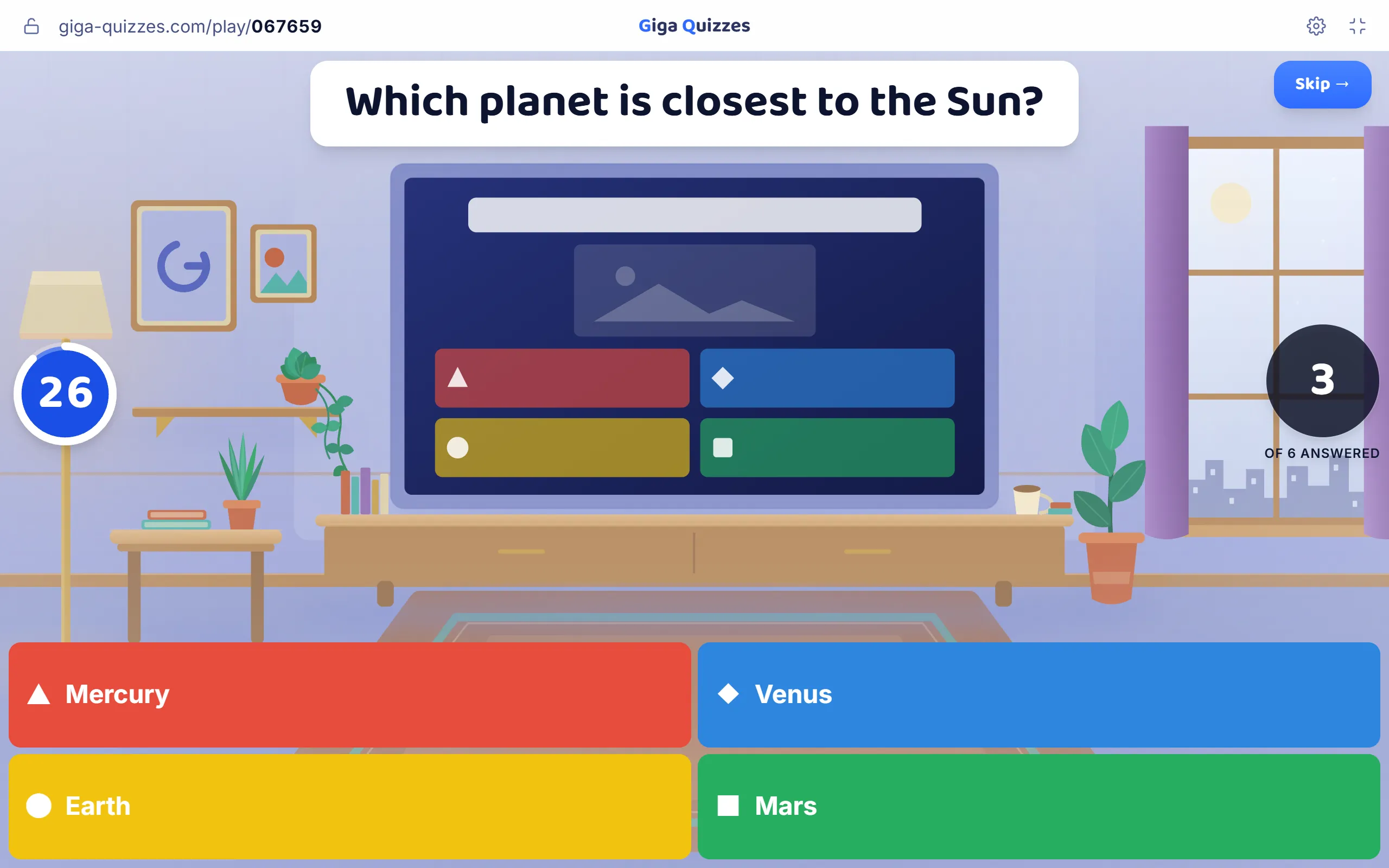
Press Start once the count matches the room. Each question fills the screen with its answers in four colours and shapes, a countdown on the left and, on the right, how many players have answered so far. Players pick the matching colour on their own screens. The question closes when the time runs out or as soon as everyone has answered; Skip closes it early. Someone who arrives late can still join a game that has started, unless you have locked it.
Step 5: Reveal the answer
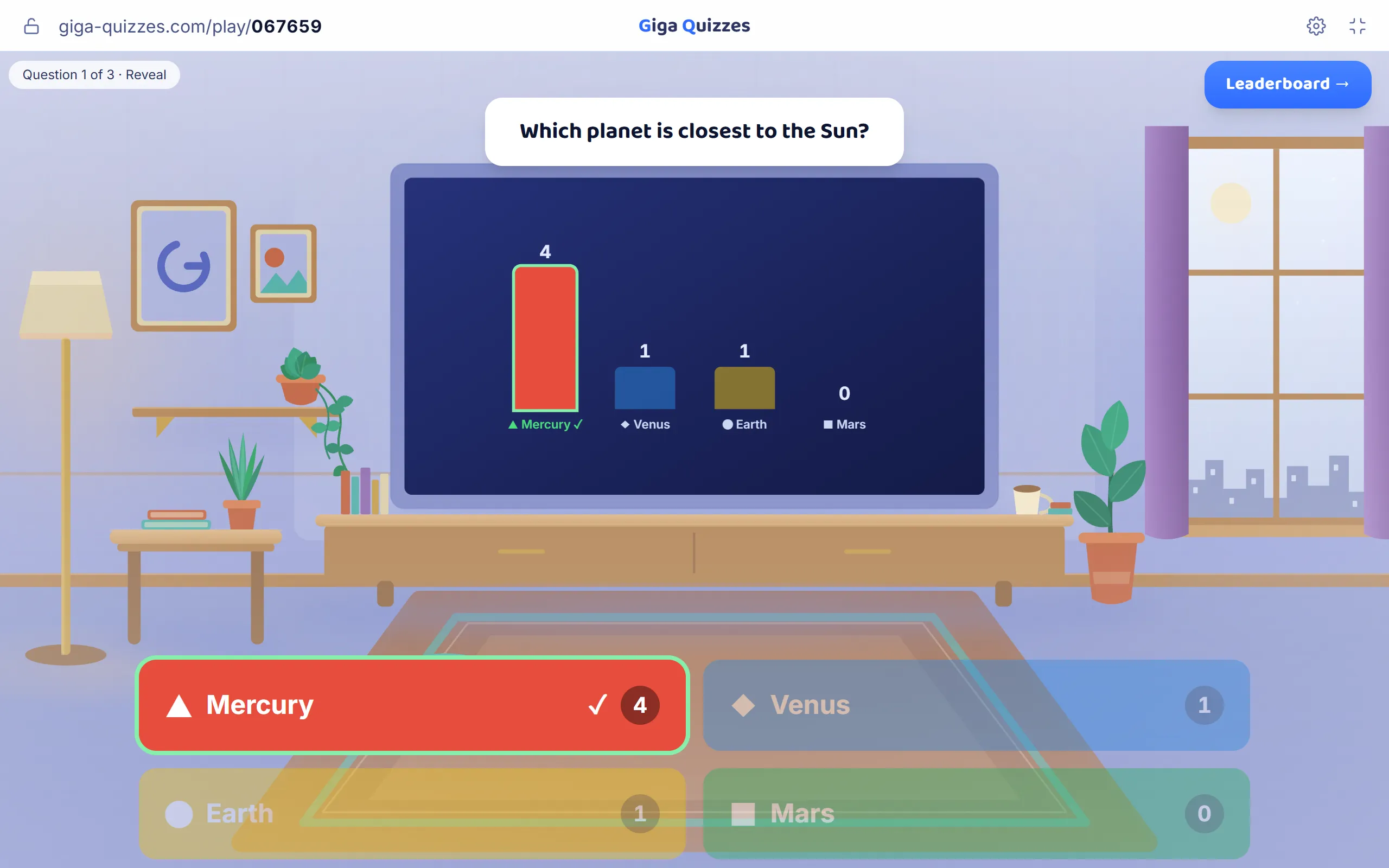
When the question closes, the right answer is marked and a chart shows how many players chose each answer, which tells you at a glance whether the room understood it. At the same moment every player sees on their own screen whether they were right and what they earned. A right answer is worth half of the question’s points, and answering quickly earns up to the other half. Press Leaderboard to go on.
Step 6: Show the leaderboard
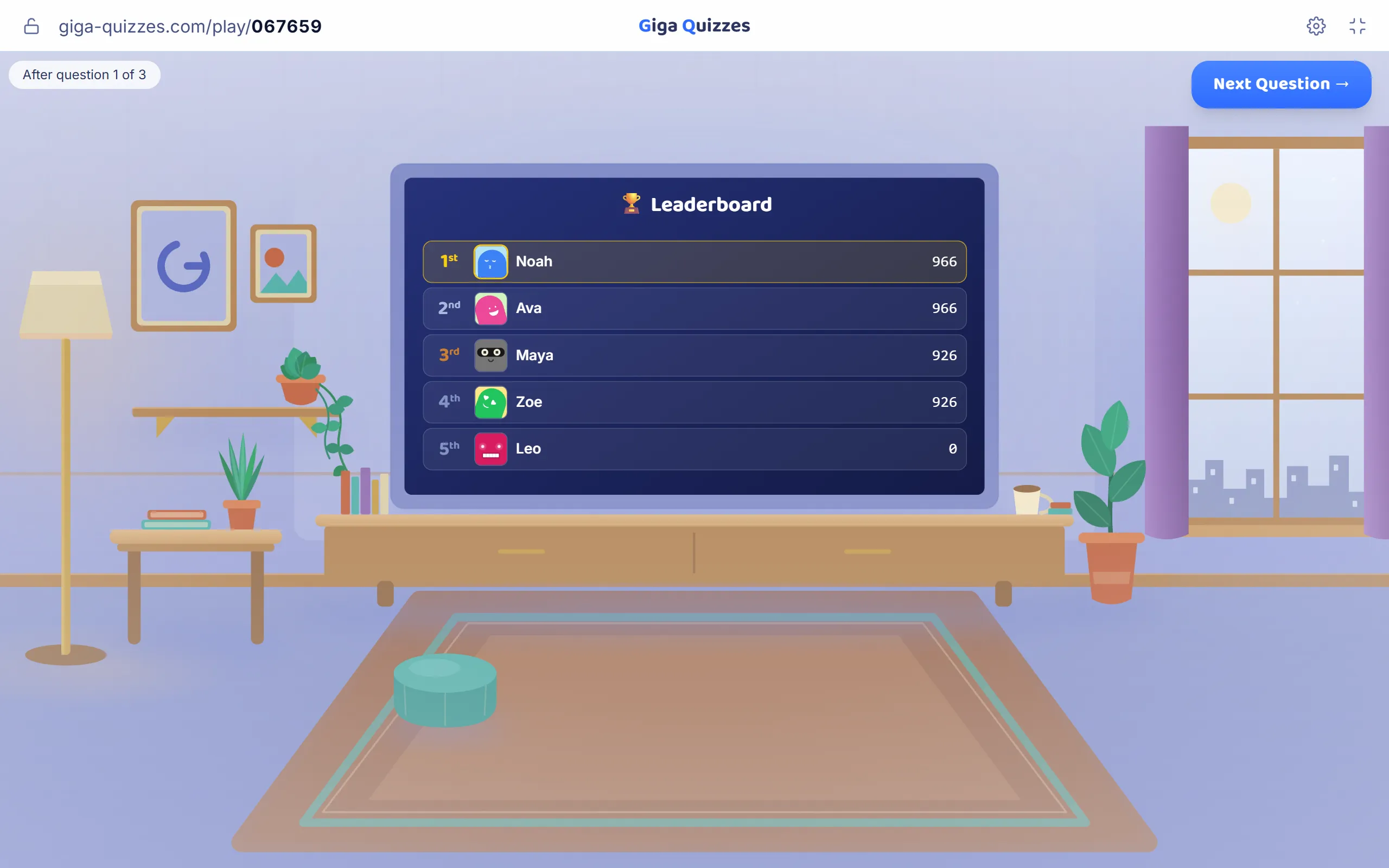
The leaderboard shows the top five after every question. A poll scores nothing, so its results go straight on to the next question. Press Next Question to carry on, or press the space bar, which moves the game on from any of these screens. With auto-advance on, the answer stays up for five seconds and the leaderboard for three before the game moves on by itself, and a lock button beside the advance button holds it there while you talk a question through.
Step 7: Finish on the podium
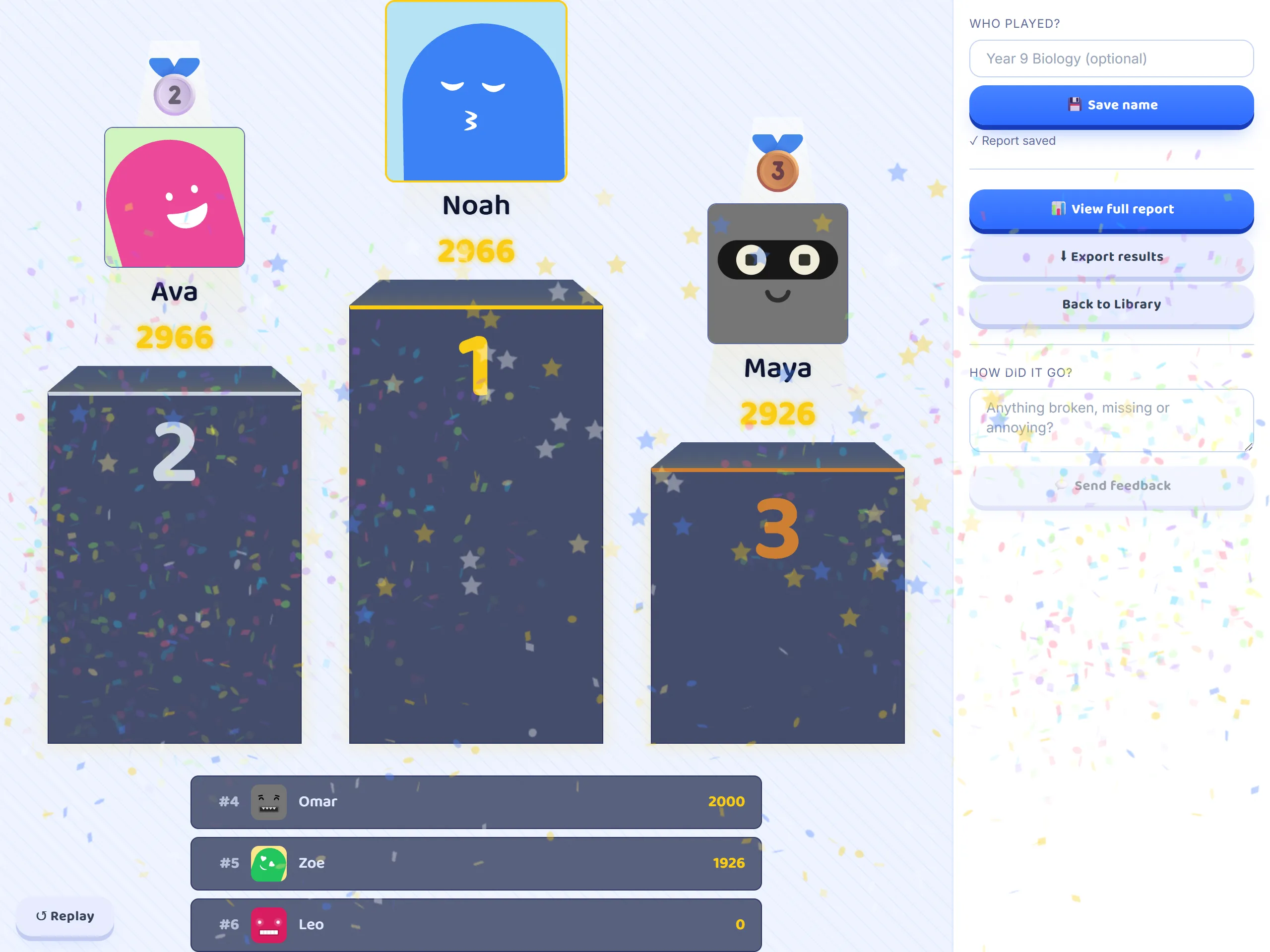
After the last question, Finish Game brings up the podium: third place, then second, then the winner, with the next five listed underneath. The report of the game is saved to your account as it is played. In the panel beside the podium, give it a name under Who played? so it is easy to find later, open View full report to go through every player’s answers question by question, or press Export results to download a folder of pictures: the full results, a breakdown of every question and a result card for each player. Every report stays under Reports in the sidebar.
Good to know
- Up to 500 players can join one game.
- Players never need an account or an app. The join guide shows every screen from their side, which is useful to show a class before its first game.
- The padlock at the left of the top bar locks the game, so nobody new can join. During the game, the gear at the other end of the bar opens the settings and the list of players, where you can remove a player.
- If the tab running the game is closed by accident, the room is held for five minutes with every player and every score still in it. Open Giga Quizzes again on the same computer and a banner offers to take you back to the game.
- Two players with the same nickname are told apart with a number, for example Maya (2).