Guide
Join a live game as a player
Joining a Giga Quizzes game takes a room code and a nickname, and nothing else: there is no account to create and no app to install, on a phone, a tablet, a Chromebook or a laptop. This guide follows one player from the join page to the final results, so you can see every screen a player sees. It is written for players, and for teachers who want to show a class what to expect before its first game. The pictures were taken on a computer; on a phone the same screens are simply narrower.
7 steps · about 2 min
Step 1: Go to giga-quizzes.com/play
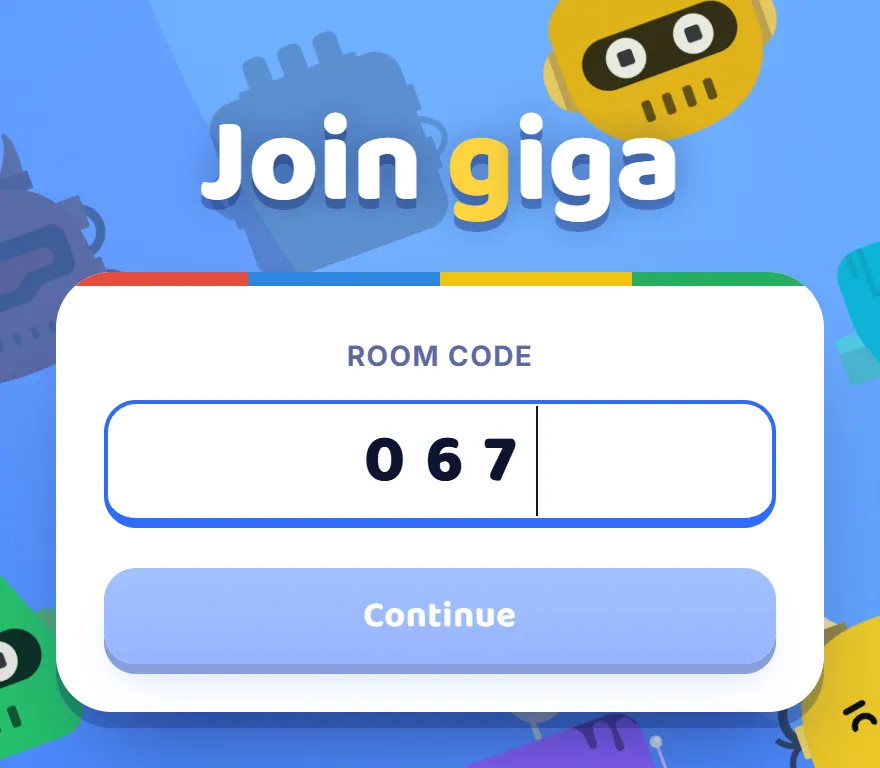
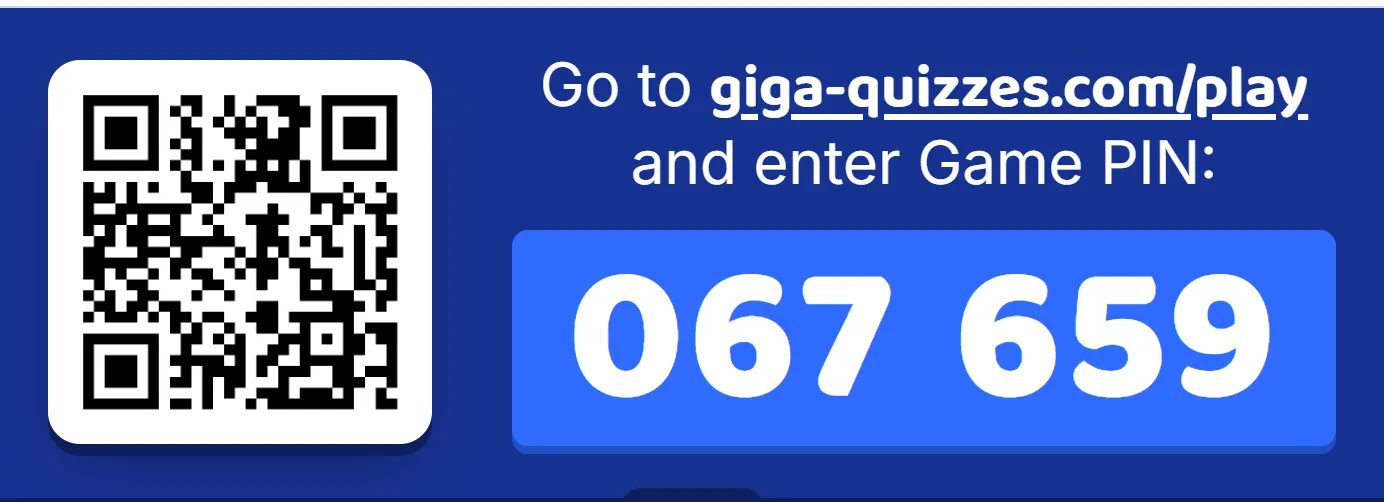
Open giga-quizzes.com/play in any browser; giga-quizzes.com on its own opens the same page. It asks for the room code, the six digits on the host’s screen. Type them in and the page checks the room by itself as soon as the last digit is in, so there is nothing else to press. A wrong digit can be deleted and typed again, and a code copied from a message can be pasted in whole.
Step 2: Or scan the QR code
On a phone it is quicker to skip the typing. Point the camera at the QR code on the host’s screen and open the link it offers: the join page opens with the room code already filled in. A host can also send a join link in a chat, an email or a video call, and opening it does the same thing.
Step 3: Pick a nickname
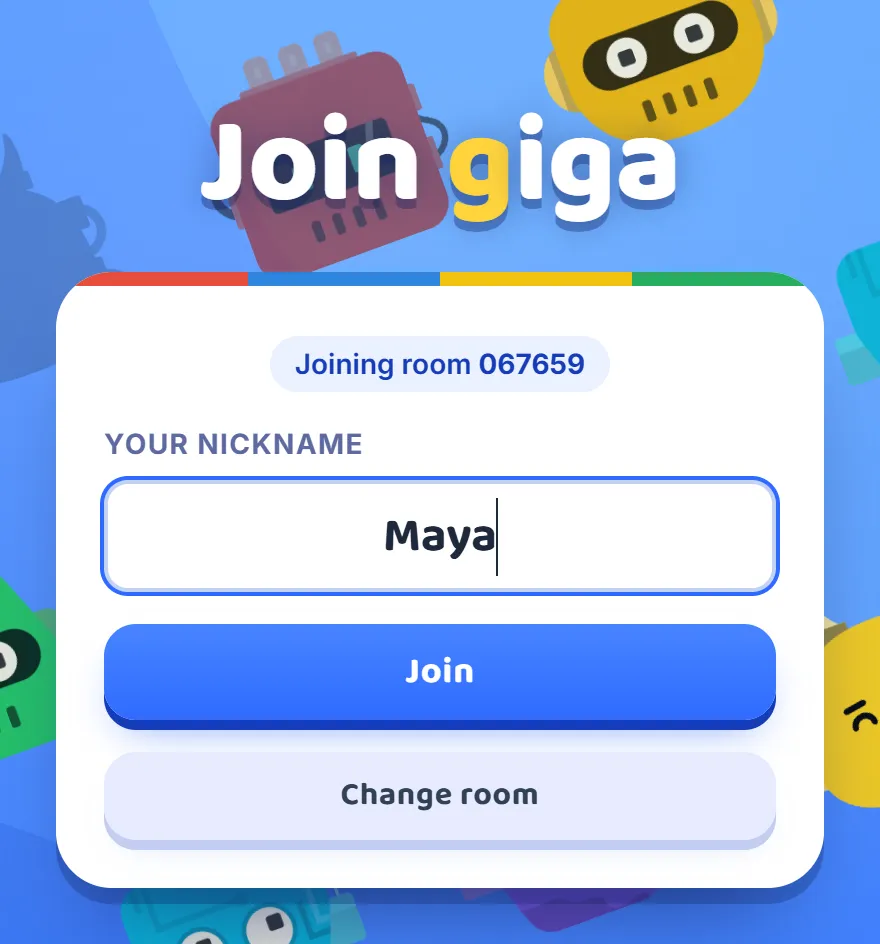
Next comes the nickname everyone in the room will see, up to 24 characters. Press Join. If someone in the room already has the same name, a number is added to the new one so the two can be told apart. The nickname and the avatar are remembered on that device, so the next game starts with them already filled in.
Step 4: Wait in the lobby
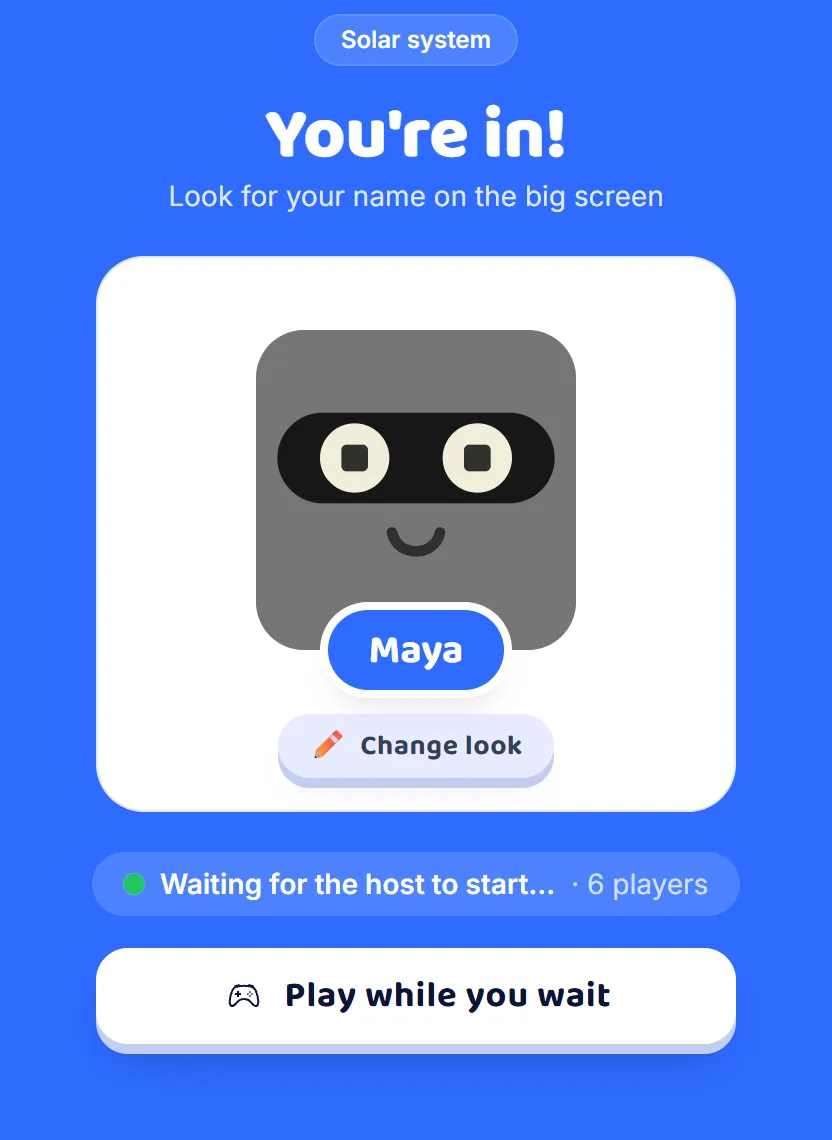
You are in: your name is on the host’s screen, and your own screen shows your avatar and how many players have joined so far. Press Change look to change how the avatar looks. If the host allowed mini-games, Play while you wait opens them, so there is something to do until the game starts. In a team game this is also where you see your team, or pick one if the host lets players choose.
Step 5: Answer on your own screen
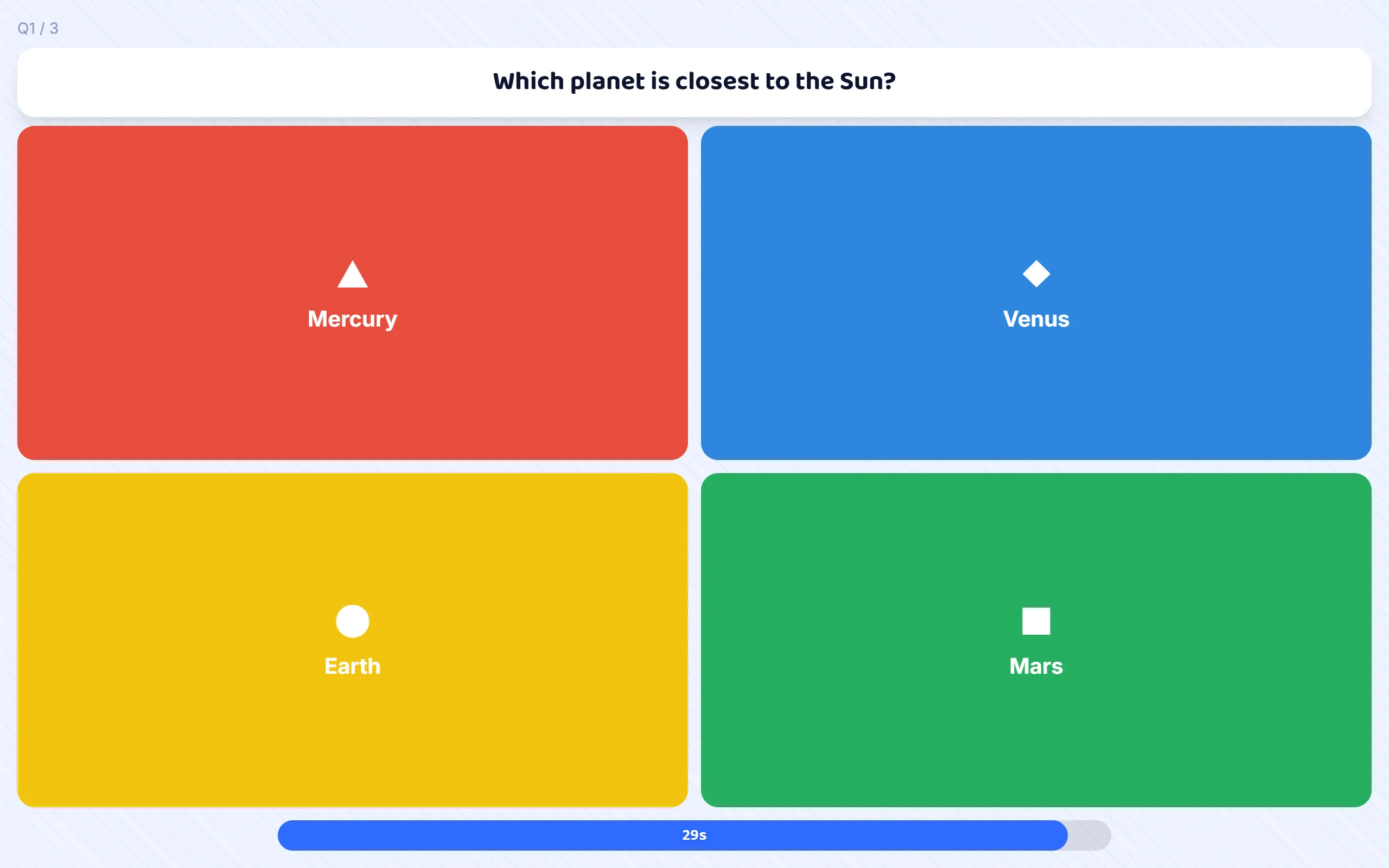
When the host starts the game, each question appears on your screen with its answers in the same four colours and shapes as on the big screen, and a bar along the bottom counts down the time. Click or tap your answer. Other kinds of question ask for more than one answer, a number, a word, an order or a spot on a picture, and the screen says what to do. If the host chose colours only, your screen shows just the coloured shapes and the question is read from the big screen.
Step 6: See how you did
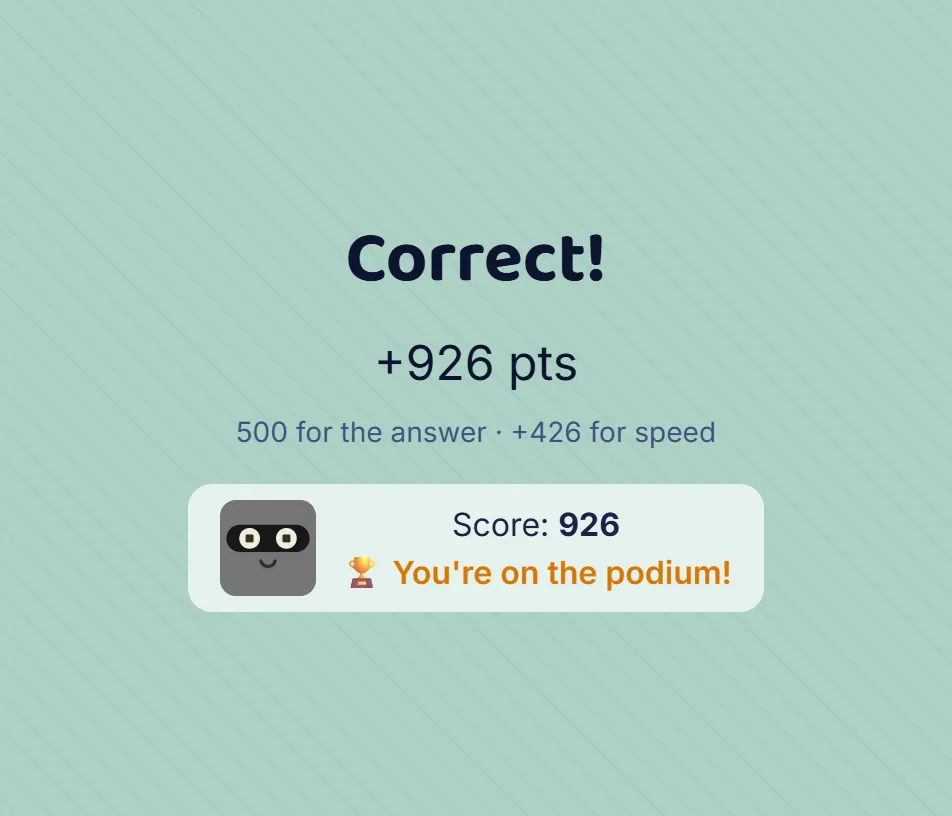
When the question closes, your screen says whether you were right and how many points you earned: half of the question’s points for the right answer, and up to the other half for answering quickly. Underneath is your score so far, and a trophy when you are in the top three at that moment.
Step 7: The final results
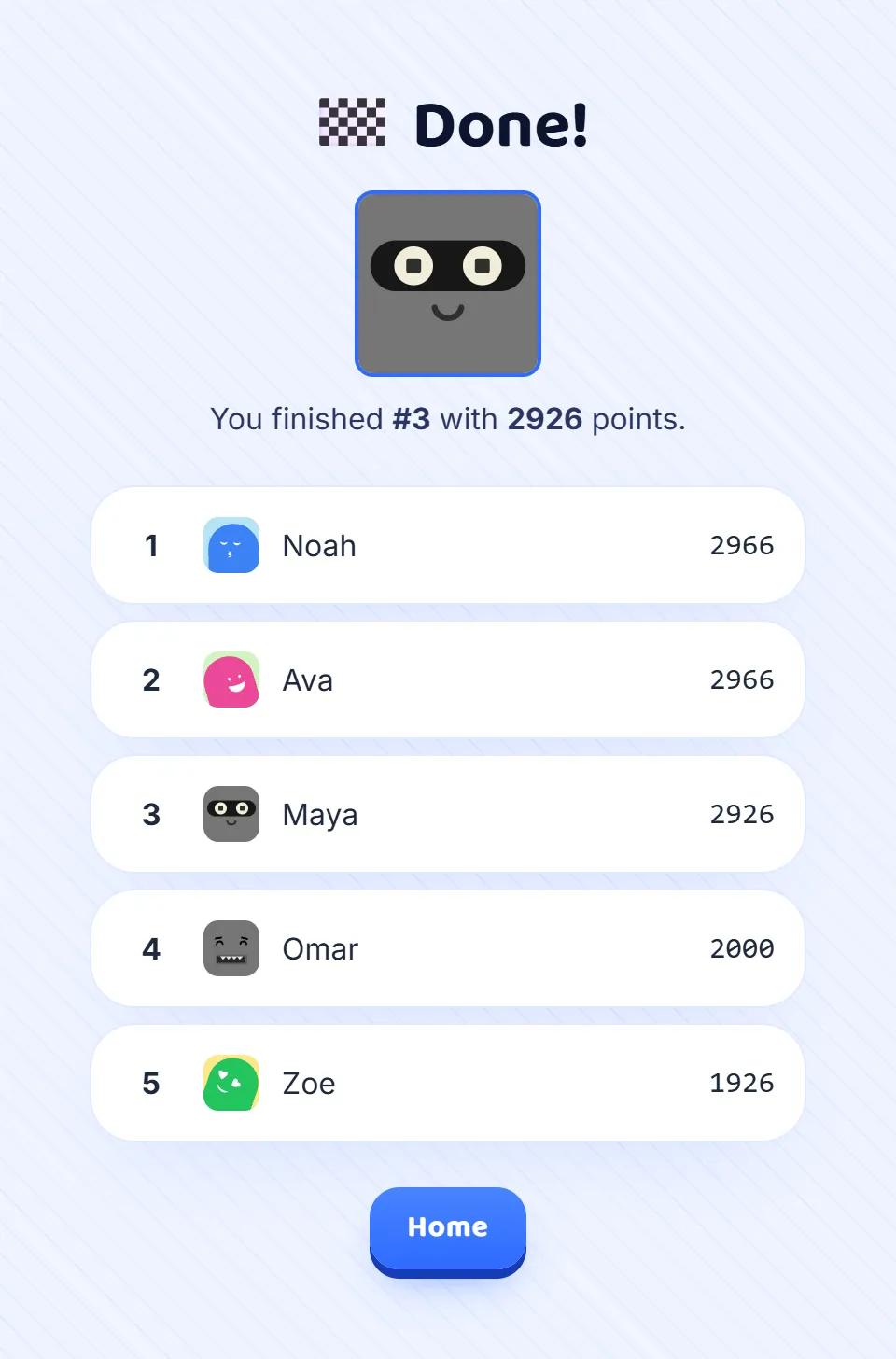
After the last question your screen shows the place you finished in, your points and the top of the final leaderboard, while the big screen shows the podium. Press Home to leave, or to type the code of the next game.
Good to know
- If the page says Room not found, compare the digits with the host’s screen. The code is six digits, with no letters.
- If the connection drops during a game, the page reconnects by itself. If you have to open it again, use the same device and browser, and you come back with the score you had.
- A host can lock a game once everyone is in. A locked game turns new players away with a message that says so.
- Players never sign up for anything. The only thing a player types is a nickname, so there is no need to use a full name.
- Up to 500 players can join the same game.