Guide
Set up a game exactly the way you want
Every live game starts on the same screen, Game settings, and a few switches there change how the game feels in the room: how long players get to read a question, whether the screens move on by themselves, what the big screen and the phones show, and who can still join. This guide goes through each of them, the ones you can change after the game has started, and how to save the ones you like so that every new game starts that way. It covers Classic games; Hacker mode has settings of its own, and a guide of its own.
6 steps · about 4 min · written for a computer
Step 1: Open Game settings
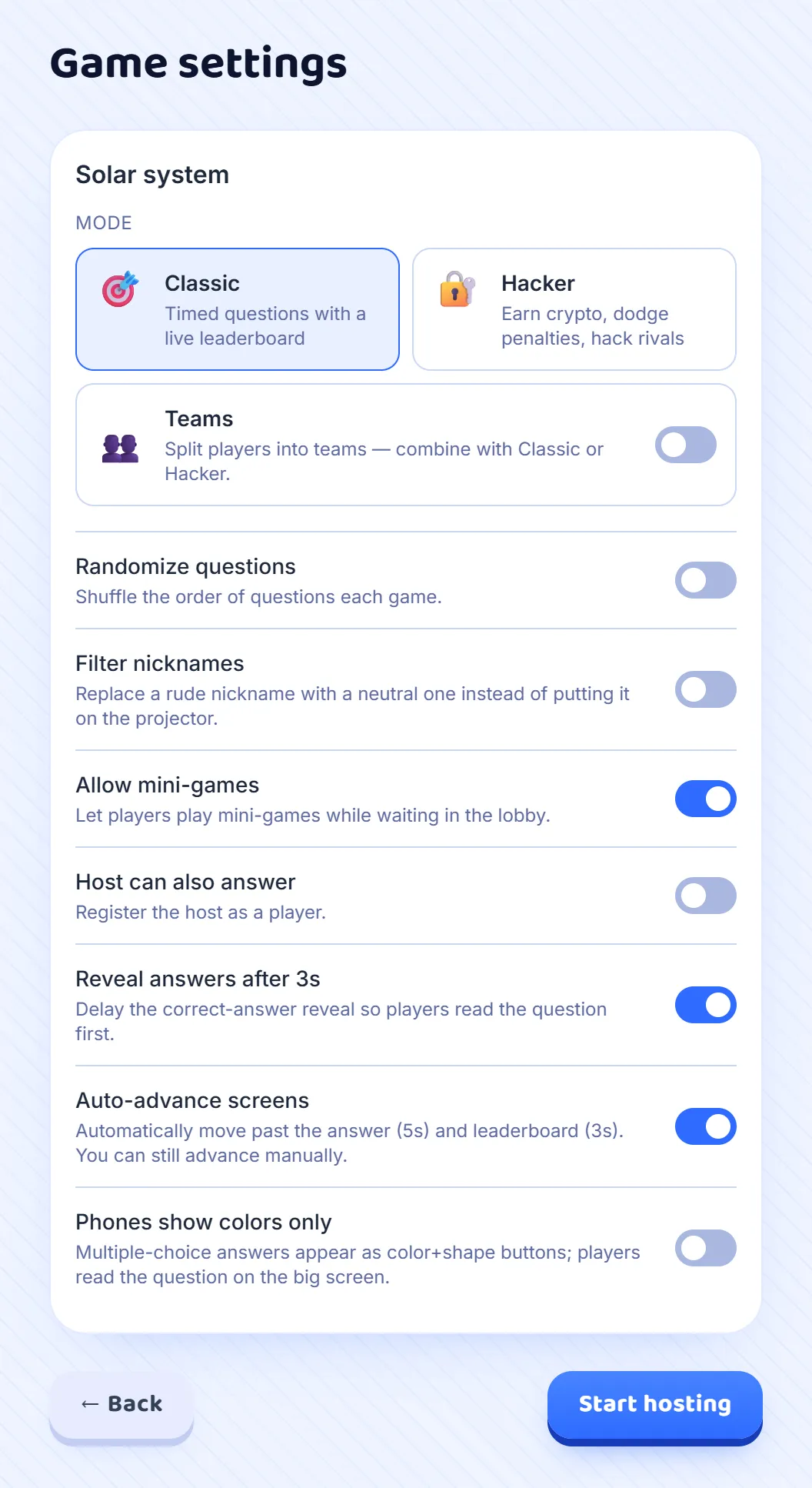
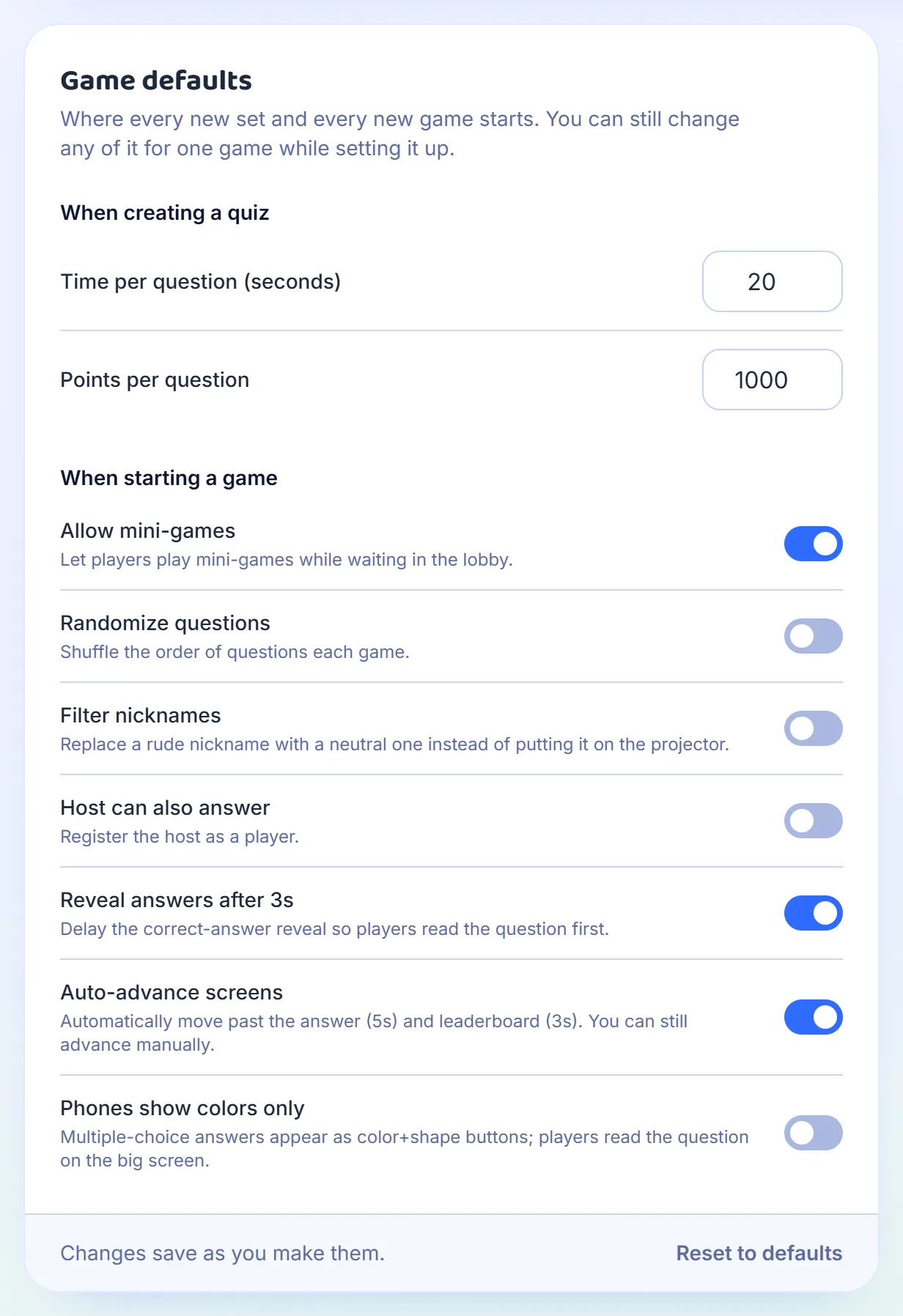
Press Host on a set in the Library. Game settings opens before any room exists, so players see nothing until you press Start hosting. At the top are the mode and Teams, which has a guide of its own. Randomize questions plays the questions in a different order each game, which helps when a class plays the same set twice. Filter nicknames swaps a rude nickname for a neutral one before it reaches the projector. Allow mini-games lets players play small games on their phones while they wait in the lobby.
Step 2: Give the room time to read
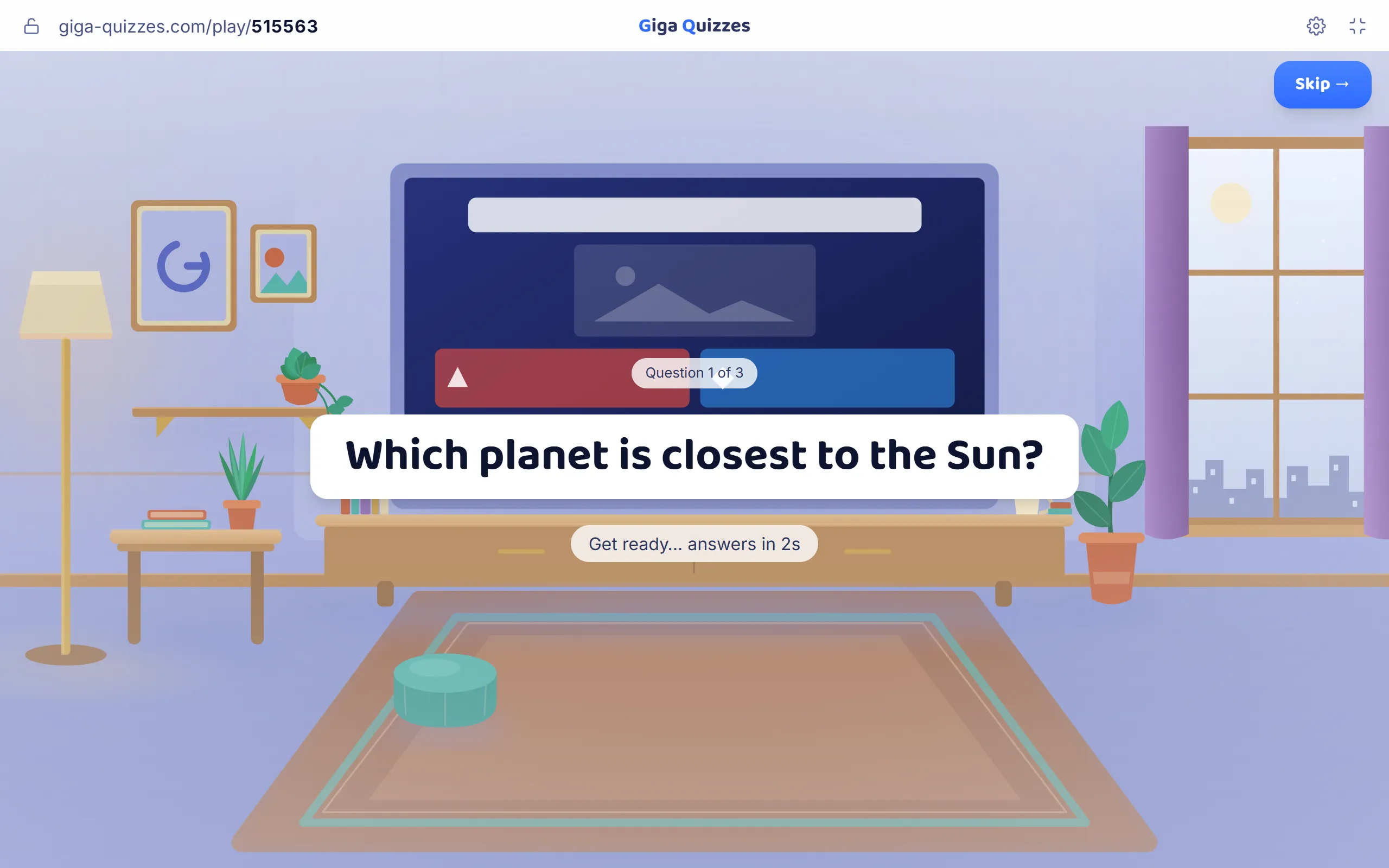
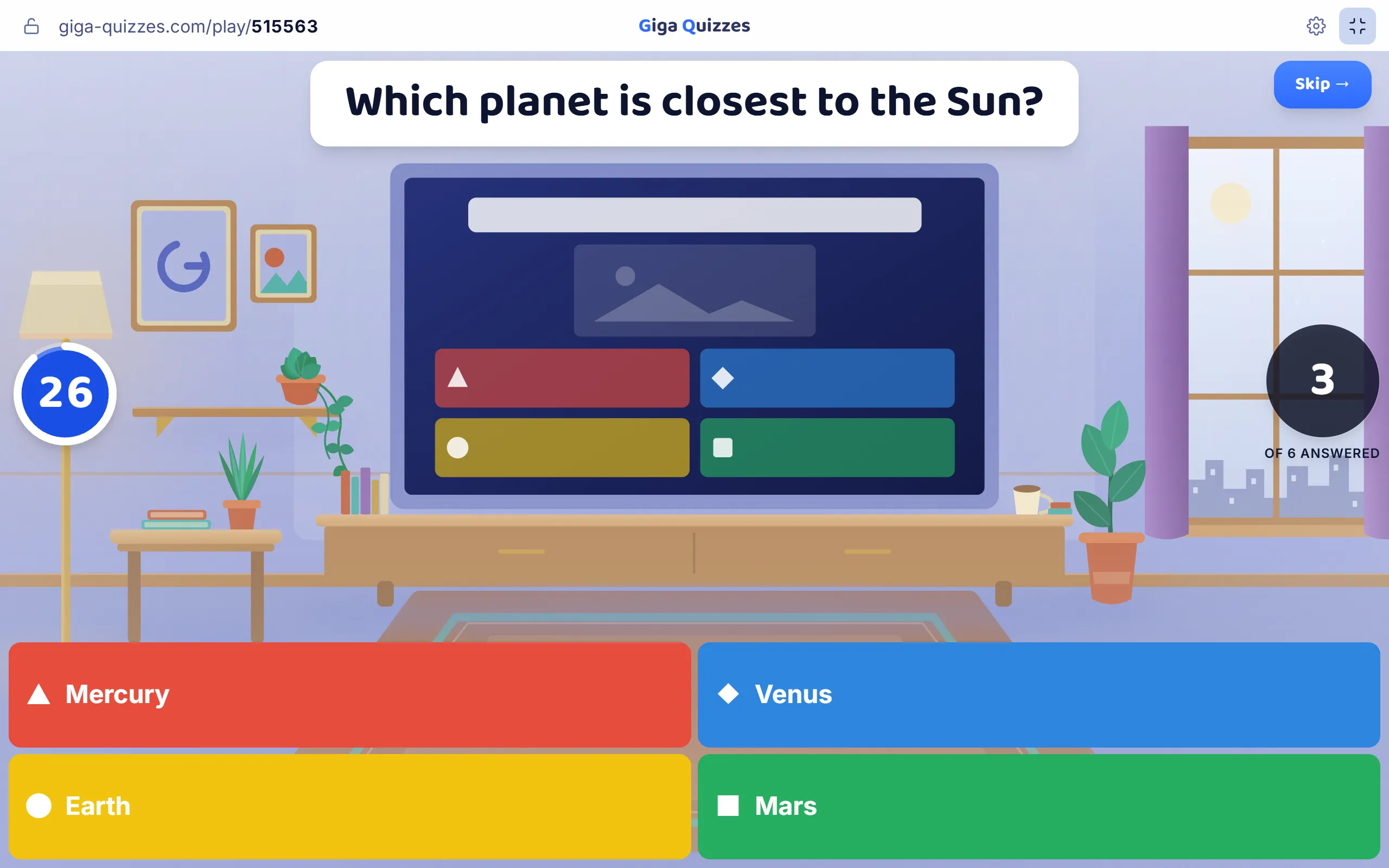
With Reveal answers after 3s on, each question comes up alone for three seconds, with a countdown under it, before the answers appear on the big screen and on the phones. Without it, the fastest reader in the room answers before the rest have finished the question. Auto-advance screens moves the game on by itself, five seconds after the answer and three after the leaderboard; turn it off to move on only when you press the button, which suits a lesson where you talk each question through. Phones show colors only puts just the coloured shapes on the phones for multiple-choice questions, so everyone looks up at the big screen to read.
Step 3: Count the answers, or play along
The number of answers so far is always on the right of a question. Host can also answer makes you a player too: you answer by clicking the answers on the big screen, and your score goes on the leaderboard with everyone else’s.
Step 4: Change your mind in the lobby
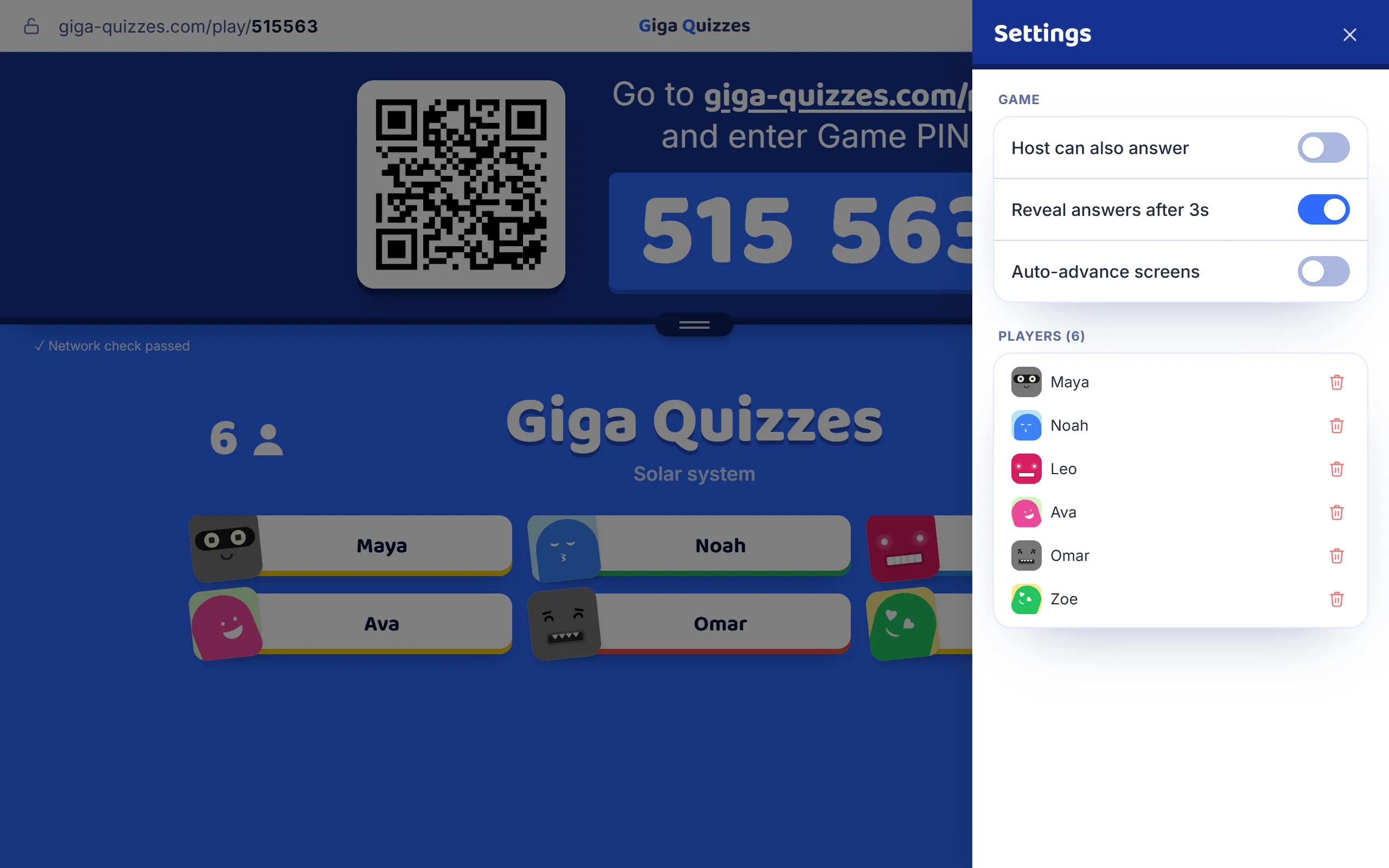
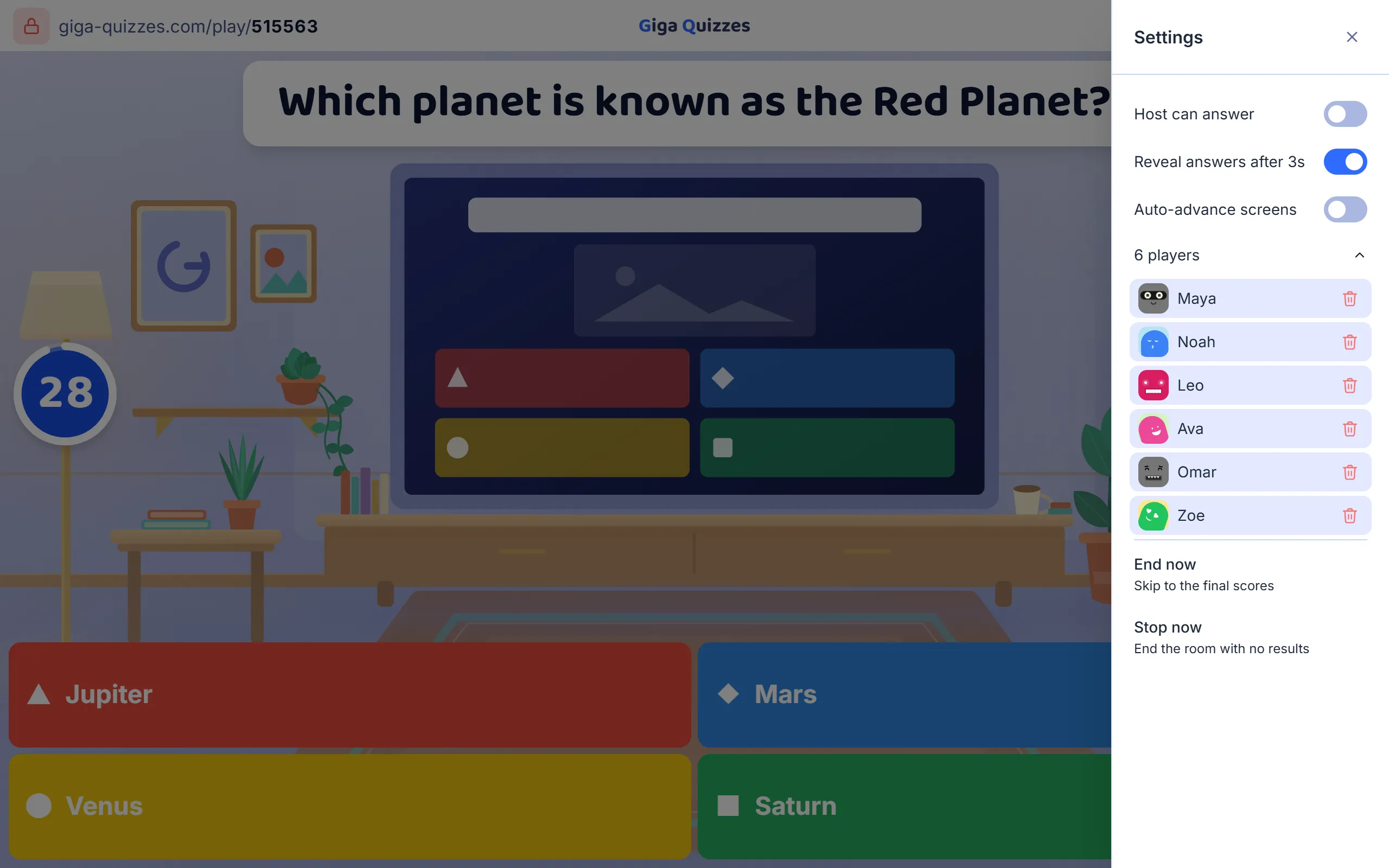
Once the room is open, the lobby still lets you change your mind while players arrive. Press the gear at the top right of the lobby, and a panel opens at the side with three switches: Host can also answer, Reveal answers after 3s and Auto-advance screens. They take effect from the first question. The same panel lists everyone who has joined, so a player can be removed before the game starts. The others, such as the order of the questions or colours only on the phones, are set before the room opens.
Step 5: During the game: lock, remove, end
The padlock at the left of the top bar locks the game, so nobody new can join; press it again to open the room. The gear at the other end opens the same three switches as the lobby, then the list of players, where the bin beside a name removes that player from the game. At the bottom, End now skips straight to the podium with the questions played so far, and Stop now closes the room without any results.
Step 6: Save your own defaults
If you change the same switches before every game, set them once instead. Open Account in the sidebar and press Show all defaults. When starting a game holds the same switches as the settings screen, and every new game starts from them; When creating a quiz sets the time and the points a new question starts with. Changes save as you make them, and Reset to defaults puts everything back the way it was.
Good to know
- The space bar moves the game on from the answer, the leaderboard and the slides, the same as the button in the top right corner.
- A setting you change on the settings screen is for that game only. The next game starts from your defaults again.
- Your defaults are saved in the browser you set them in. On another computer, set them once more.
- A player you remove sees that the host removed them, and cannot come back into that game from the same device.