Guide
Play a live quiz in teams
Teams turn a quiz into something the whole room plays together: every right answer helps the team, so the quieter players matter as much as the fastest one. Each player still answers on their own phone, and the points of everyone on a team add up to the team’s score. This guide sets up a Classic game with three teams, follows it through the lobby, the leaderboard and the podium, and shows what the players see along the way.
6 steps · about 3 min · written for a computer
Step 1: Turn on Teams
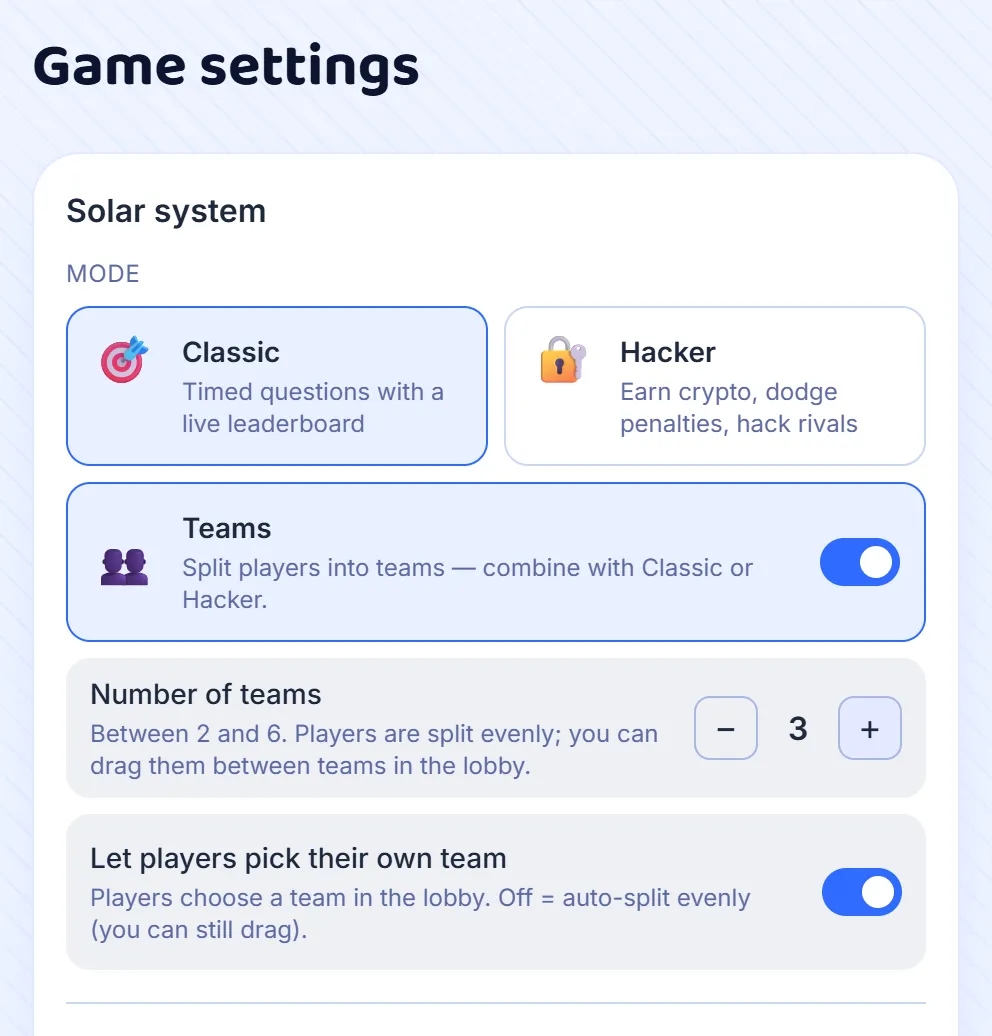
Press Host on a set, and in Game settings switch on Teams. Choose between two and six teams with − and +. Then decide who picks: with Let players pick their own team off, the game shares players out evenly as they arrive; with it on, each player chooses a team in the lobby. Everything else on the screen works as it does in an ordinary game.
Step 2: Name the teams in the lobby
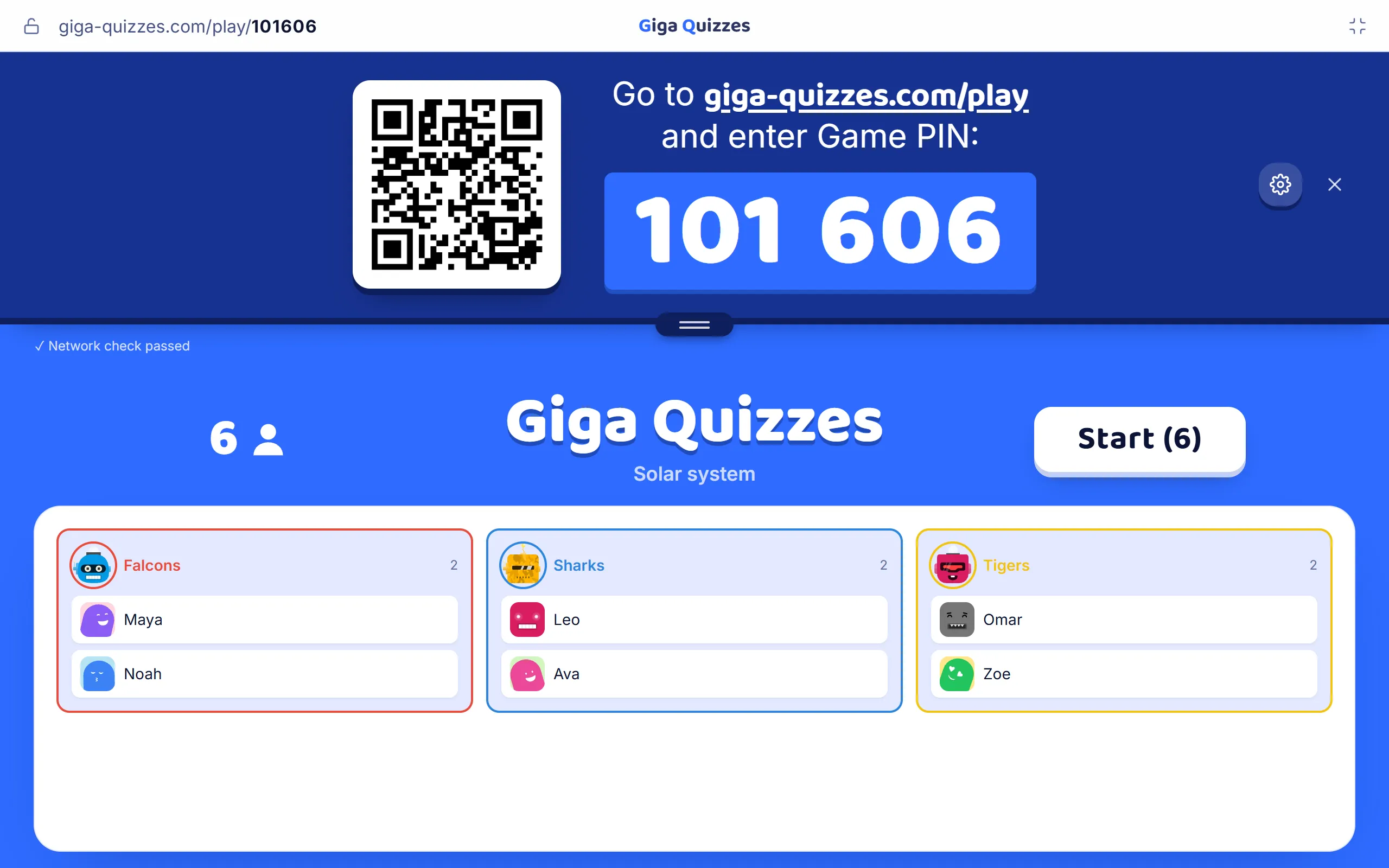
Press Start hosting. Each team is a column in its own colour, with a made-up name and a robot picture. Click the name to type a new one, such as the names of the rows in your classroom, and click the picture to change it. Players appear in their team as they join, and the number beside the name counts them. To move someone, drag their name into another column, which works whether the teams were shared out or picked.
Step 3: Players pick their team
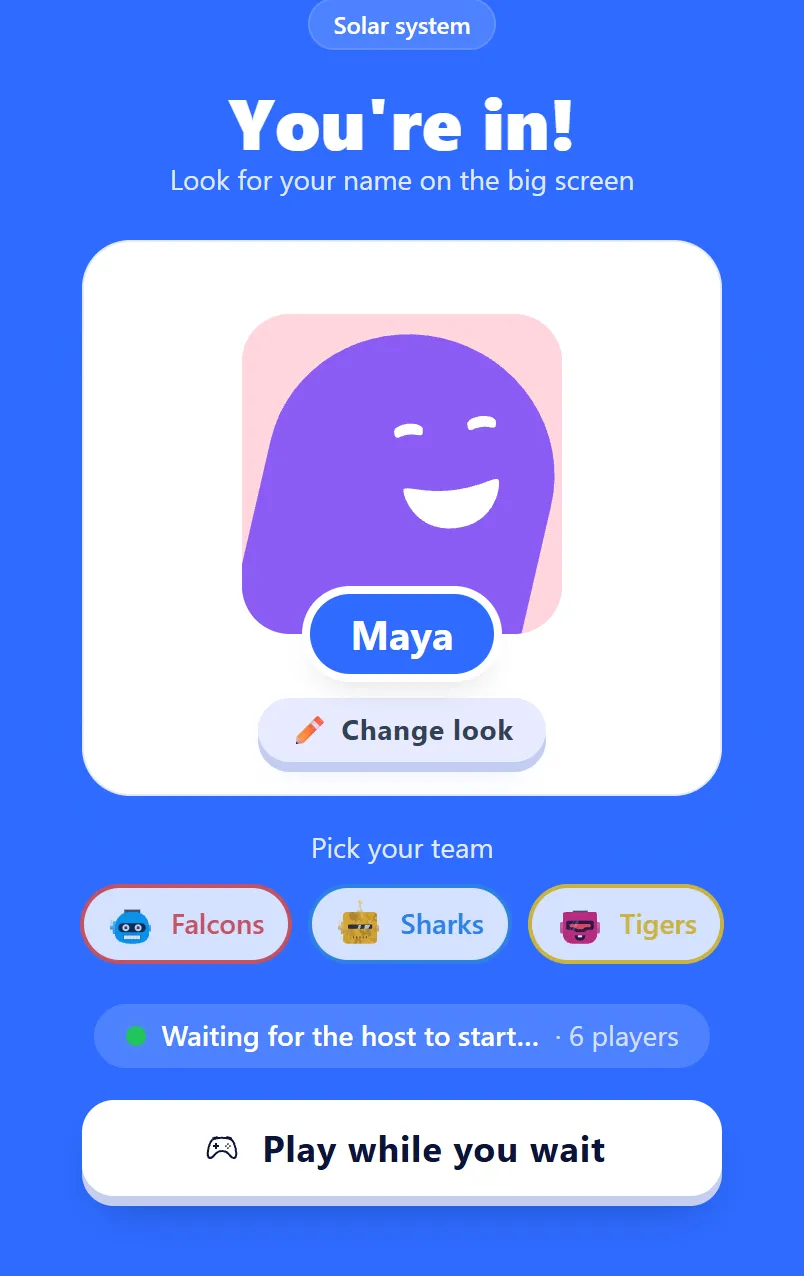
When players may pick for themselves, the lobby on their phone shows every team as a button in its colour, under Pick your team. One tap puts them in it, and they can change their mind until you press Start. A friendly class sorts itself out in a few seconds; if the teams end up lopsided, drag a few players across before you start.
Step 4: The team leaderboard
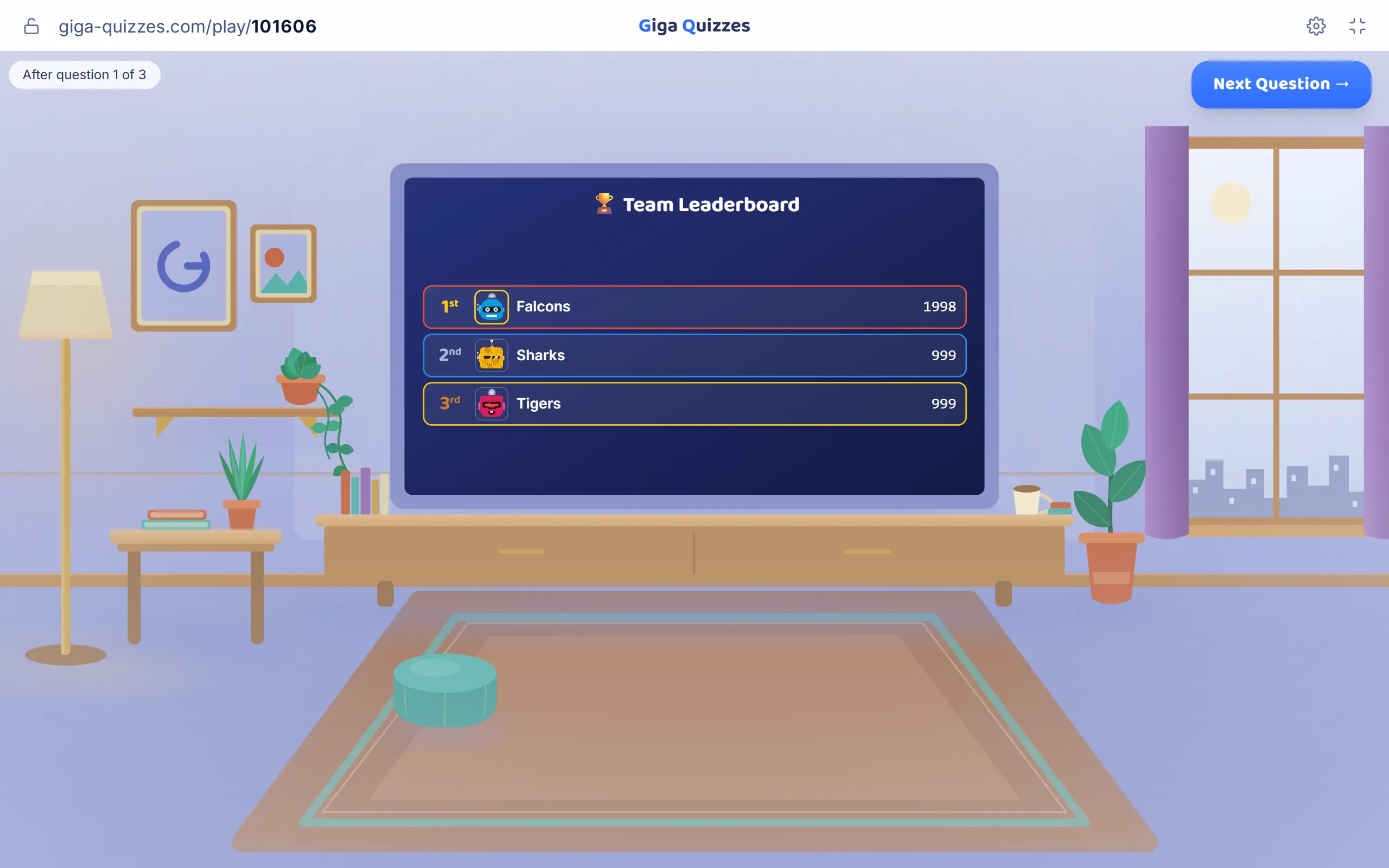
The game plays as usual: each question on the big screen, each player answering on their own phone. The leaderboard after each question is the Team Leaderboard: every team in its colour, ranked by the points its players have scored between them. It shows all the teams, however many there are, so nobody’s team drops off the screen.
Step 5: What each player sees
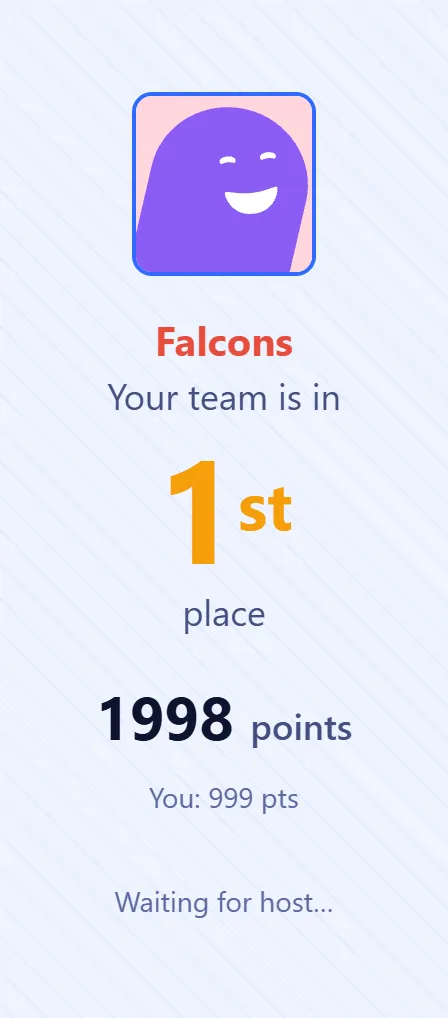
On the players’ phones, the leaderboard lists the teams too, with a line underneath for their own: their team’s place and points, and in smaller print their own place and points among all the players. So each student can see how much they are adding to the team.
Step 6: Finish on the team podium
After the last question, Finish Game raises the podium for the teams: third, then second, then the winners, each with its picture, name and total. The panel beside it is the same as in any game, with the report of the game and Export results. Each phone shows where the team finished and with how many points, with the player’s own place underneath.

Good to know
- A team’s score is the points of all its players added together, so a bigger team has more chances to score. Keep the teams about the same size, or let the game share players out evenly.
- Someone who joins after the game has started goes into the team with the fewest players.
- Anyone who has not picked a team by the time you press Start is put in the team with the fewest players, and told which one.