Guide
Play a live quiz in an online lesson
A live game does not need everyone in one room. In a lesson over Zoom, Google Meet, Microsoft Teams or any other video call, you share your screen as you would for slides, send the class a link, and every student plays from their own computer, tablet or phone. They need nothing installed and no account. This guide sets up a game for a call, with pictures of your screen and of a student’s, and the two settings that make the difference at a distance.
7 steps · about 3 min · written for a computer
Step 1: Check two settings first
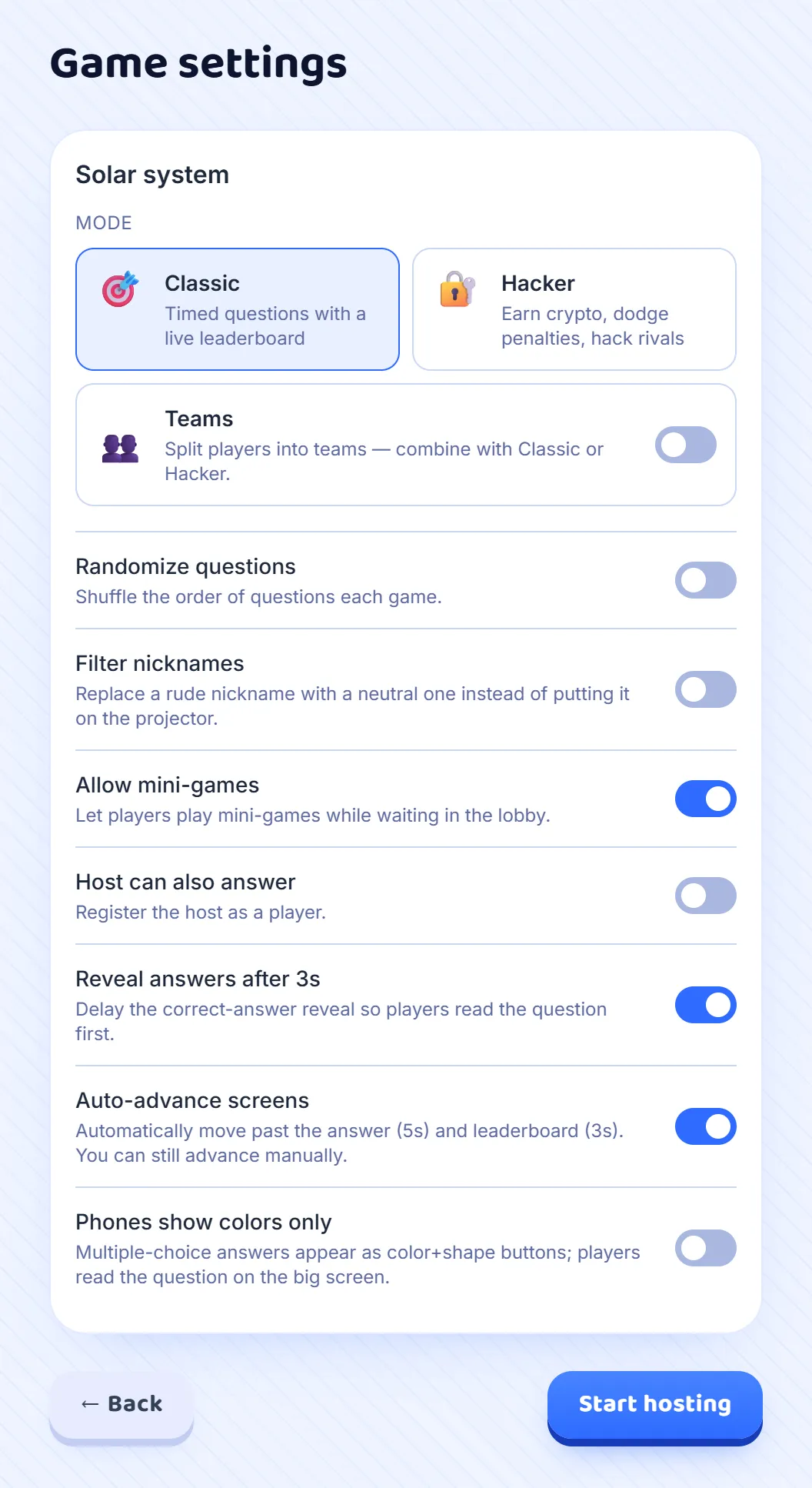
Press Host on a set and look at two switches in Game settings. Phones show colors only must stay off, which it is unless you have turned it on: then each student sees the whole question and its answers on their own screen, and does not depend on your shared screen, which in a call can arrive late or blurred. Reveal answers after 3s should stay on, so everyone has the same few seconds to read before anyone can answer.
Step 2: Share the game in the call
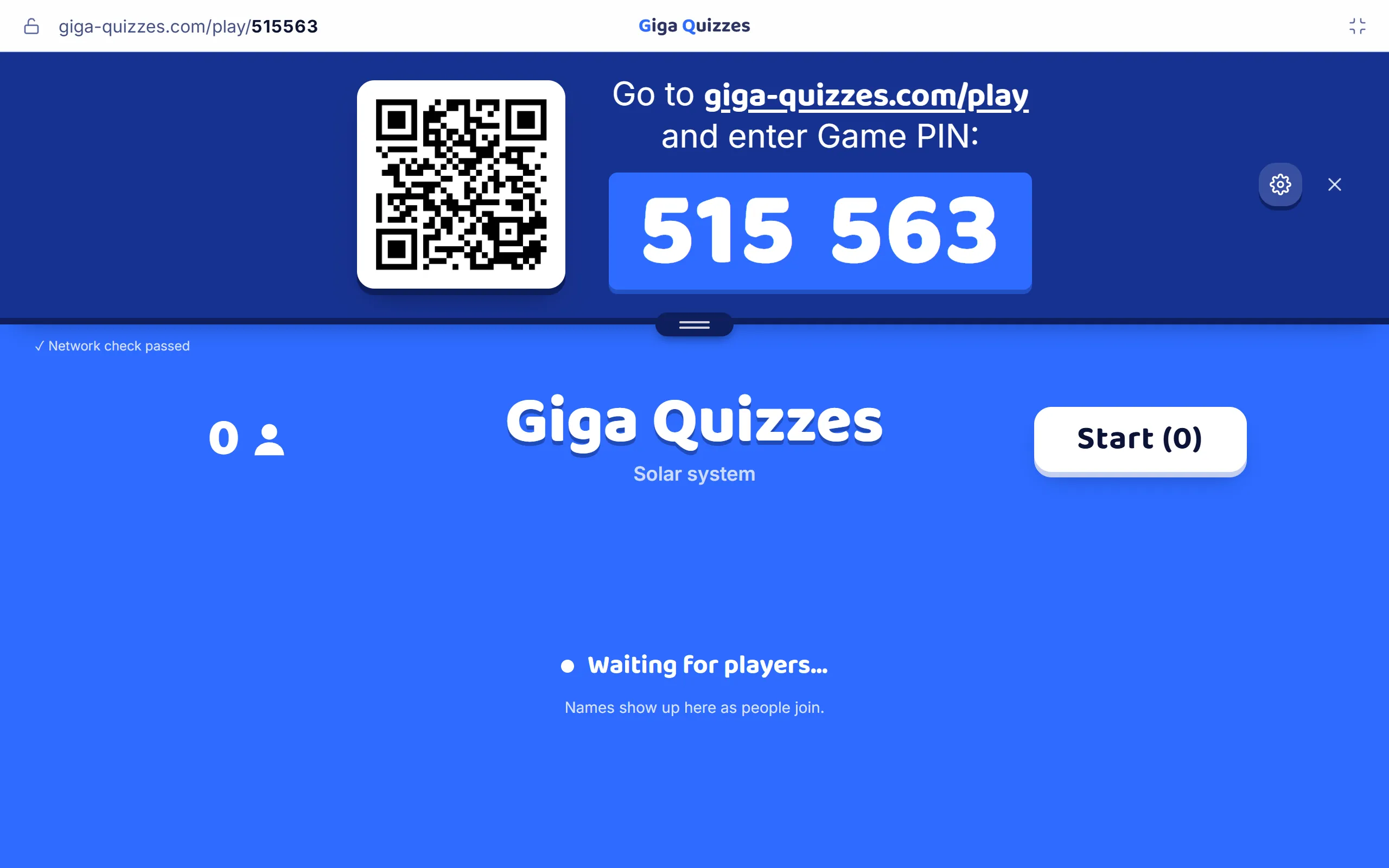
Press Start hosting and the lobby opens, with the room code and a QR code. In your video call, share your screen as you would for slides, and choose the browser window or tab with the game in it. The class now sees the lobby, and every screen that follows, as if it were on the classroom projector.
Step 3: Paste the join link in the chat
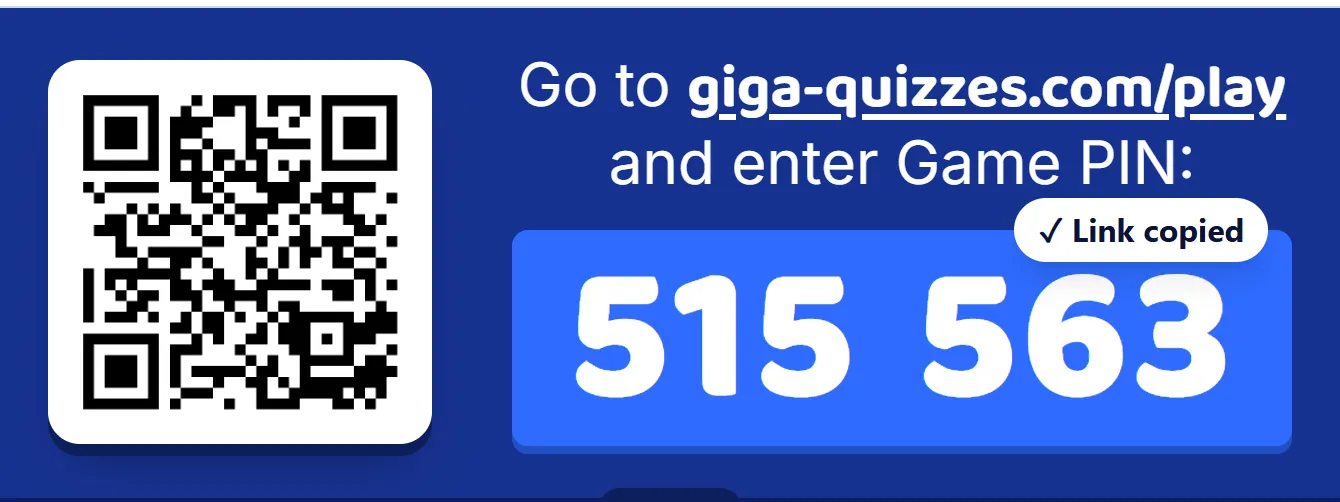
Typing six digits from a shared screen is slow, so send a link instead. Click the big room code and it copies a join link, and a small Link copied tag on its corner says so. Paste it into the chat of your video call, or into a class chat or an email before the lesson begins. The link has the room code in it, so students go straight to choosing a nickname.
Step 4: Students open the link
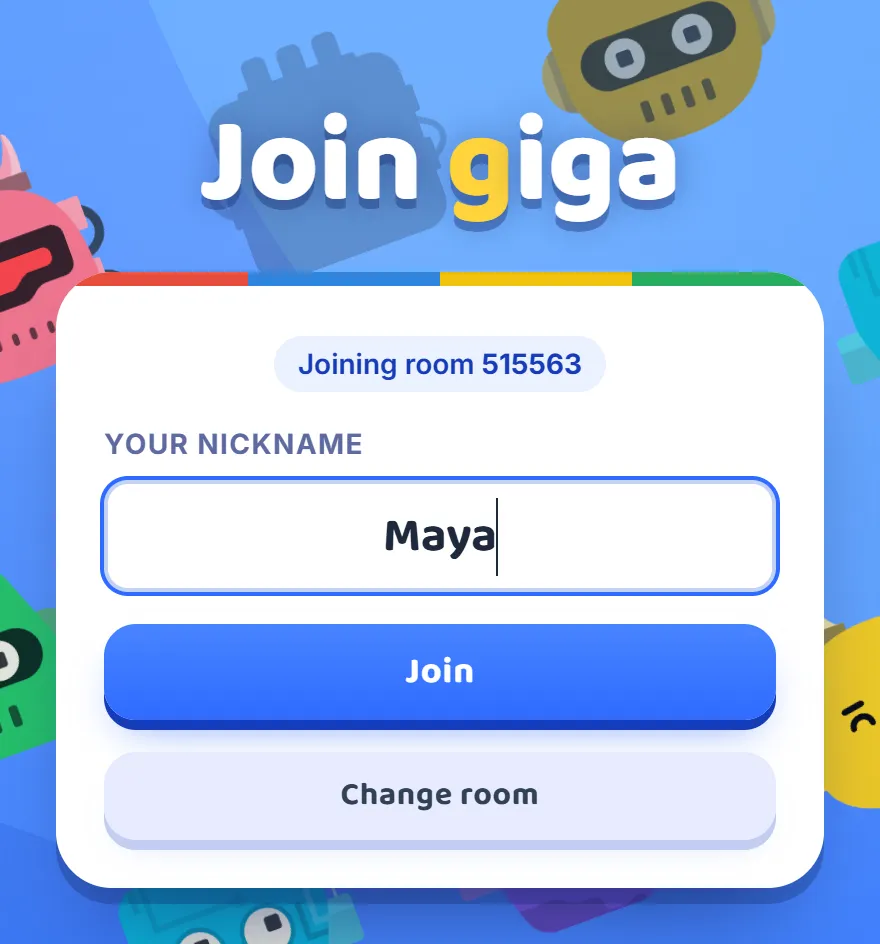
A student who opens the link sees Joining room with your code, and only has to type a nickname and press Join. No app, no account, no email address. Each student appears in your lobby as they arrive, which the class can watch on your shared screen, and the Start button counts them. When the count matches the class, press Start.
Step 5: Everyone answers on their own screen
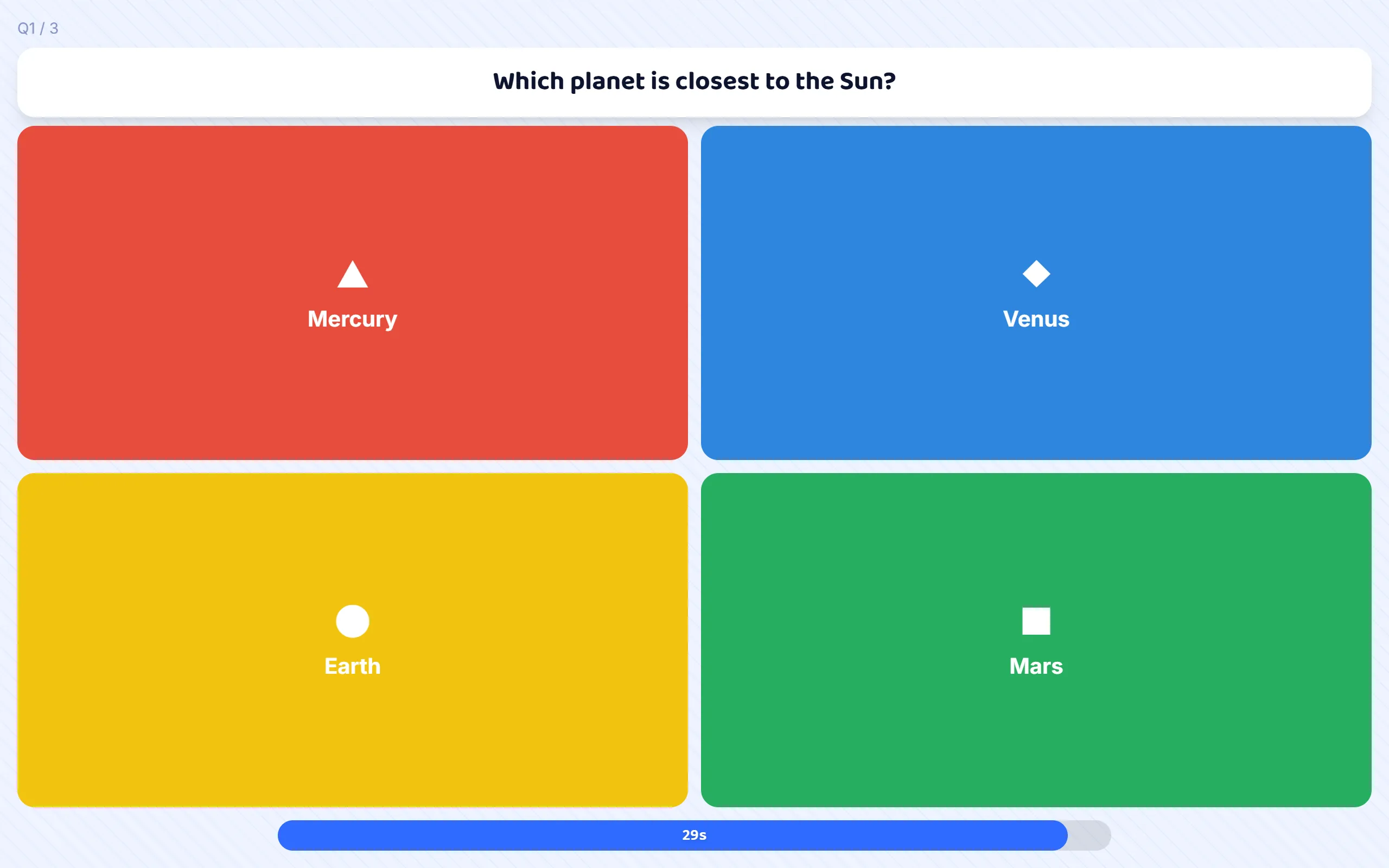
With colours only turned off, every question arrives on each student’s screen in full: the question at the top, the answers on coloured tiles below it, and a bar counting down the time. They can answer from their own screen alone, so a student whose video call freezes for a moment does not miss the question.
Step 6: Each student sees how they did
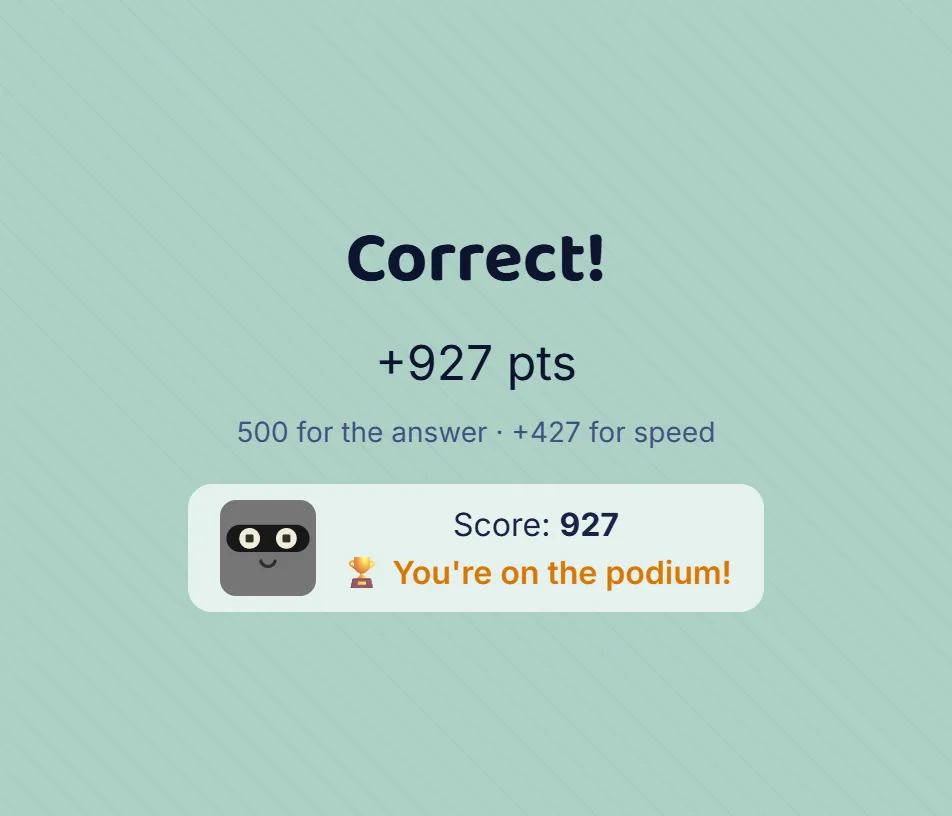
When the question closes, your shared screen shows the right answer and how the class answered, and each student’s own screen says whether they were right and how many points they earned, with their score so far. Take a moment here to talk the answer through before you press Leaderboard, as you would in the room.
Step 7: Keep the room to your class
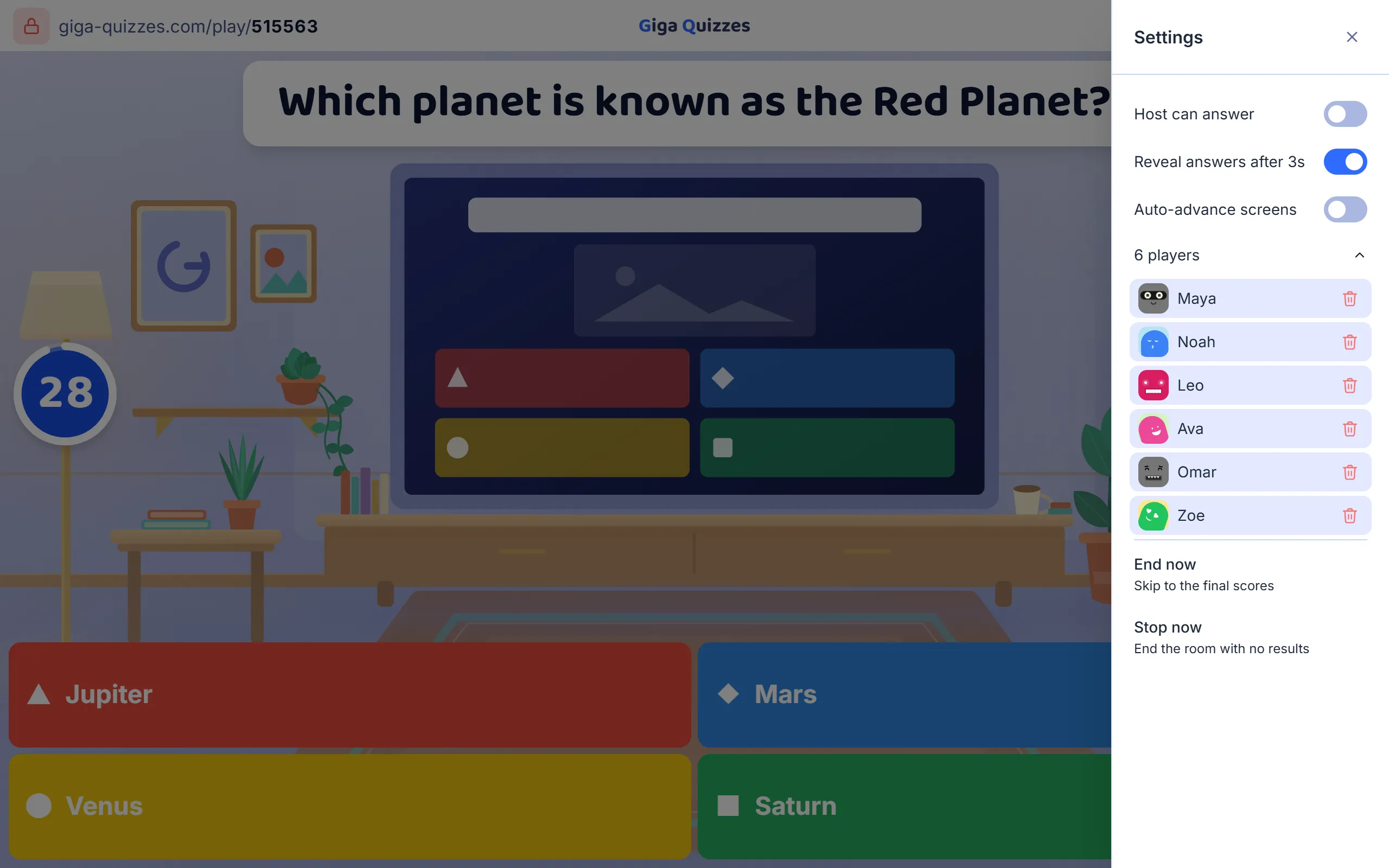
A link pasted into a chat can travel further than the class. Once the game has started and everyone is in, press the padlock at the left of the top bar, and nobody new can join. The gear at the other end opens the list of players, where the bin beside a name removes a player who should not be there. Press the padlock again to let a latecomer in.
Good to know
- A student with only one computer can keep the call in one window and the game in another, or in a second browser tab, and switch between them.
- Students can also point a phone at the QR code on your shared screen, and play on the phone while they watch the call on the computer.
- The address and the room code stay in the bar at the top of your screen for the whole game, so a student who arrives late can still join at giga-quizzes.com/play.
- Up to 500 players can join one game, so a whole year group can play in one call.