Guide
Import a Blooket quiz from a PDF
If your quizzes already live in Blooket, you do not have to type them out again. Blooket can print a question set, and Giga Quizzes can read that printout: save it as a PDF, import it into your Library, and every question arrives with its answers and its picture if it has one, ready to host live for a class, a lecture hall or up to 500 players. This guide is written for a computer, where saving a PDF and choosing a file is quickest.
5 steps · about 2 min · written for a computer
Step 1: Save your Blooket set as a PDF
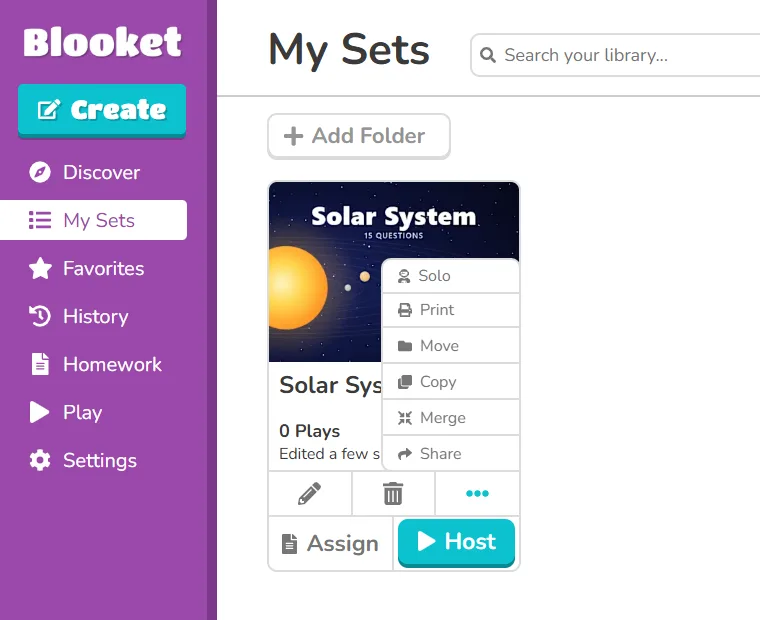
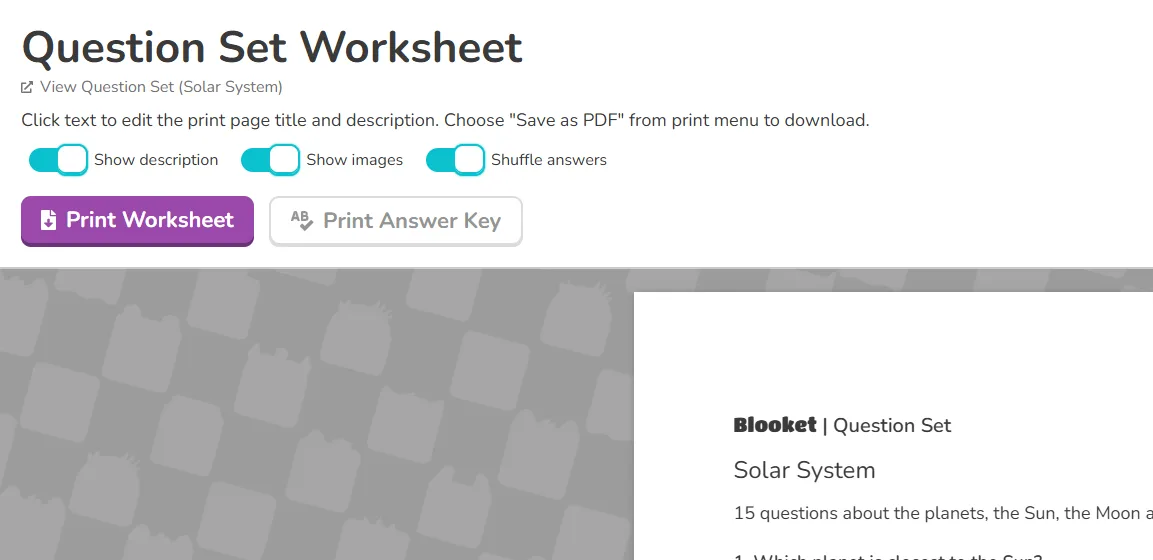
In Blooket, open My Sets, press the three dots under the set and choose Print. On the page that opens, press Print Answer Key: the answer key marks the right answers, and they come across with the questions. Leave Show images on, and each question’s picture comes across as well. Turn off Shuffle answers first if you want the answers to stay in their original order. When the print window opens, set the destination to Save as PDF and save the file. Microsoft Print to PDF works too: that kind of PDF holds pictures of letters instead of text, so giga reads it the way a scanner would, right in your browser, which takes a few seconds longer. A worksheet printed without the answer key imports as well, but then each question starts with its first answer marked as correct, and you tick the right ones yourself later.
Step 2: Sign in to Giga Quizzes
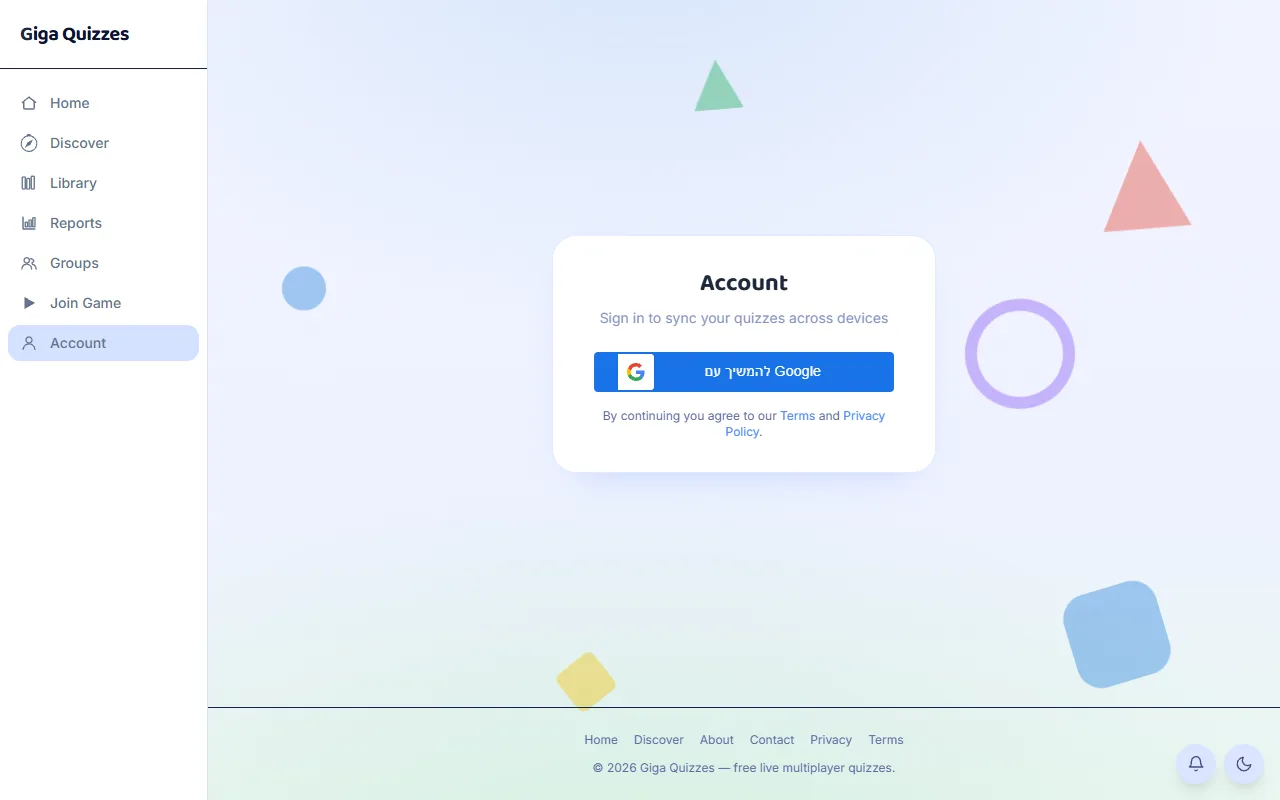
An imported quiz is saved to your account, so you need one. Signing in with Google takes a single click, or you can use an email address and a password. Only the person who builds and hosts a game needs an account; players never do.
Step 3: Press Import PDF in your Library
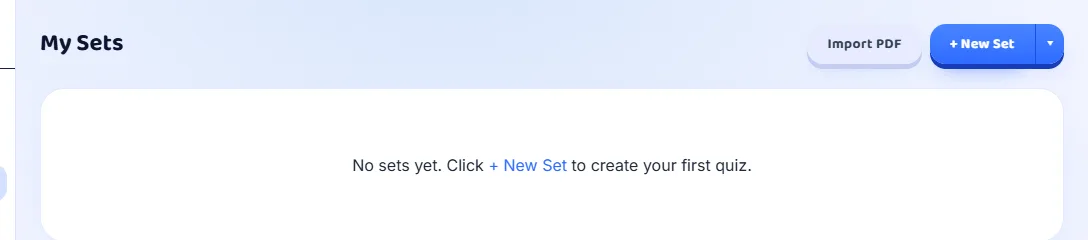
Open the Library from the sidebar. At the top, next to + New Set, is Import PDF. Press it and choose the file you saved from Blooket. There is nothing else to set: Giga Quizzes sees for itself whether the quiz is in English or in Hebrew, and reads it the right way round.
Step 4: Check the questions
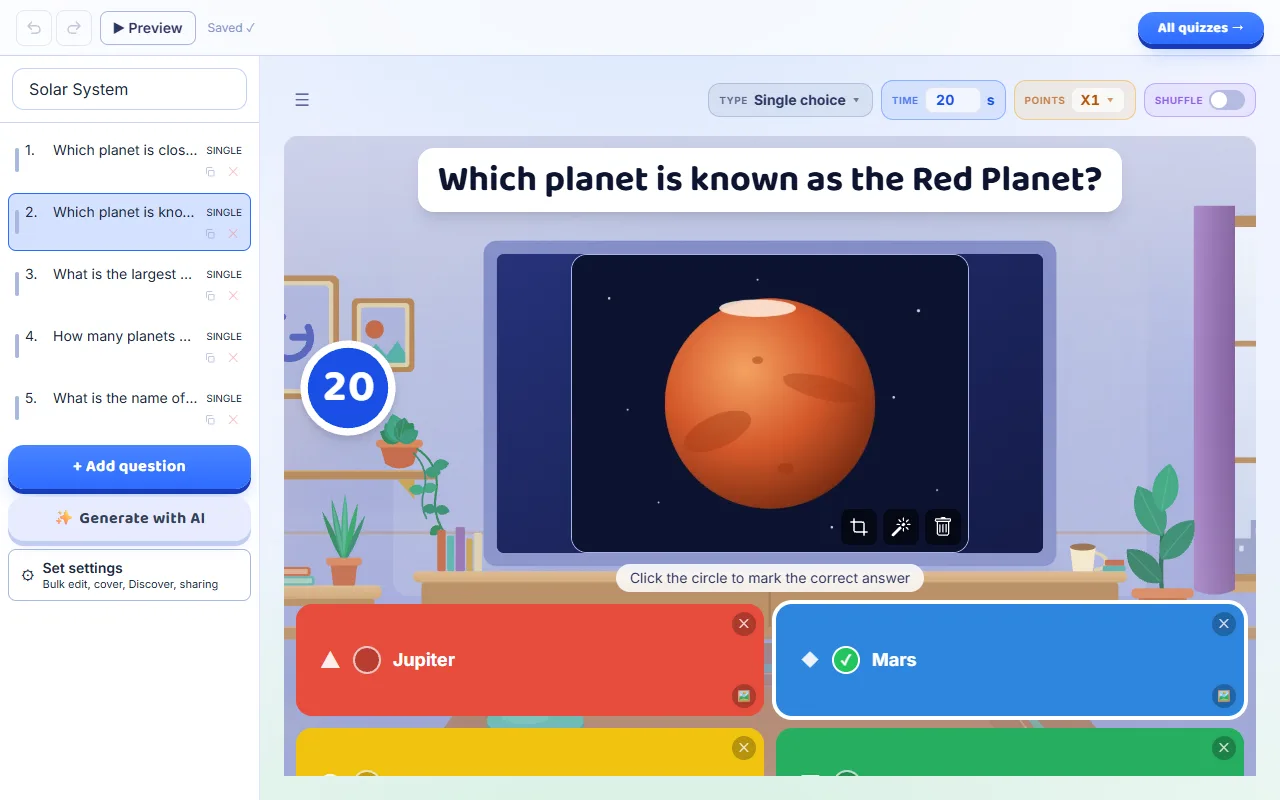
The new set opens in the editor. It takes its title from the name on the Blooket printout, or from the file name, and the questions and answers keep the order they have on the printout. Go through them once: make sure the right answer is ticked on each question, and change the time limit or the points if you like. There is no save button, because every change is saved as you make it.
Step 5: Host it live
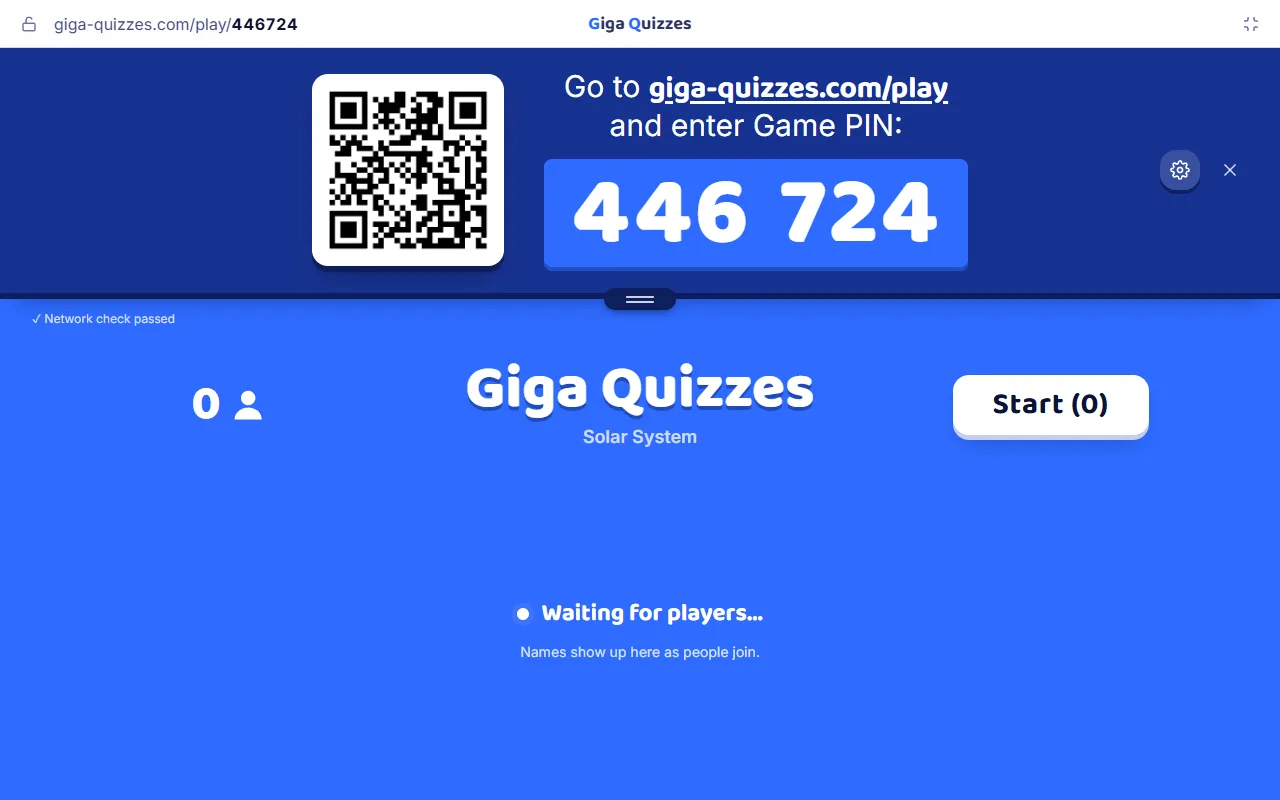
Back in the Library, press Host on the set, choose how you want to play and press Start hosting. A room code and a QR code appear on the screen, and players join from their own phones with no app to install and no account to make. From here the imported quiz works like any other: play it in Classic or Hacker mode, in teams if you like, and read the full report when the game is over.
Good to know
- Pictures come across too: a picture printed under a question becomes that question’s picture. Leave Show images on when you print, or there are none to bring. The picture of the set itself is not brought over.
- Every question is imported as multiple choice with up to four answers, the way Blooket stores them.
- A question without at least two readable answers is left out, so it is worth comparing the number of questions with the original once.
- The PDF is read in your browser and is not uploaded. What is saved to your account is the finished set.
- Blooket is a trademark of its owner. Giga Quizzes is independent and is not affiliated with or endorsed by Blooket.