Guide
Make a quiz that teaches, not only tests
A quiz can do more than find out what a class already knows. With a slide to set up the topic, a sentence of explanation at every answer, and the points arranged so a warm-up counts for less than the question that matters, the game itself becomes the lesson. This guide builds a short set on the water cycle that way, and shows each part in the editor, in a live game and when a student plays it alone.
8 steps · about 4 min · written for a computer
Step 1: Open with a slide
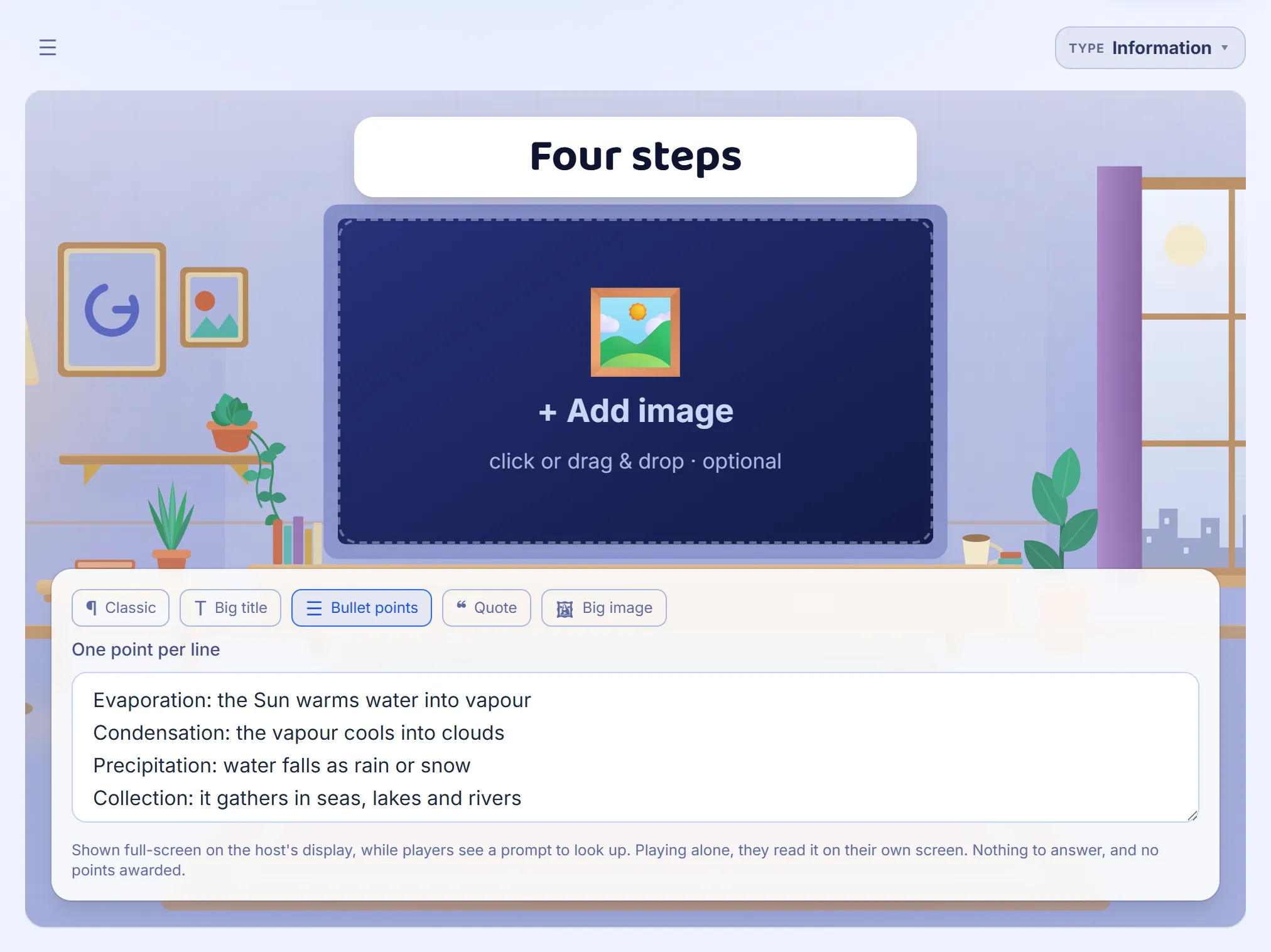
Press + Add question and choose Information slide, under the grid of question types. A slide has a heading, some text and, if you like, a picture, and five layouts: Classic, Big title, Bullet points, Quote and Big image. Put one at the start to introduce the topic, or between questions to give the rule the next few questions use. Bullet points turns each line you type into its own point.
Step 2: The slide in the room
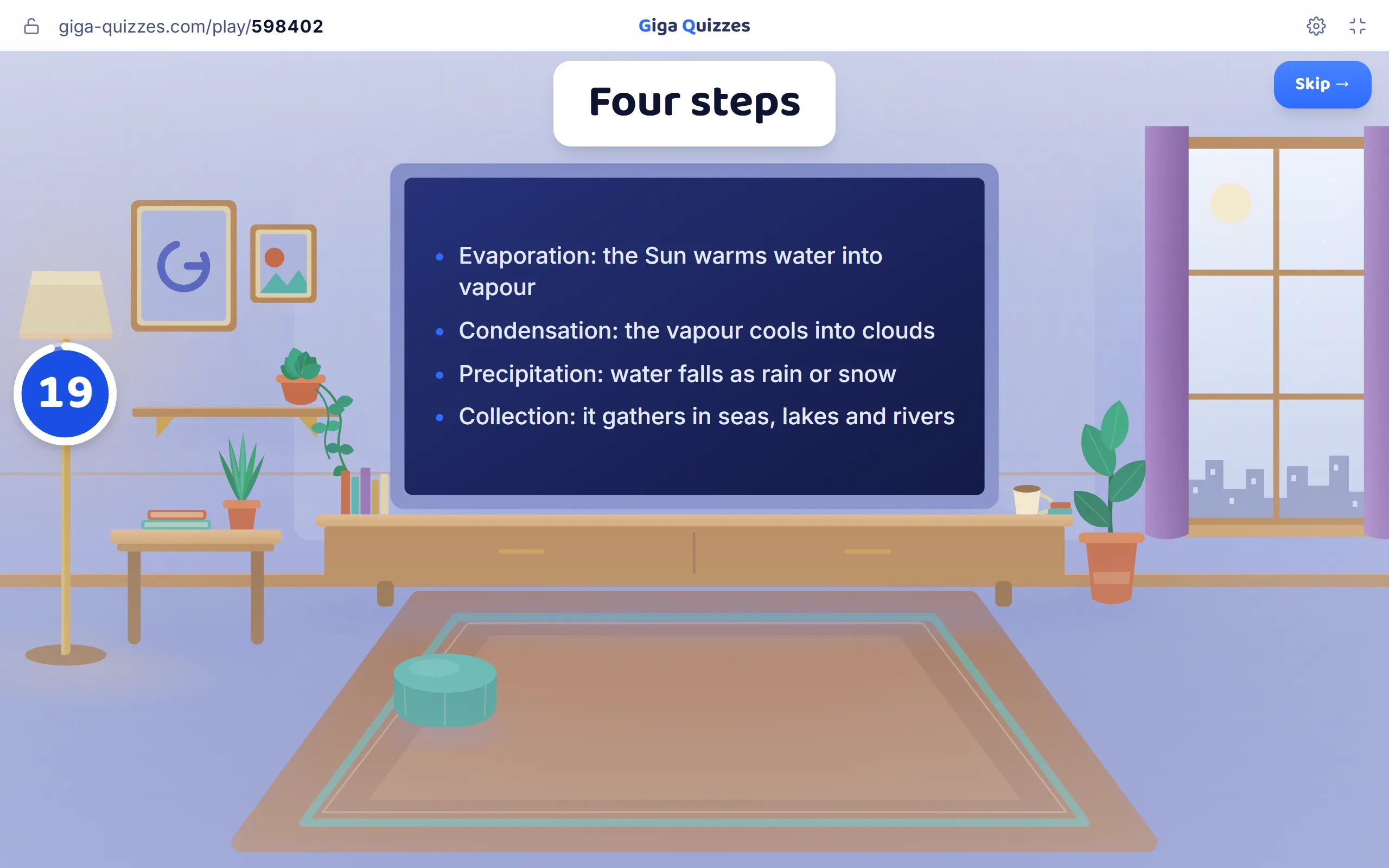
In the game, the slide’s words play on the television in the room, under its heading, while every phone shows Look at the screen. It has nothing to answer and no points, and it leaves the leaderboard alone. The game moves on from a slide by itself after a few seconds, or as soon as you press Skip, so a slide works best short enough to read out loud.
Step 3: Explain every answer
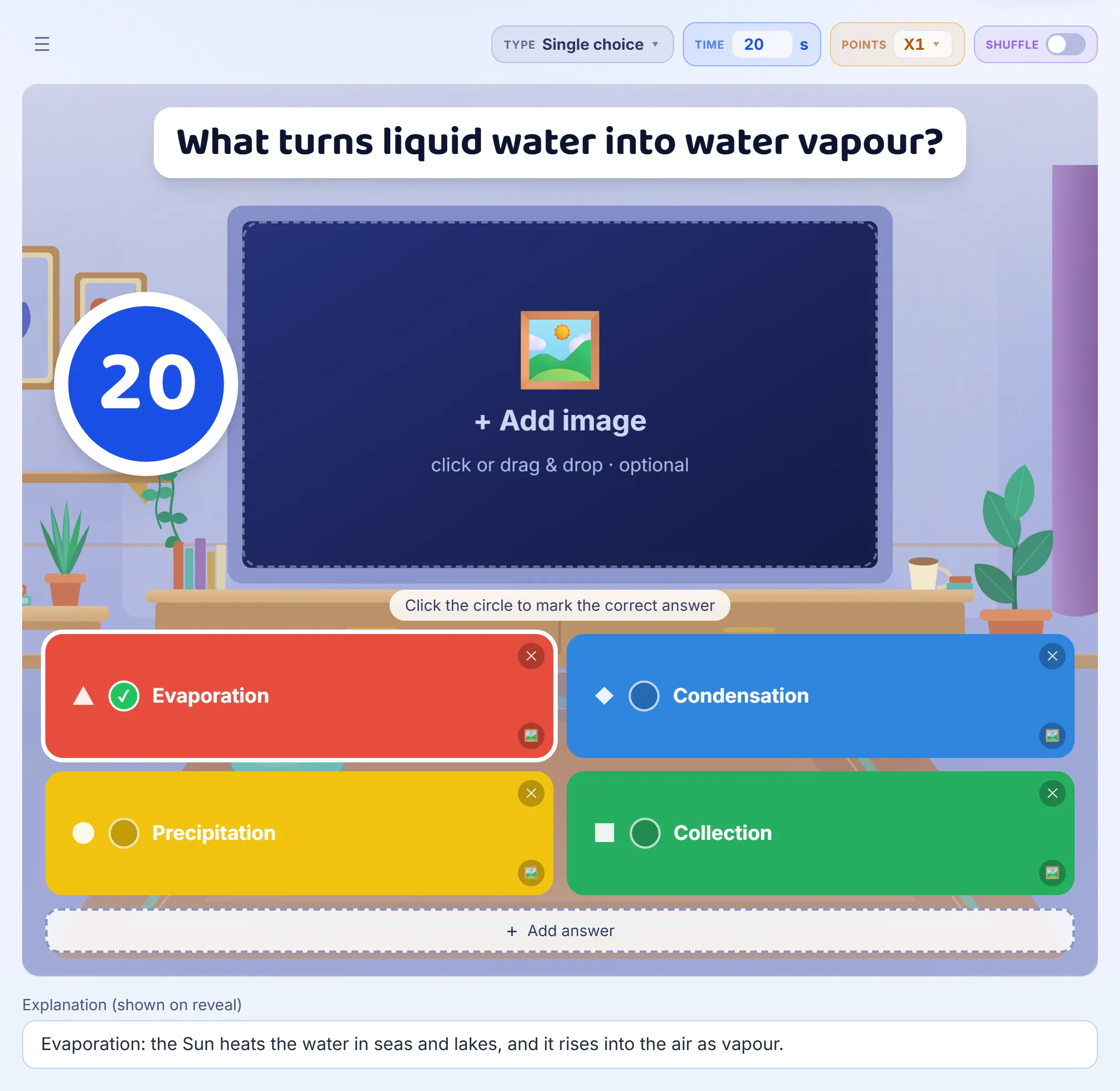
Below every question in the editor is a box called Explanation (shown on reveal). Write the reason the right answer is right, in a sentence or two. It is the difference between a student who guessed Evaporation and moved on, and one who now knows what evaporation is. The class never sees it while they are answering.
Step 4: The explanation at the reveal
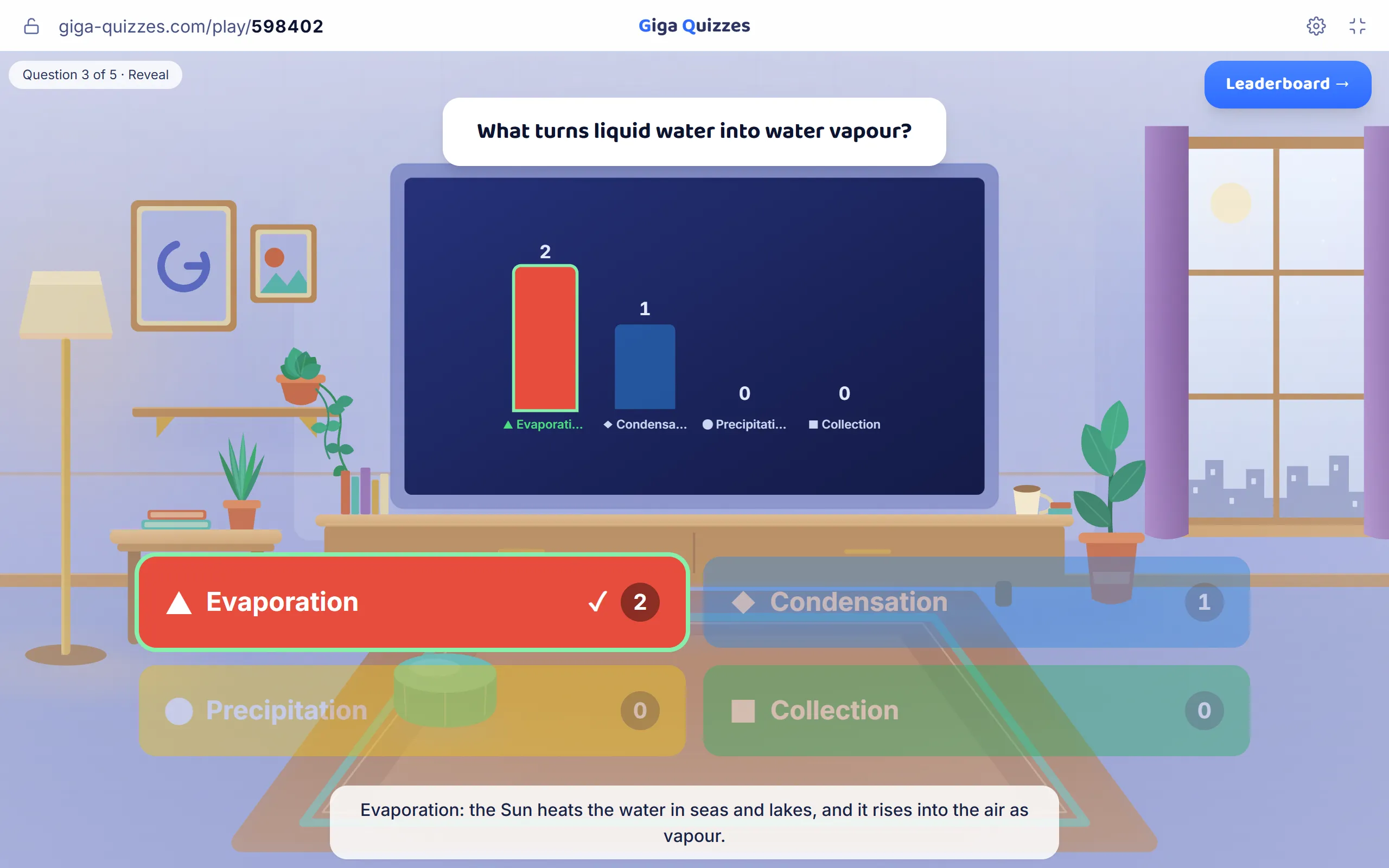
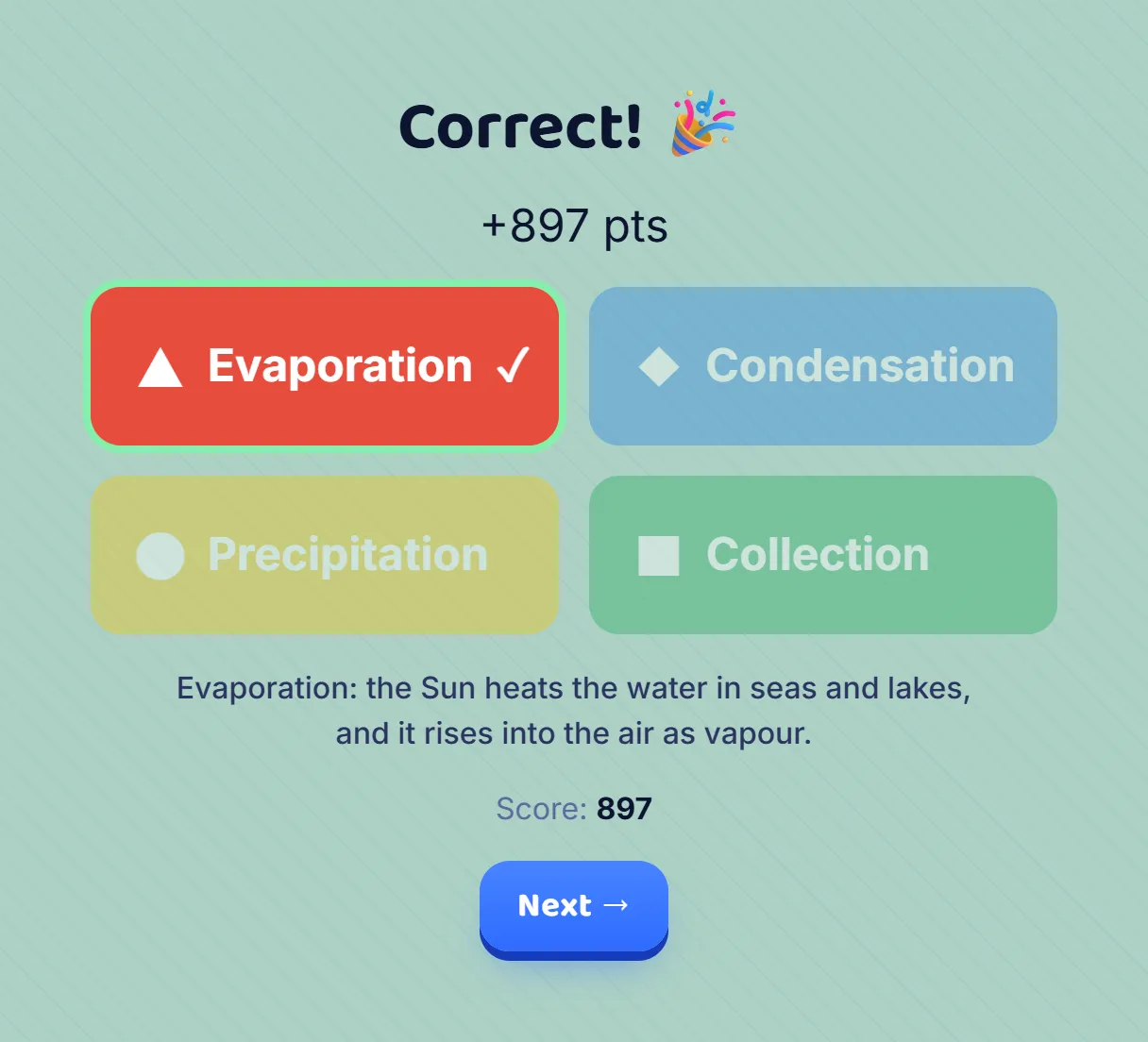
When the question closes, the big screen marks the right answer, shows how the class answered, and puts your explanation underneath. It is the natural moment to stop and talk: turn off Auto-advance screens in Game settings, and the game waits on this screen until you move on.
Step 5: And on every phone
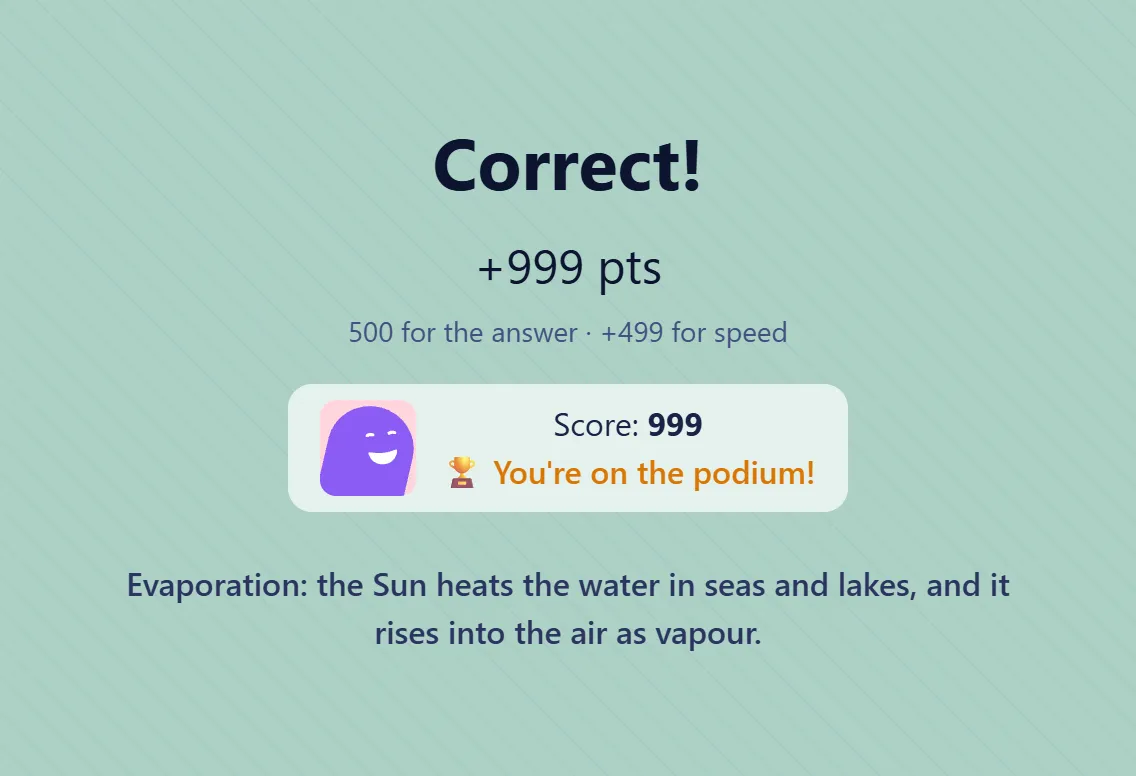
The explanation reaches the phones too, under each player’s own result, so a student at the back of the room reads it at arm’s length, and a student who got it wrong reads why straight after finding out.
Step 6: Weigh what matters
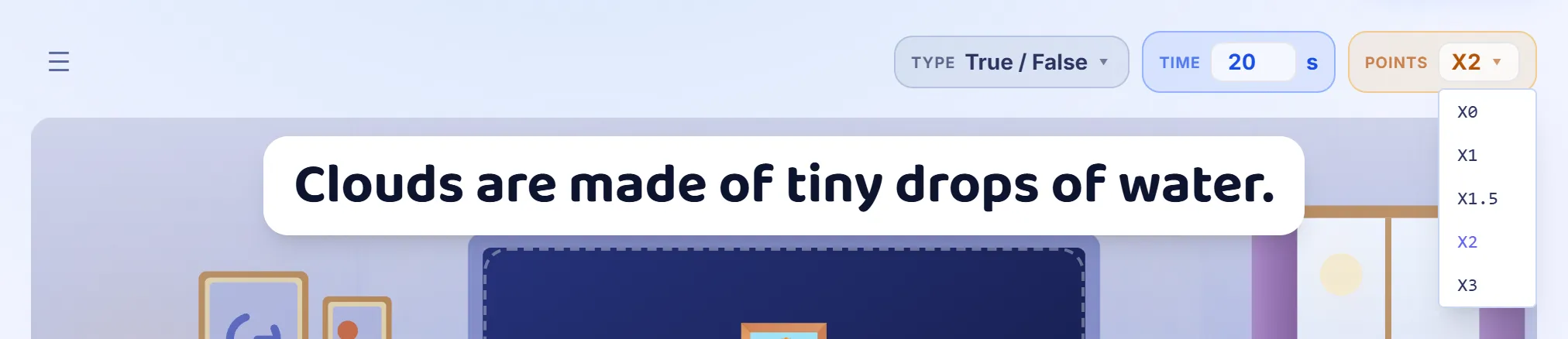
Above each question, Points sets how much it is worth, from ×0 to ×3, where ×1 is 1,000 points. Use ×0 for a warm-up or a practice question, so nobody falls behind before the game has begun, and ×2 or ×3 for the question the lesson was about. Beside it, Time sets how many seconds the class has, so a question that needs working out gets longer than one that needs remembering, and Shuffle mixes the answers into a new order every game.
Step 7: A picture that reveals itself
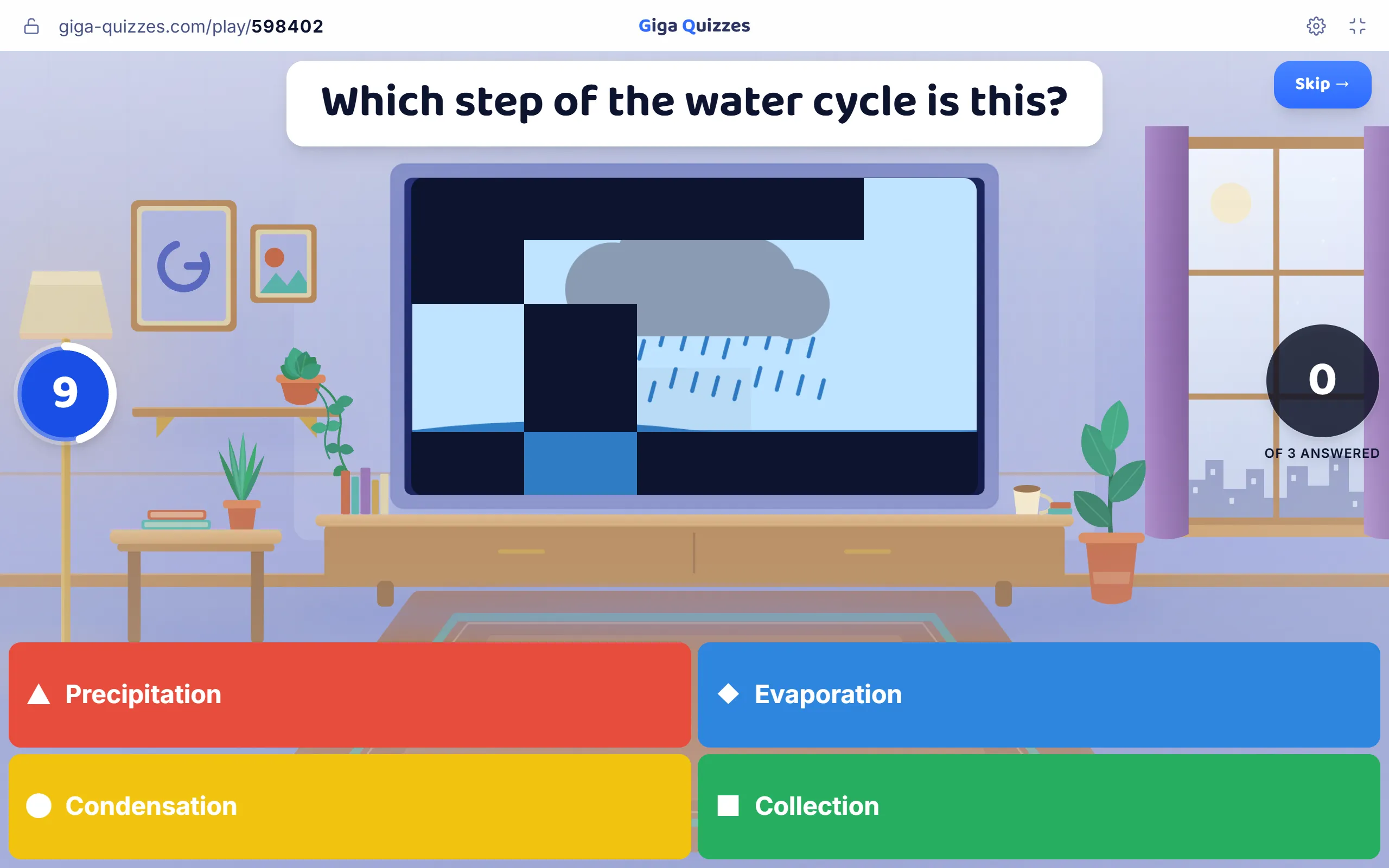
Add a picture to a question, then press the wand on the picture, Image reveal. Choose a grid, 3×3, 5×5 or 8×8, and the picture starts hidden under tiles that clear one by one while the time runs. Speed sets how fast: ×2 has it all uncovered by half time. A class leans in to recognise it before everyone else, which makes it good for a map, a diagram or anything worth looking at closely.
Step 8: Let them practise alone
In the Library, the menu on a set has Play solo, which plays it on one screen, without a room: the slides to read, each question against its timer, and after every answer whether it was right, with the explanation. Use it to try a set before the lesson, as a student will meet it.
Good to know
- Keep an explanation to a sentence or two. It is read in the few seconds between the answer and the leaderboard.
- The same set works as homework in a group: students play it alone and see the slides and the explanations just as in Play solo. The guide to groups shows how to set it.
- Every question and slide can have a picture. Pictures of the answers themselves, on the answer tiles, work for younger classes.