Guide
Make a maths quiz
Multiple choice lets a class guess. A maths quiz is better when students work the answer out and type it, place it on a number line, or find it on a graph. Giga Quizzes has a question type for each, and a keypad that understands fractions, powers and roots, so a student can answer three quarters as 3/4. This guide builds a short set on fractions and decimals and shows each kind of question, in the editor and on a student’s screen.
7 steps · about 4 min · written for a computer
Step 1: A question with a number for an answer
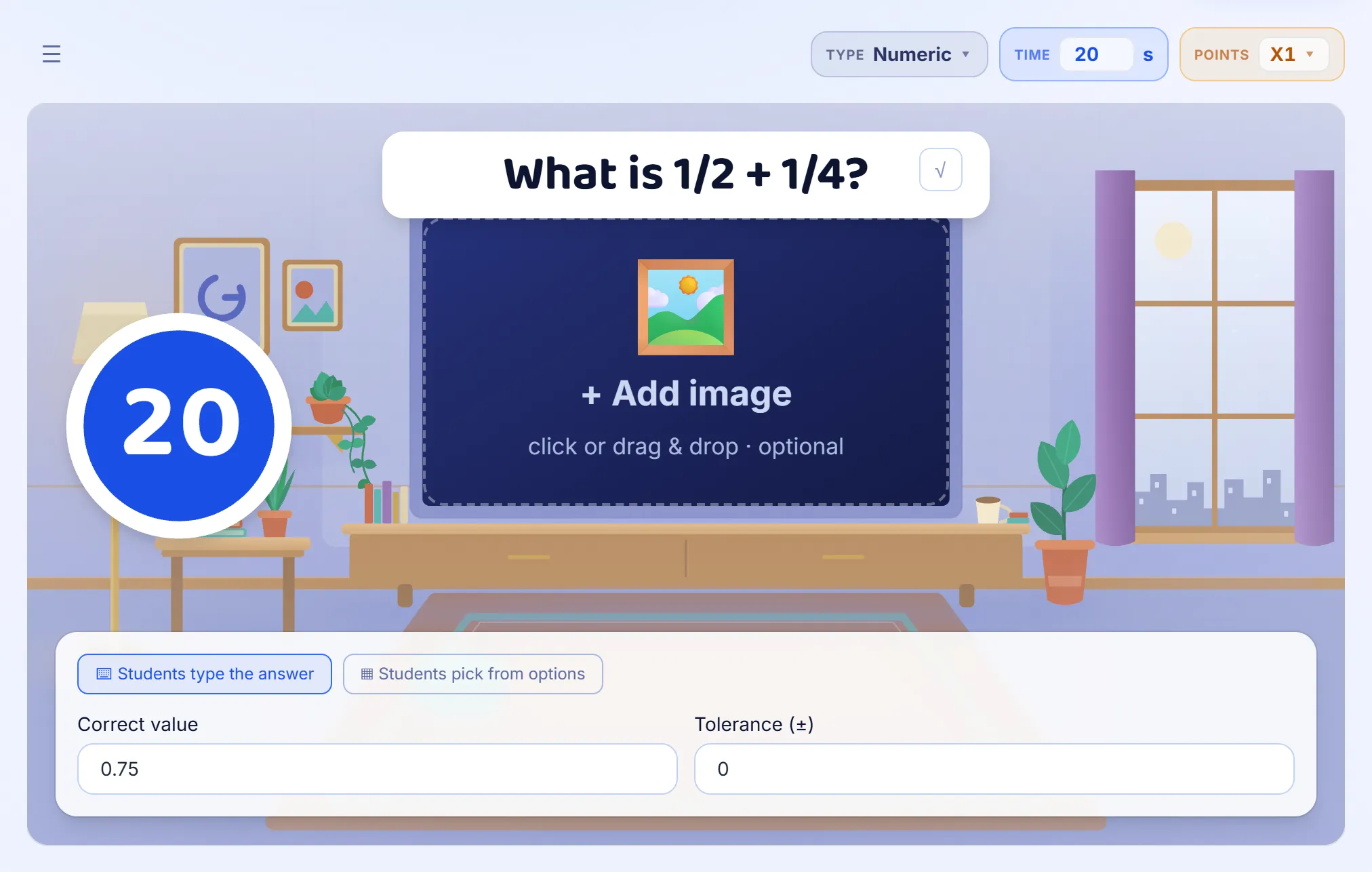
Add a question and choose Numeric. Under the question, enter the Correct value. Tolerance (±) sets how close is close enough: 0 means only the exact number counts, and a tolerance of 0.5 accepts anything from half below it to half above, which suits a measurement or a rounded answer. Students type their answer rather than pick one, so a numeric question shows what they can work out, not what they can recognise.
Step 2: Write maths symbols
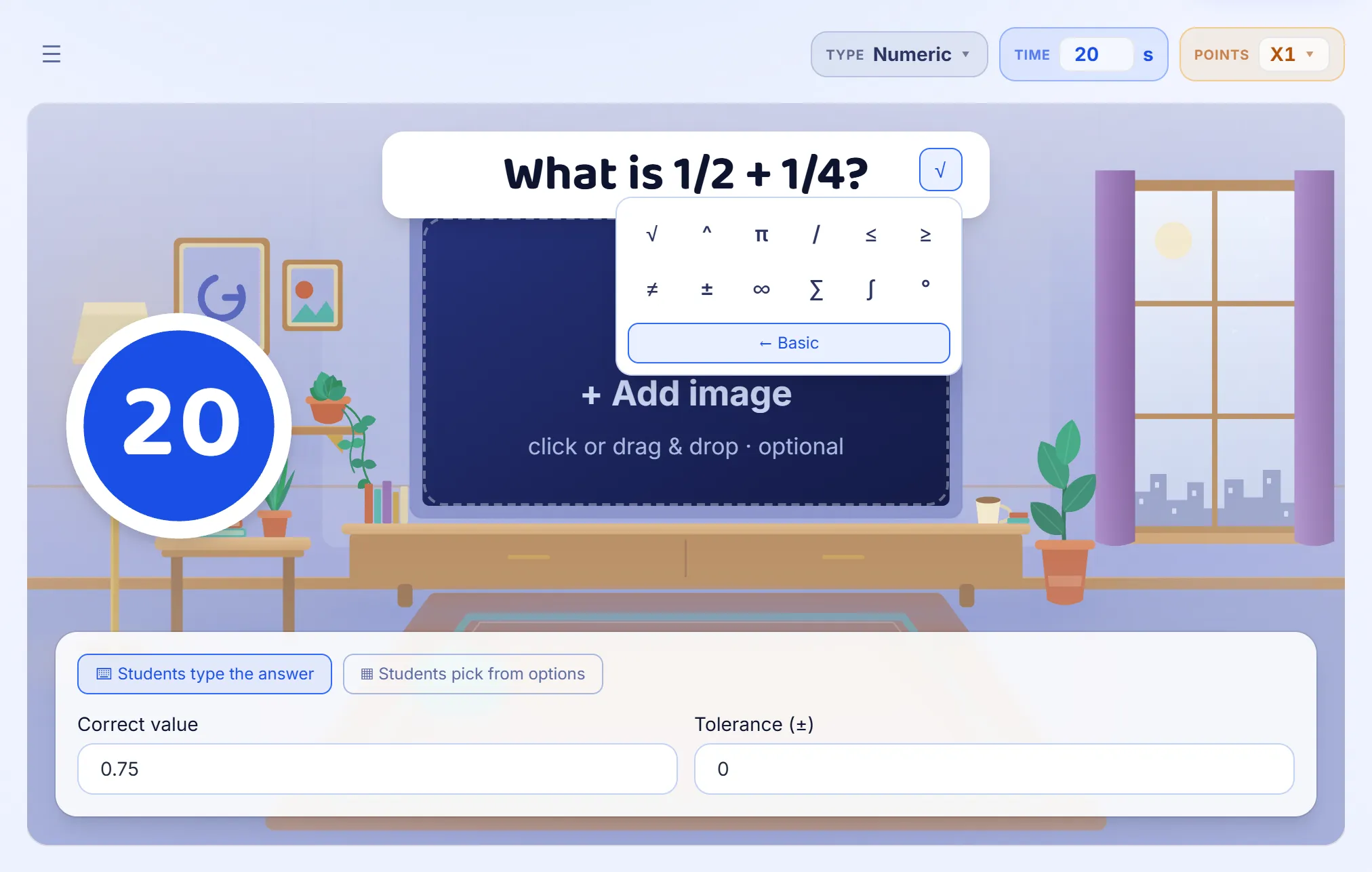
Maths needs characters a keyboard does not have. On a Numeric or Slider question, the √ button at the end of the question opens a panel of symbols to click into the text: x, y and z, the four operations, equals, brackets and less-than and greater-than, and under Advanced, roots, powers, π, fractions, ≤, ≥, ≠, ±, ∞, ∑, ∫ and °. A symbol goes in wherever the cursor is.
Step 3: Students answer on a keypad
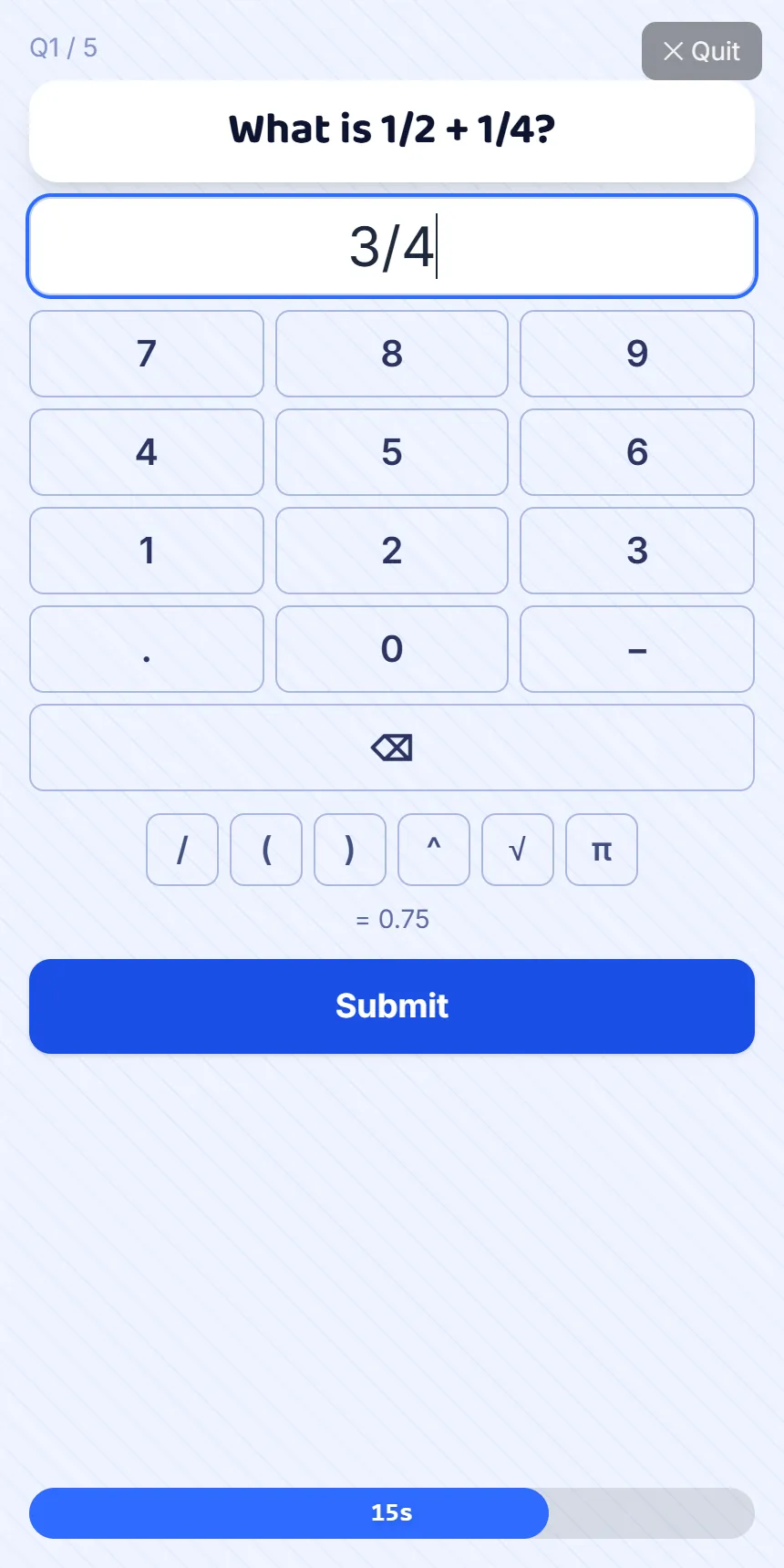
On a Numeric question, each player gets a number pad, with a decimal point and a minus sign. When the question itself uses one of the advanced symbols, such as / or √, the pad adds the keys a student needs to answer in the same way: /, brackets, ^, √ and π. A student can answer 3/4, 2^3 or √16, and sees the value underneath, = 0.75, before pressing Submit. It is compared with your correct value, so every way of writing the right number counts.
Step 4: Or let them choose the number
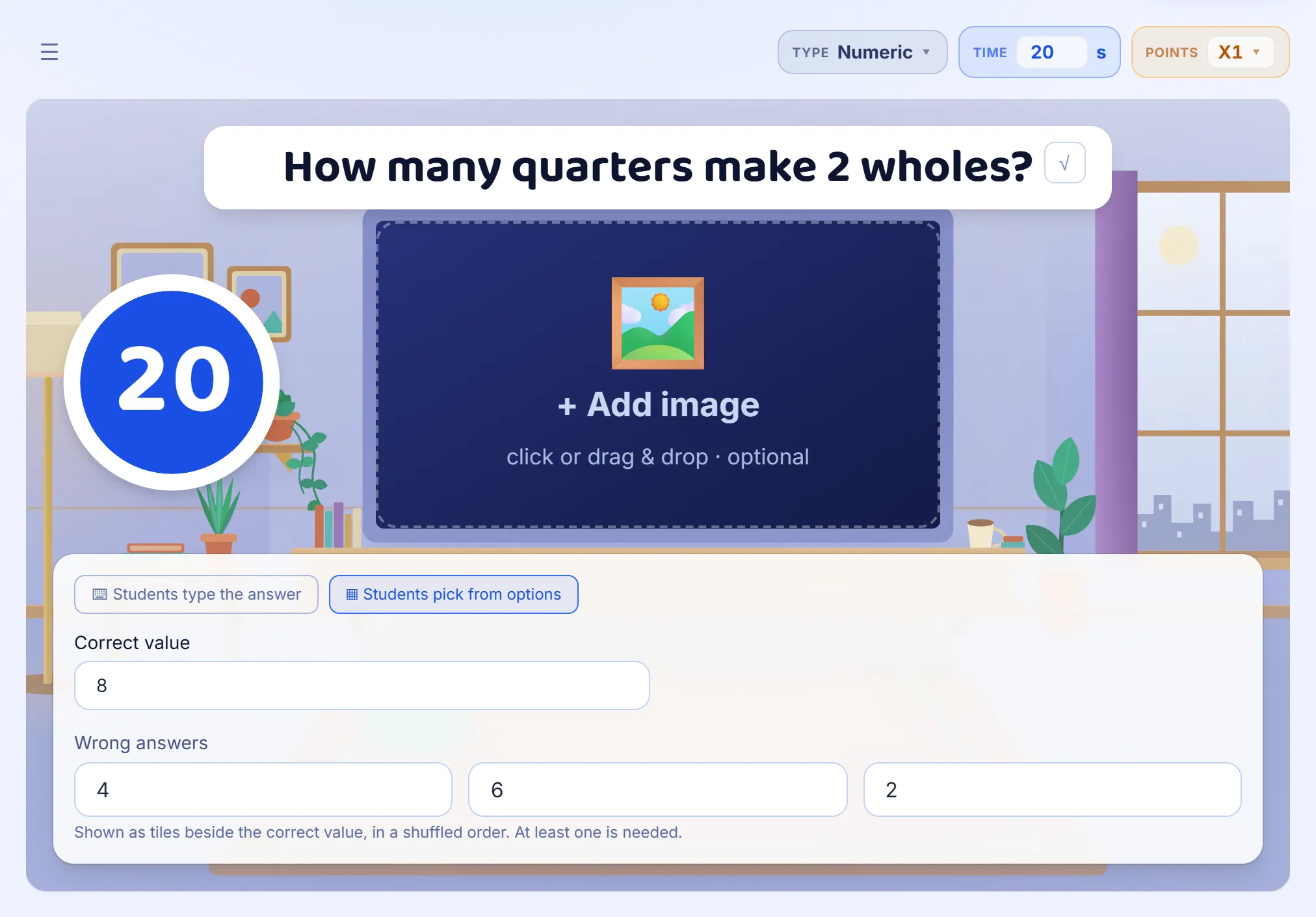
For a class too young to type an answer against a clock, switch the question to Students pick from options. Enter the correct value and up to three wrong answers; players see all of them as tiles, in a shuffled order, and tap one. Choose the wrong numbers from mistakes students really make, such as 4 for a question about quarters, and the chart at the reveal shows how many made each one.
Step 5: Place it on a number line
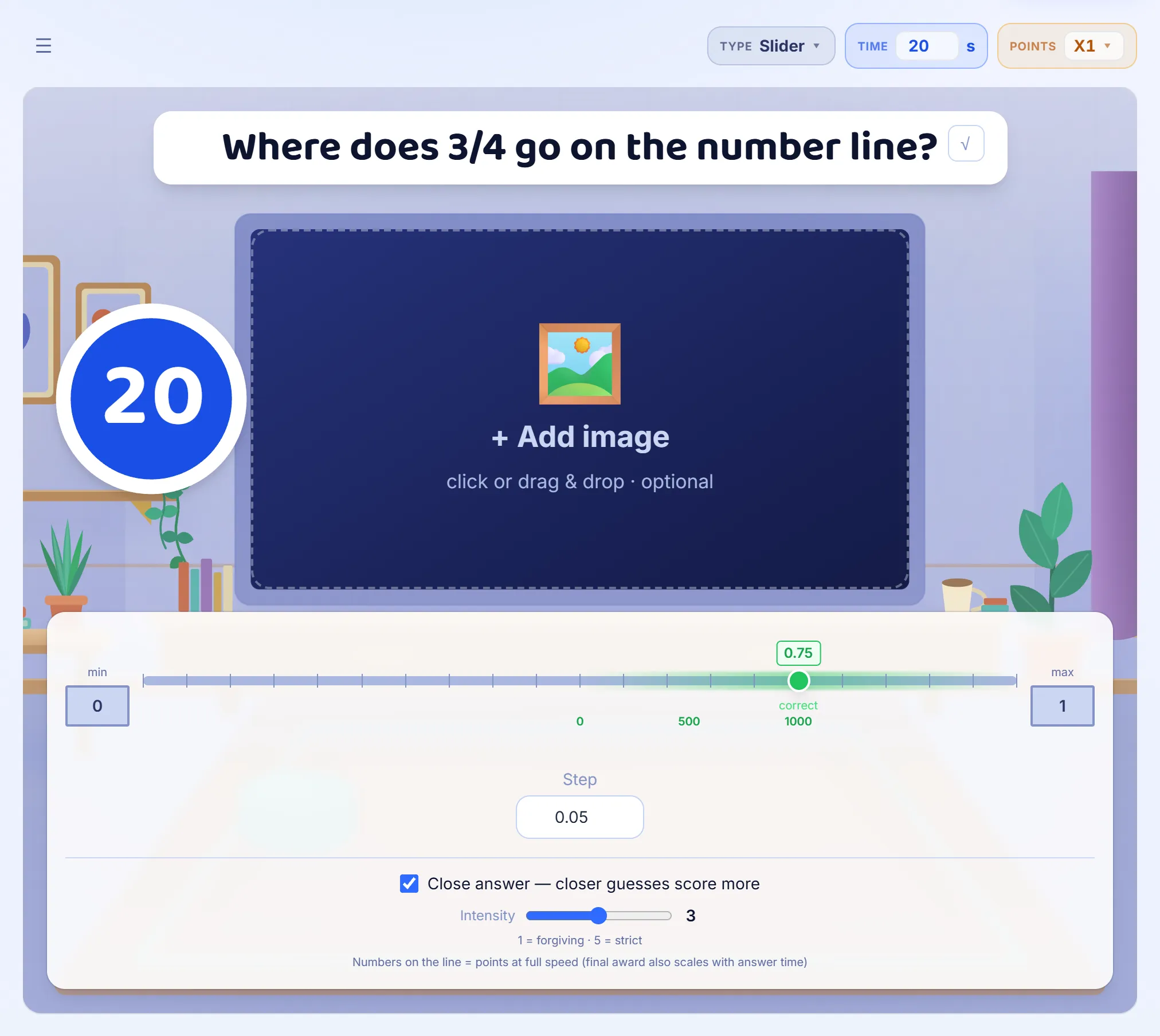
Choose Slider for a question about where a number sits: a fraction between 0 and 1, a negative number, an estimate. Set the lowest and highest values and the step, and drag the green marker to the right answer. With Close answer turned on, a student who lands near it still scores, less the further away they are; Intensity sets how quickly the points fall, from 1 (forgiving) to 5 (strict), and the numbers under the line show what each distance is worth.
Step 6: Put numbers in order
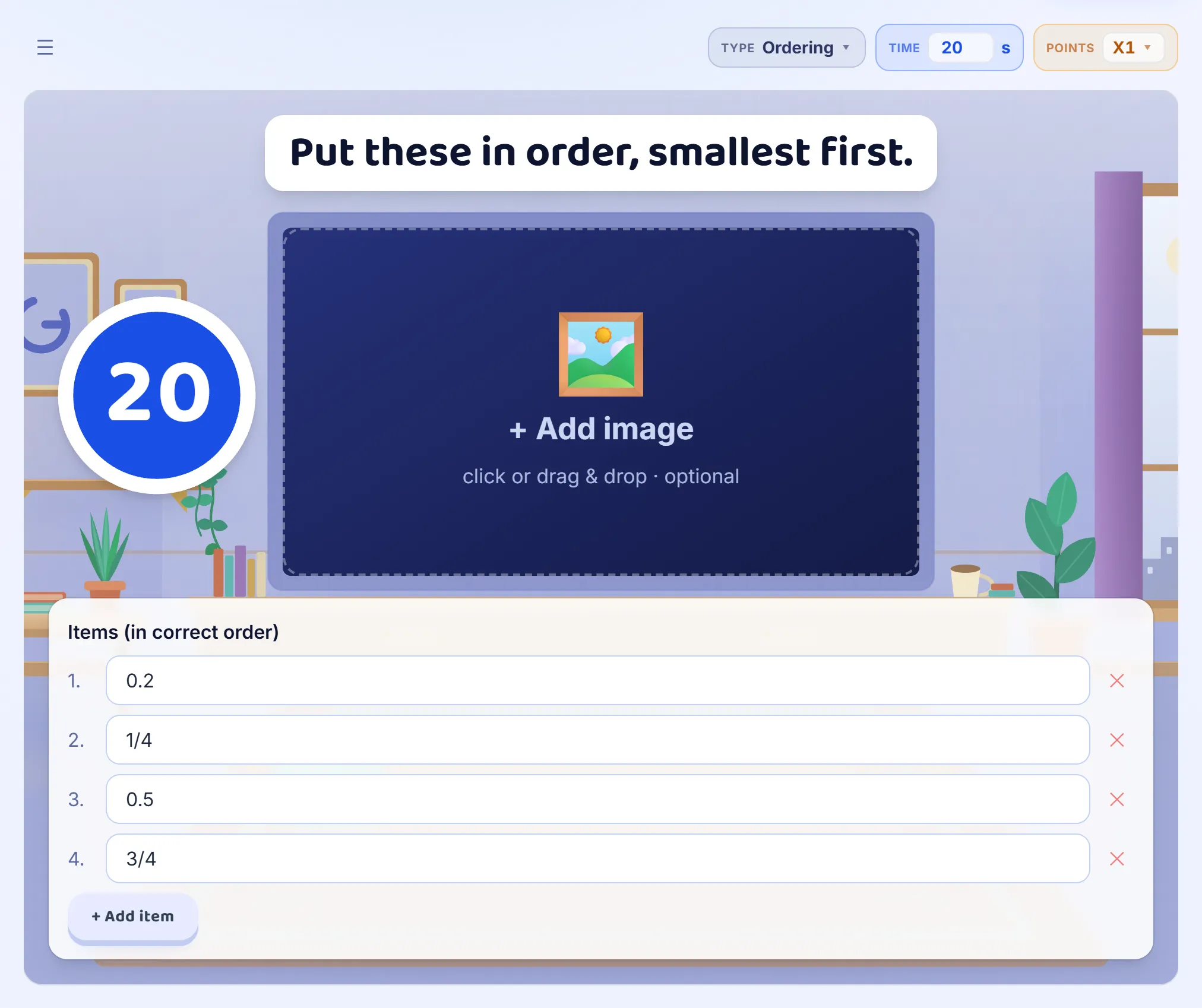
Choose Ordering and type two to eight items in their right order: decimals and fractions mixed together, negative numbers, the steps of a method. Players get them shuffled and drag them into place. Every item in its right place earns its share of the points, so an order that is nearly right still earns part of the points.
Step 7: Point at a graph
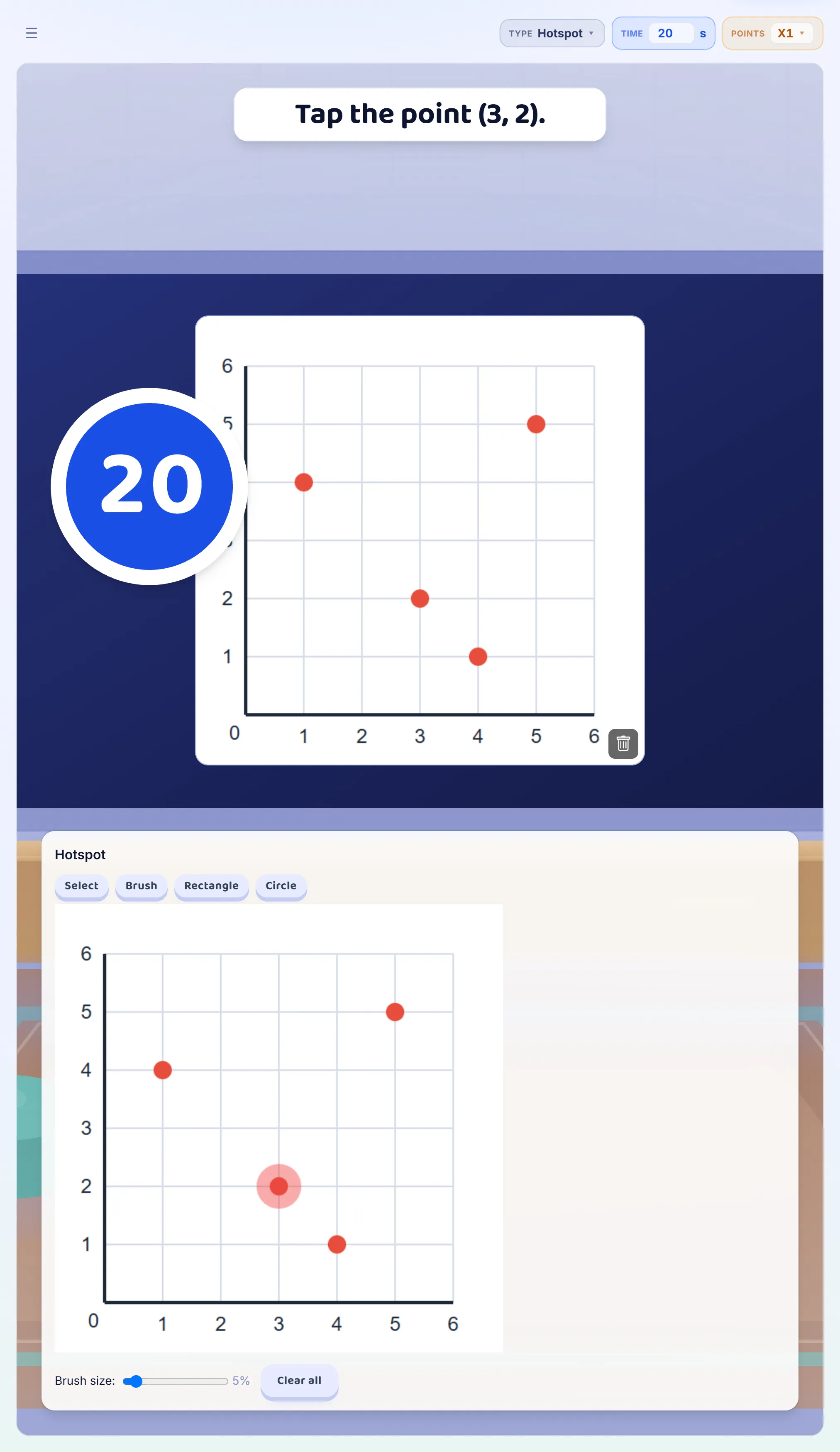
Choose Hotspot, add a picture of a grid, a graph or a shape, and mark the right place on it with the Circle, the Rectangle or the Brush. Players tap the picture, and a tap inside the marked area is right. Use it for a point on a coordinate grid, a corner of a shape, or the part of a diagram a question names.
Good to know
- The correct value is a number, so three quarters is entered as 0.75. A student who answers 3/4 or 6/8 is right too, because the keypad works out what they typed.
- For an answer that never ends, like one third, give a tolerance: 0.333 with a tolerance of 0.001 accepts 1/3.
- To bold or underline part of a question, select the words and use the small toolbar that appears above them.
- For a diagram, a shape or a graph of your own, draw it, photograph it or take a screenshot, and add it to the question as a picture.