Guide
Every question type, explained
A set in Giga Quizzes can mix eleven kinds of question, plus an information slide that asks nothing at all. They go well beyond four coloured answers: players can type a word, put steps in order, pair things up, tap a spot on a picture or drag a slider. This guide takes them one at a time: what each question asks, how players answer it, how it is scored, and what the editor looks like while you write it. Every picture comes from the same example set, about the solar system.
13 steps · about 5 min · written for a computer
Step 1: Pick a type as you add a question
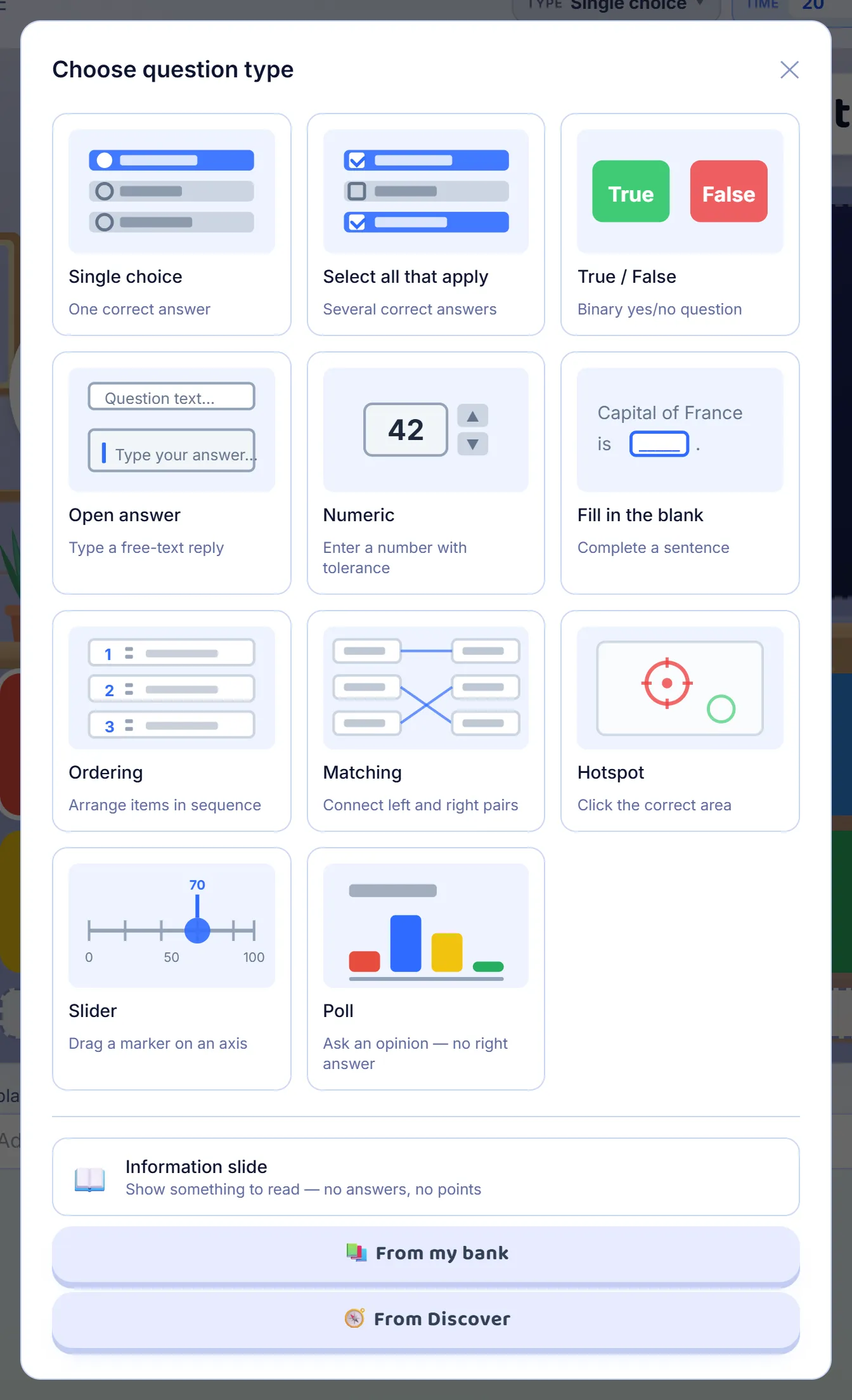
Press + Add question in the editor and a panel opens with every type, each with a small picture of how it looks. Pick one and the new question opens ready to fill in. Below the grid are the information slide and two ways to reuse questions you already have: From my bank lists every question in your other sets, and From Discover adds questions from ready-made quizzes. Above every question sit the same controls: the type, the time limit in seconds and the points. Points go from ×0 to ×3, where ×1 is 1,000, so a harder question can be worth more.
Step 2: Single choice
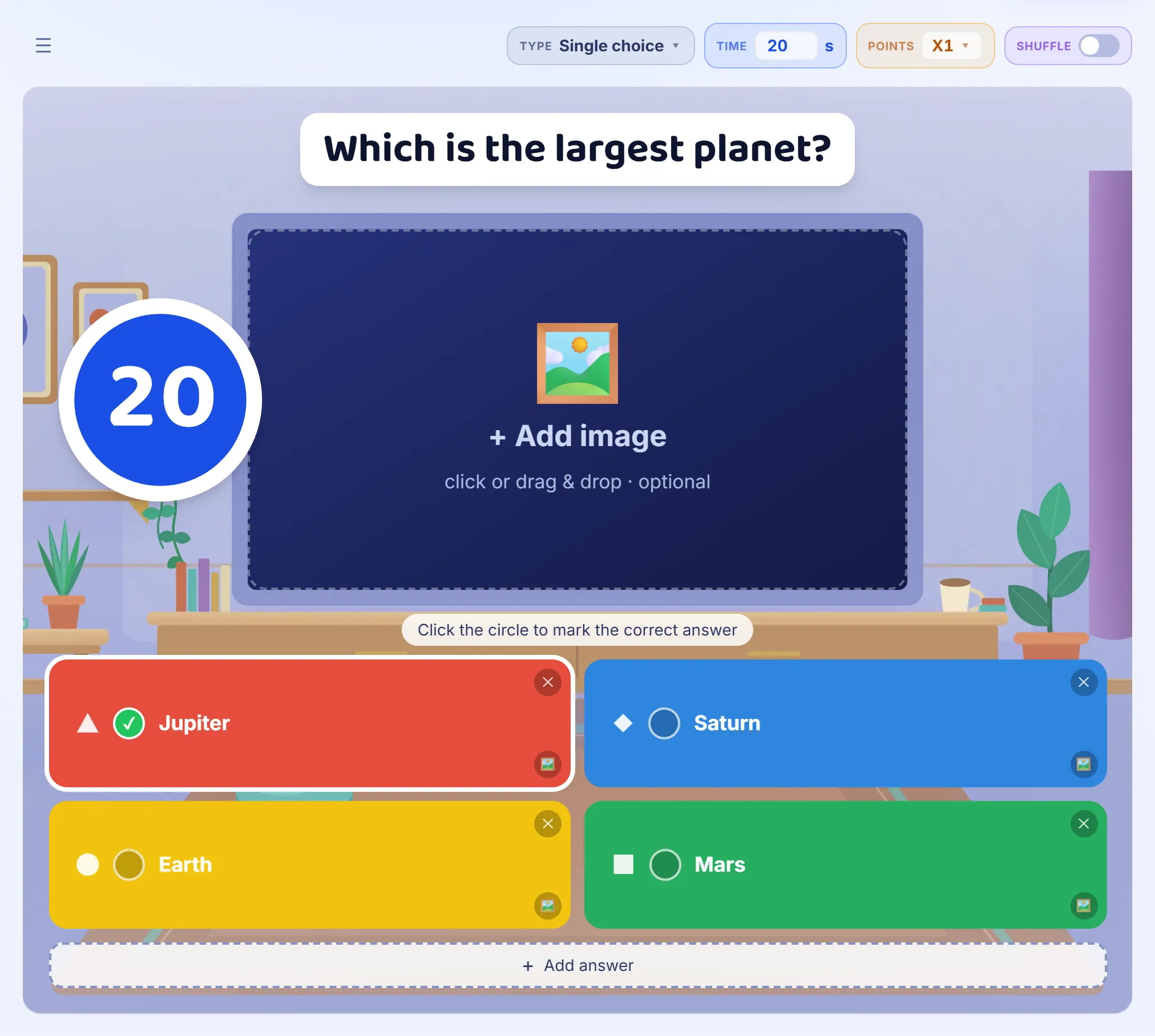
The classic: a question and two to six answers, one of them right. Type each answer on its coloured tile and click the circle on the right one. An answer can be a picture instead of words. Players tap the colour and shape of their answer. The Shuffle switch mixes the answers into a new order every game, so a class that has played the set before cannot simply remember where the right one was.
Step 3: Select all that apply
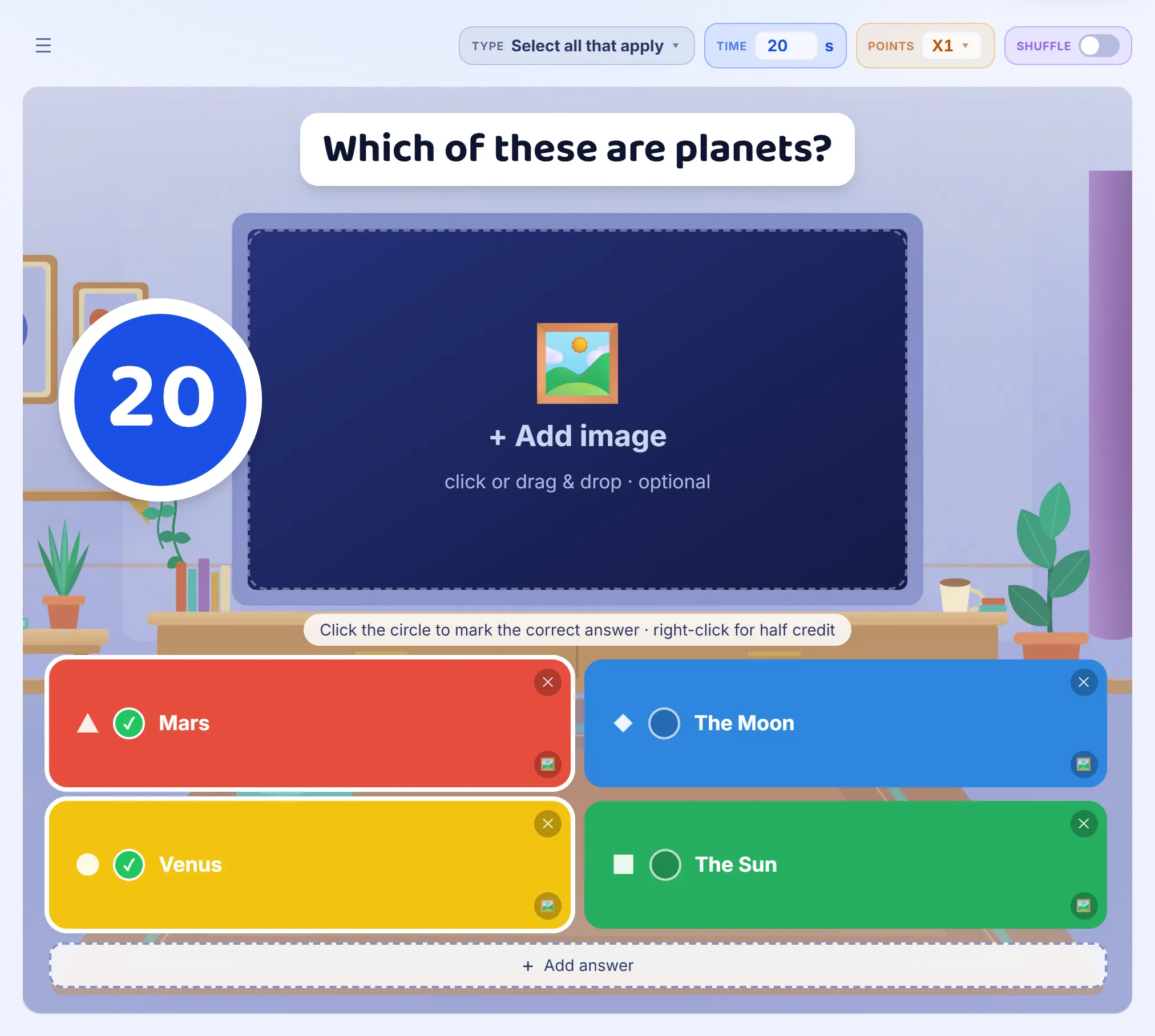
Like single choice, but more than one answer is right: click the circle on each of them. Players pick their answers and press Lock in, and their screen tells them how many to pick. Credit is shared out, so each right answer they pick adds to the score and each wrong one takes some away; a player who finds two of three right answers still earns something. Right-click an answer to make it worth half, for one that is not wrong but not the best either. When a question has an answer like that, players are asked to pick all that apply instead of a number.
Step 4: True / False
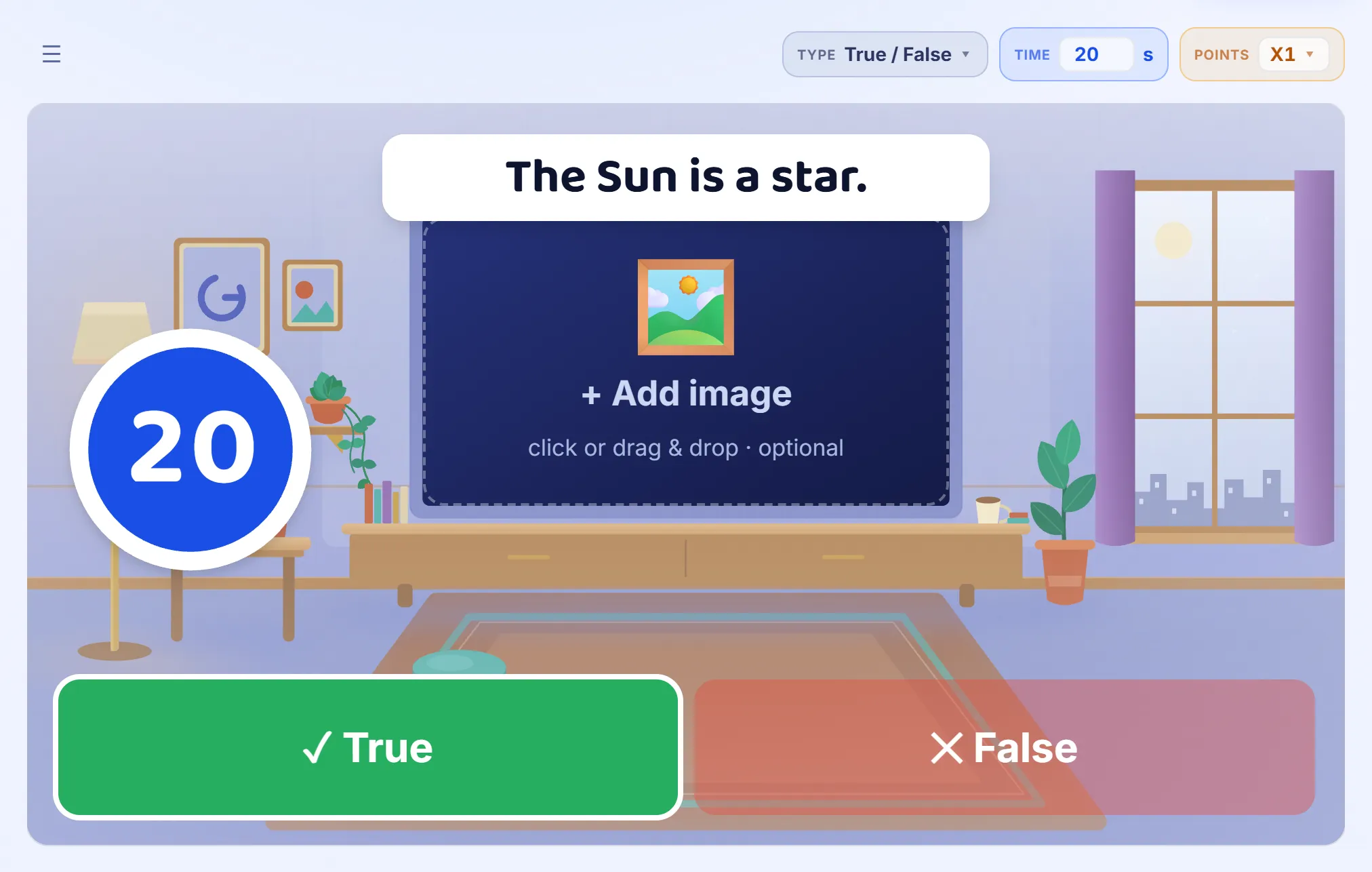
A statement and two answers. Choose whether it is true or false, and that is the whole question. It is the quickest type to write and to answer, which makes it good for a warm-up at the start of a lesson or for checking one fact.
Step 5: Open answer
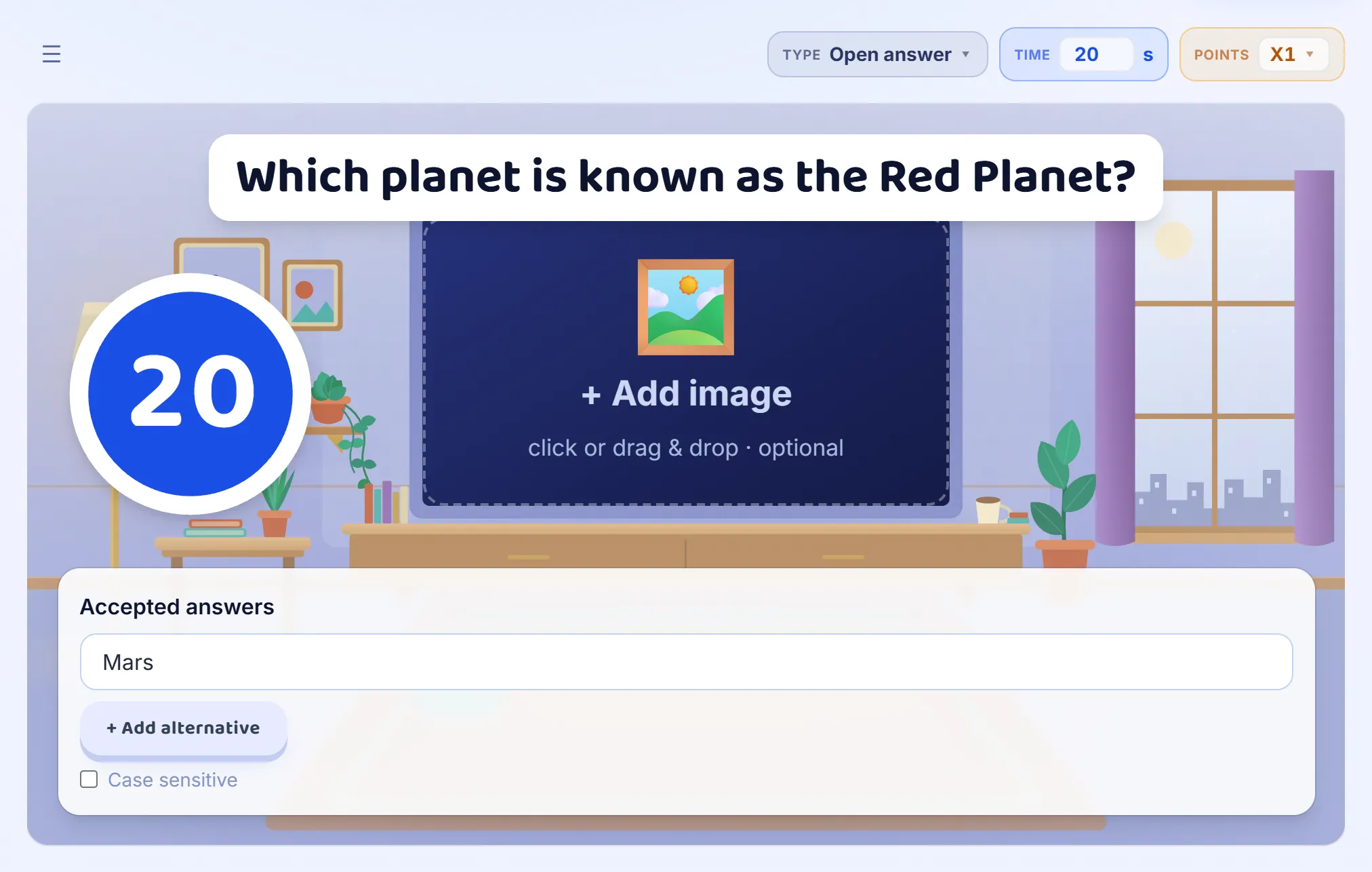
Players type their answer instead of picking one, which shows whether they can recall it rather than recognise it. Under Accepted answers, list every answer that should count: other spellings, a short and a long form, a synonym. Capitals, spaces and punctuation do not matter, and neither does one wrong letter in an answer of five letters or more (two in a single word of ten or more), as long as the first letter is right. An answer with a number in it must be exact. Tick Case sensitive to accept only the answer exactly as written.
Step 6: Numeric
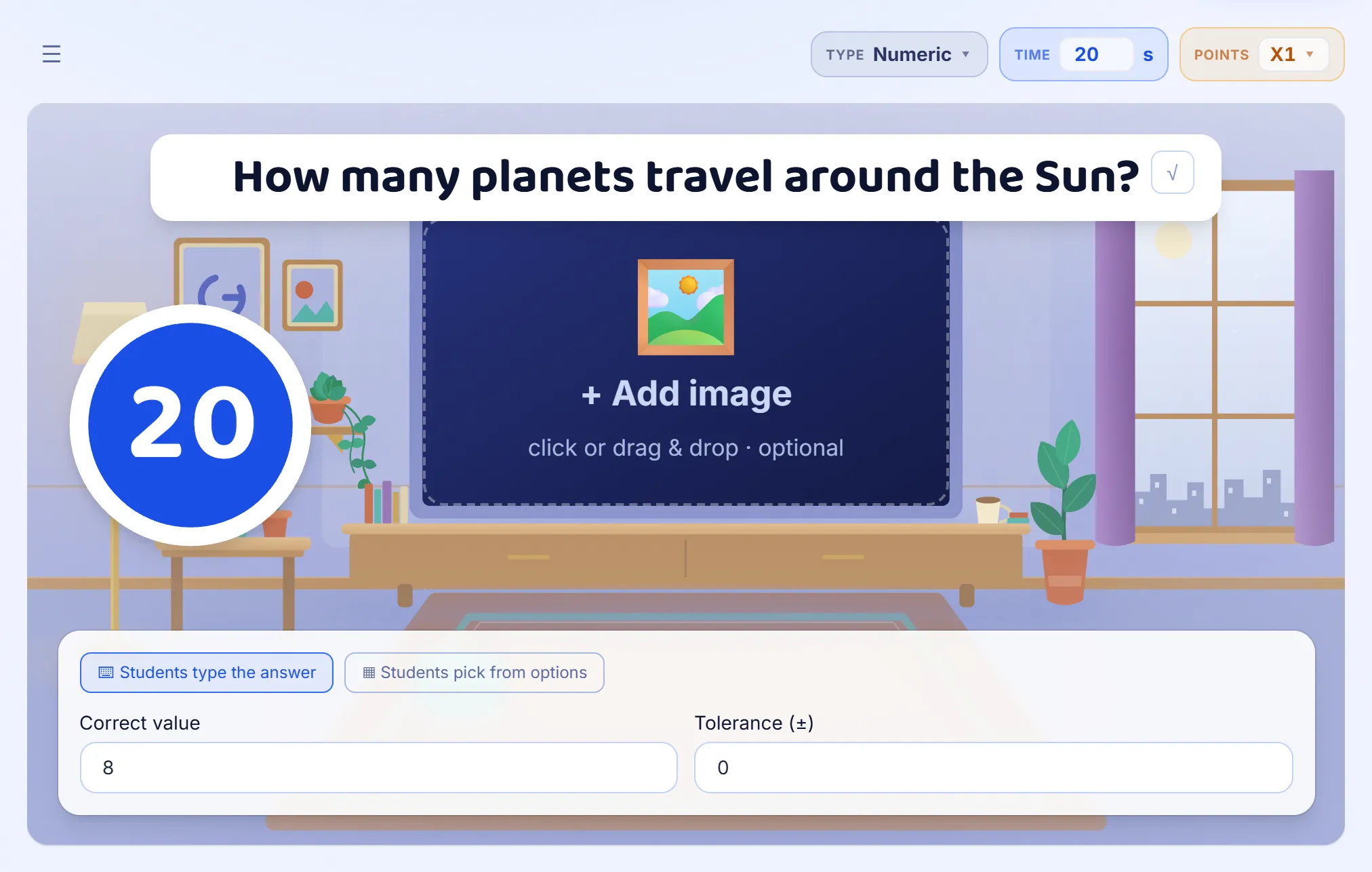
The answer is a number. Enter the correct value and a tolerance: with a tolerance of 2, any answer within 2 of the right one counts. Players type the number. Switch to Students pick from options and they choose it from tiles instead, next to up to three wrong numbers you write yourself, which suits a class too young to type quickly under a timer.
Step 7: Fill in the blank
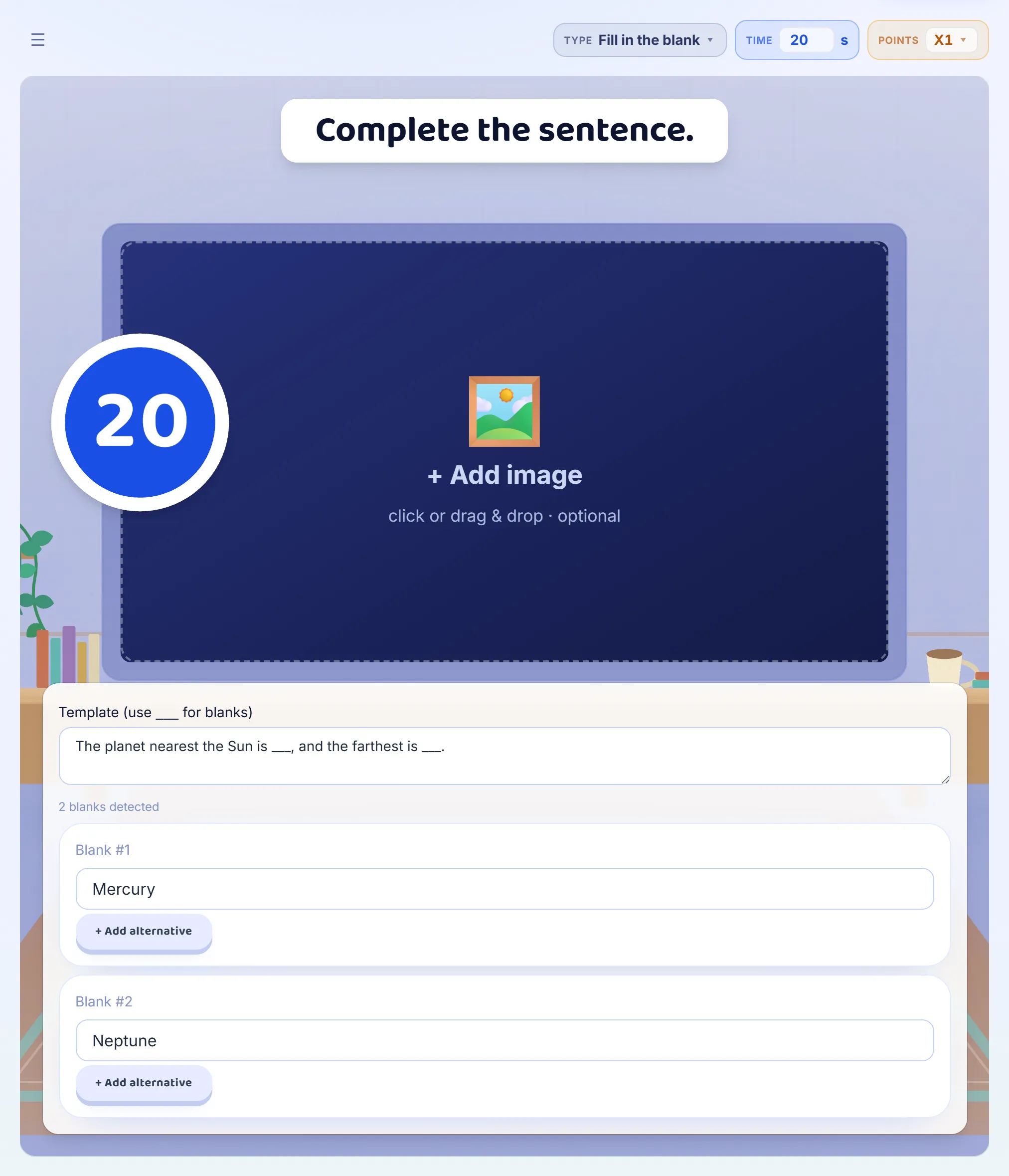
Write a sentence and type three underscores, ___, wherever a word is missing. Each blank gets its own right answer, and + Add alternative adds more answers that count. Players type a word into each gap and lock in. Every blank is scored on its own, so filling in one of two correctly earns half the credit. Capitals, spaces, punctuation and a small typo in a longer word do not matter, just as in an open answer.
Step 8: Ordering
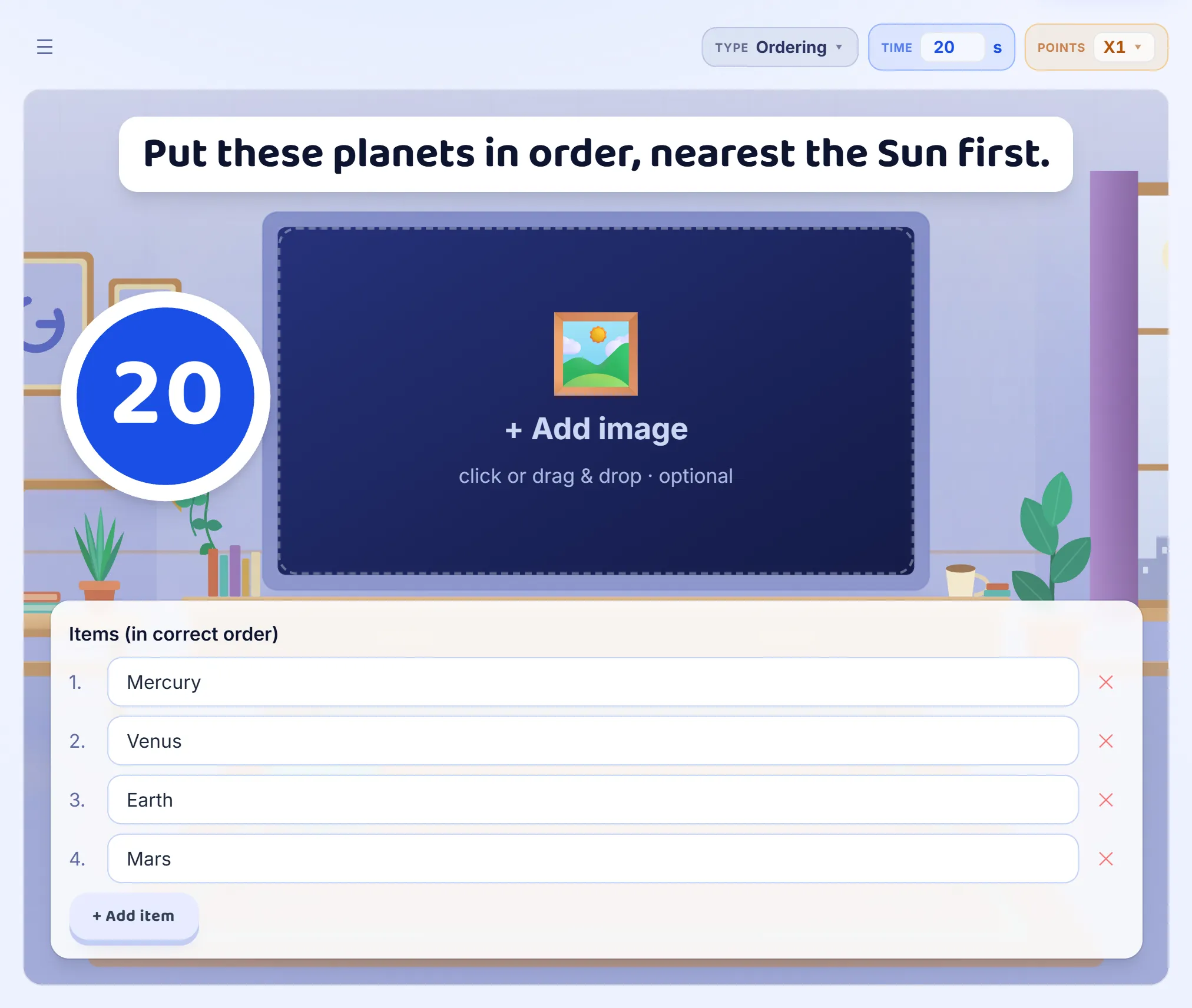
Type two to eight items in their right order. Players get them mixed up and drag them into place. Each item that ends up in its right place earns its share of the points, so an order that is nearly right is worth nearly full marks. Good for the steps of a process, events in history, or numbers from smallest to largest.
Step 9: Matching
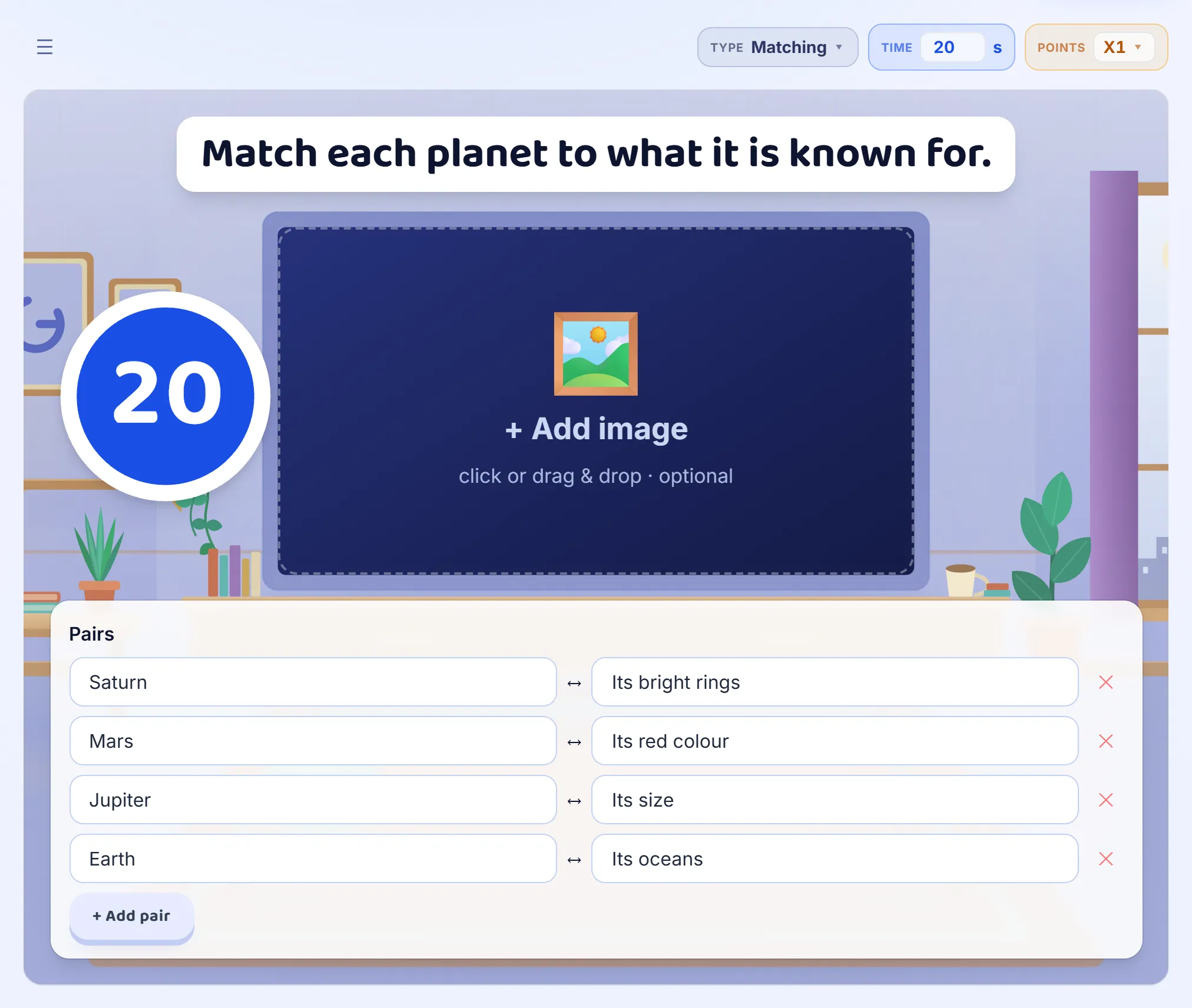
Write two to eight pairs, a left side and a right side. Players see the left column as you wrote it and the right column mixed up, and drag between the columns to connect each pair. Every correct pair earns its share of the points. Good for words and their meanings, countries and capitals, or terms and examples.
Step 10: Hotspot
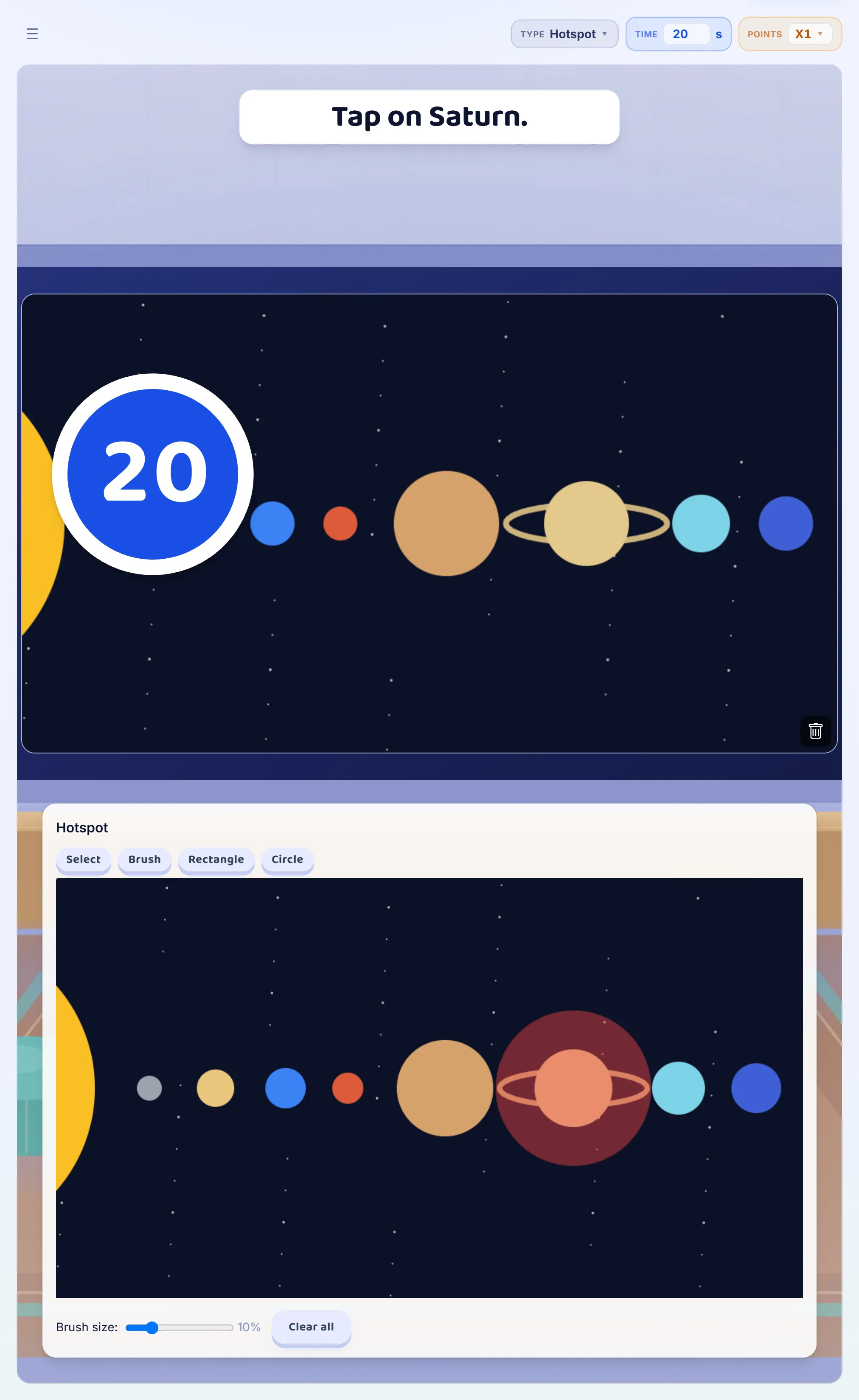
Add a picture, then mark the right place on it: paint over it with the Brush, or drag out a Rectangle or a Circle. The marked area shows in red, Select moves or resizes a shape, and Clear all starts again. Players tap the picture, and a tap anywhere inside the marked area is right. Use it for a place on a map, a part of a diagram, or anything that is easier to point at than to name.
Step 11: Slider
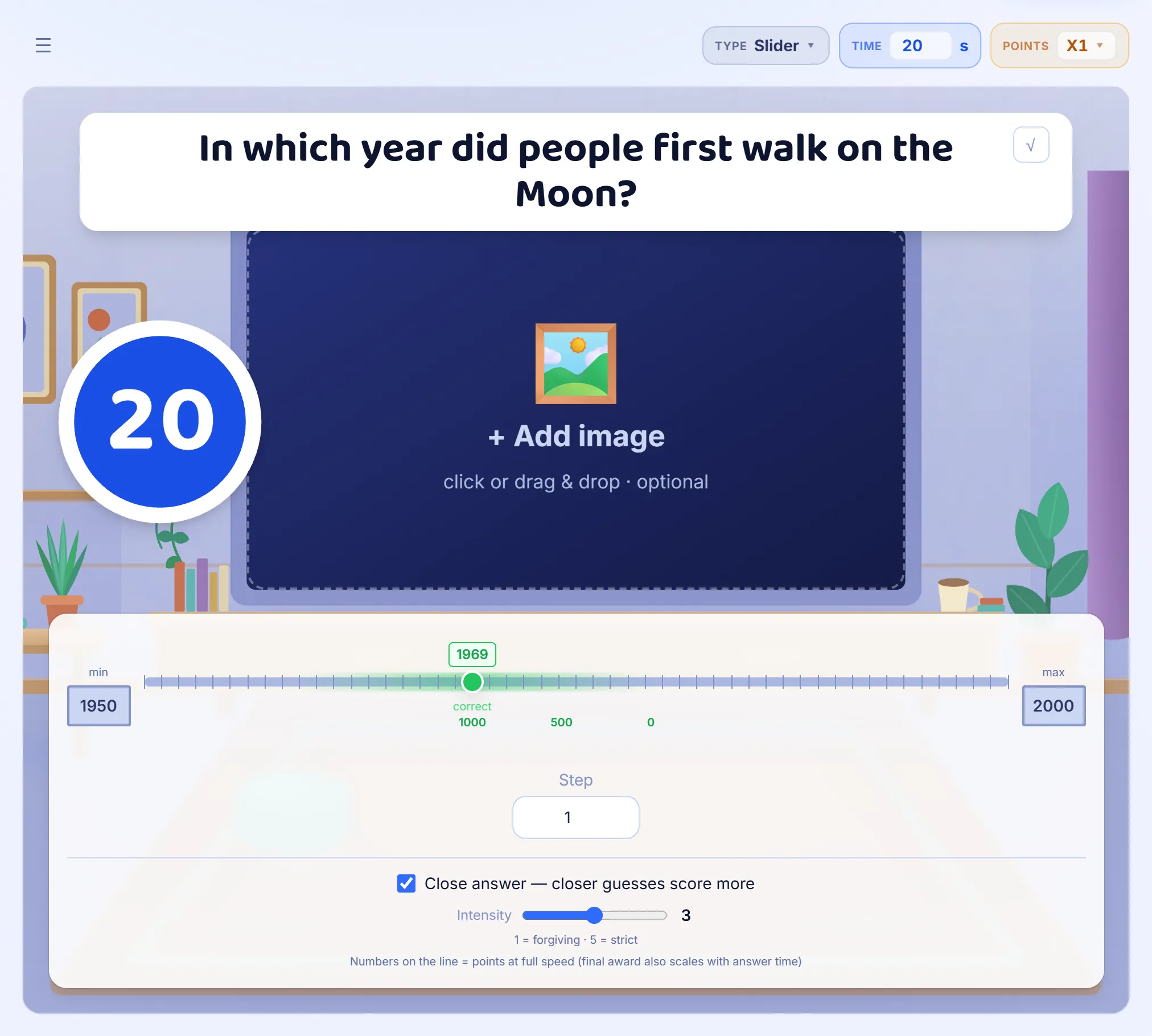
Players drag a marker along a line to the answer. Set the lowest and the highest value and the step between them, and drag the green marker to the right answer. With Close answer turned on, a guess near the answer still earns points, fewer the further away it is, and Intensity sets how quickly they fall away, from 1 (forgiving) to 5 (strict); the numbers under the line show what each distance is worth. Without it, only the exact answer counts. Good for years, estimates and measurements.
Step 12: Poll
A poll asks what the room thinks, so there is no right answer and nothing to score. Players pick one of your answers and the results appear as a chart on the big screen. Switch to Write an answer and players type their own instead, shown as a word cloud. Use it to start a discussion, to ask how confident the class feels, or to let the room vote.
Step 13: Information slide
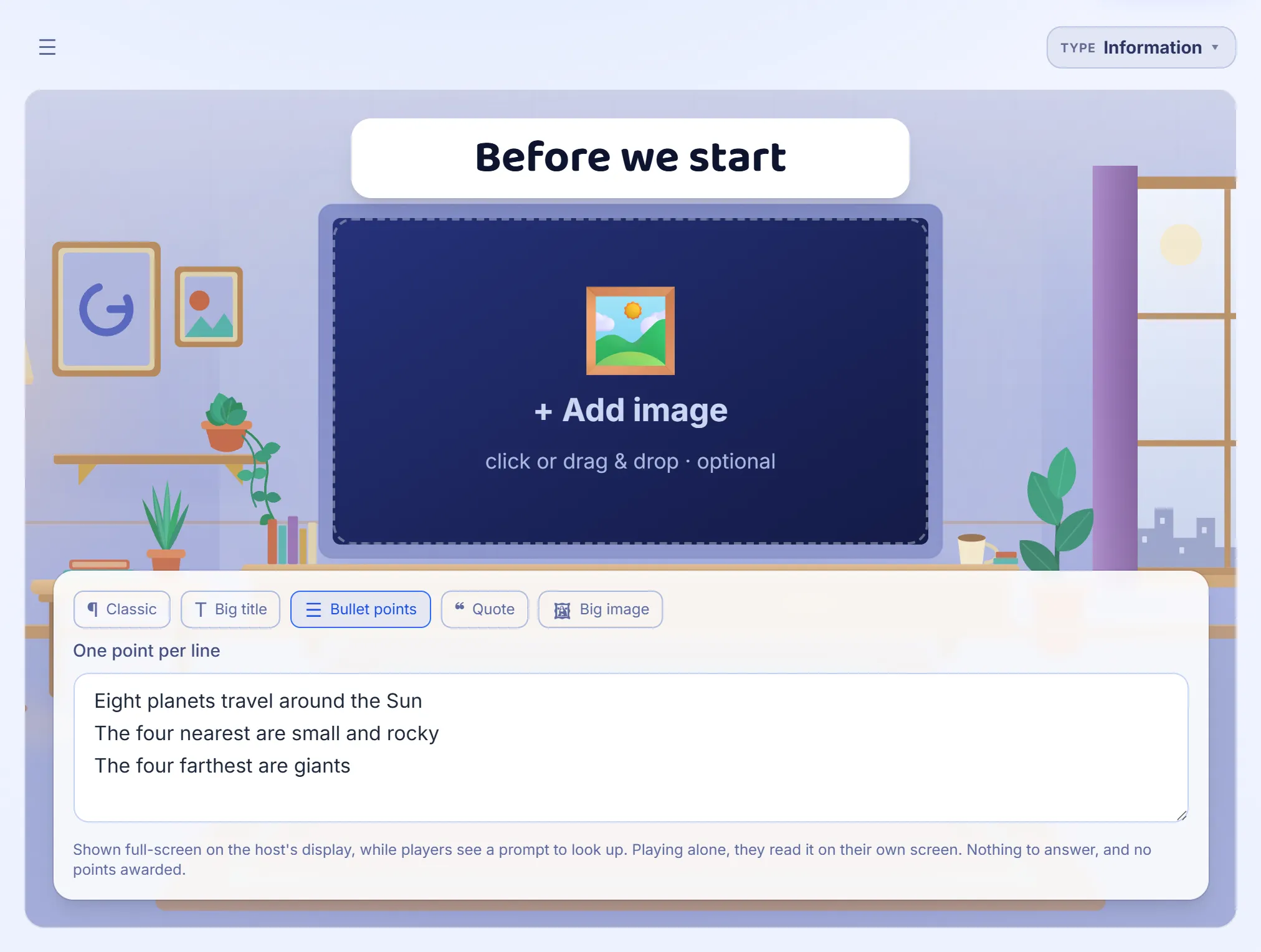
Not a question at all: a slide with something to read, shown on the big screen while the players’ screens tell them to look up. It has no answers and no points, and the game moves on from it by itself after a few seconds, or as soon as you press Skip, straight to the next question. Choose a layout for it: Classic, Big title, Bullet points, Quote or Big image. Use one to introduce a topic, to give the rule before the questions that use it, or to put up a picture to talk about.

Good to know
- In every scored type, a right answer earns half of the question’s points, and answering quickly earns up to the other half. Where a type gives partial credit, the same rule applies to the part that was right.
- Any question can have a picture: click the empty screen in the middle of the editor, or drag an image onto it.
- The Explanation box under each question is shown when the answer is revealed, which is a good place for the reason behind it.
- Preview, at the top of the editor, plays the question you are on the way it will look in a game, with pretend players answering, so you can check it before a class sees it.
- The type of a question can be changed later from the TYPE menu above it.