Picture Questions: Choosing Images That Work on a Projector
A picture can make a question or ruin it. The back-row test, four ways to use images in a quiz with an example of each, and where to find pictures you are allowed to use.
 By the Giga Quizzes team4 min read
In this post
A good picture makes the whole room lean forward. A bad one is a grey smudge on the wall that half the class cannot make out. The difference is rarely the subject. It is whether the image was chosen for a screen on the far side of a classroom, seen by thirty people at once through a projector that washes out colour. This post covers how to choose pictures that survive that trip, four ways to use them in a quiz, and where to find images you are allowed to use.
The back-row test
Before adding a picture, imagine a student in the back corner of your room, several metres from a projector with a tired bulb. Could they tell what it shows? A laptop screen hides every problem, because you are sitting half a metre away from a bright, sharp display.
| Works on a projector | Disappears on a projector |
|---|---|
| One clear subject filling the frame | A busy scene where the subject is small |
| Strong contrast: dark on light or light on dark | Pale on pale, or a dim photo taken indoors |
| The subject near the middle | Anything important in a corner, where some projectors crop |
| Words in the question, under the picture | Labels, captions or numbers printed inside the image |
| Shapes and colours that differ in more than colour | Answers told apart only by red and green |
The last row matters more than it looks. Red-green colour blindness affects roughly one man in twelve, so in a class of thirty there is a good chance at least one student cannot tell two answers apart if colour is the only difference between them.
1. A picture with the question
The simplest picture question shows an image and asks about it: what is this, where is this, what happens next. It works for almost any subject, from naming a rock type to identifying a painting or reading a graph.
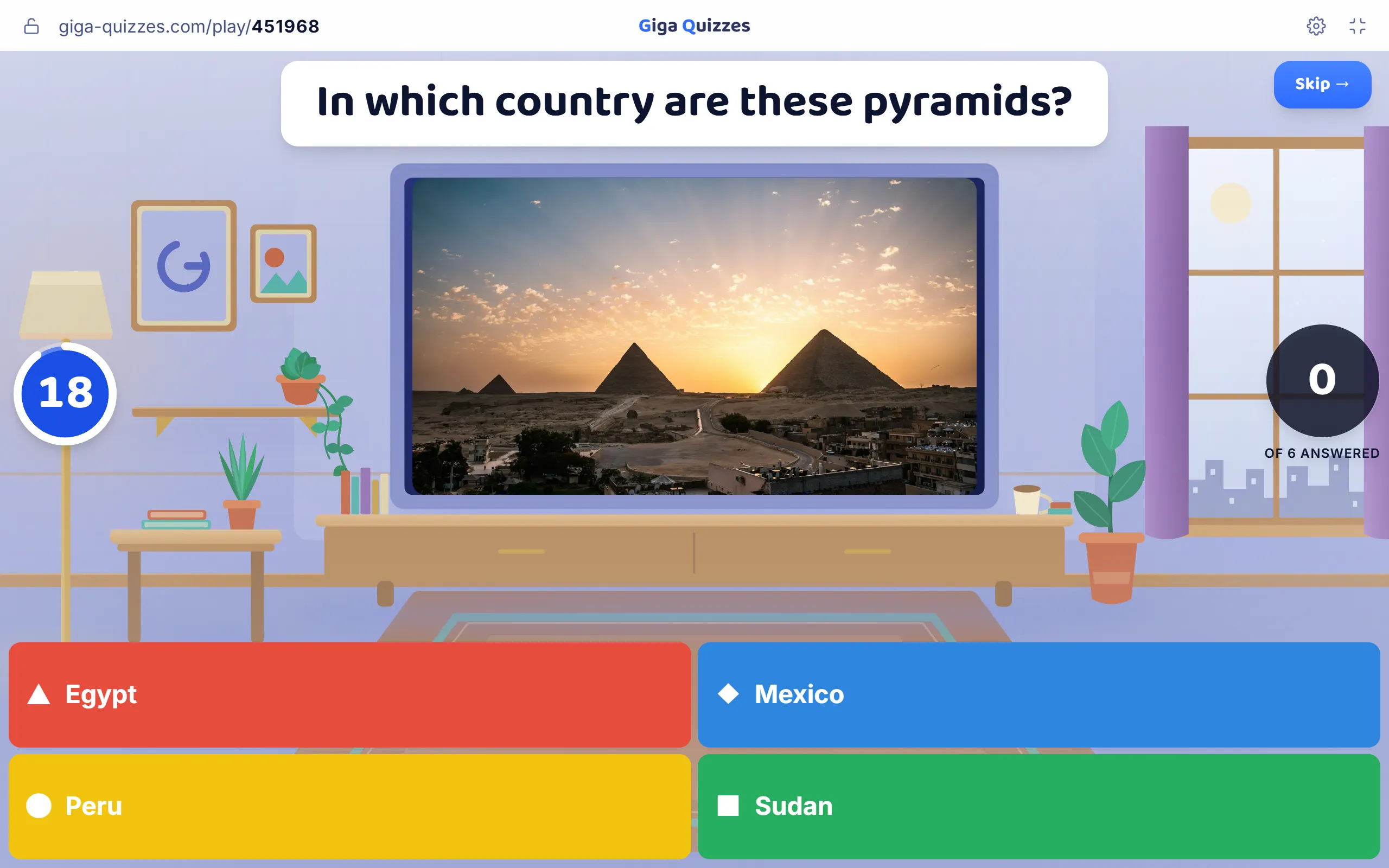
Notice the wrong answers in this one: Mexico, Peru and Sudan all have pyramids of their own. That turns an easy question into one that rewards students who actually recognise Giza, and it gives you something to talk about at the reveal.
A picture can also simply set the scene, giving context to a word problem or a situation for a language question. Even then the back-row rules apply. If the picture is there, it should be easy to see, or it is a distraction.
2. Pictures as the answers
Sometimes the answers are better as pictures than words. Which of these is a maple leaf? Which flag belongs to Japan? Which shape is a hexagon? For younger students, or for anything easier to recognise than to name, picture answers take away the reading and leave only the knowledge.
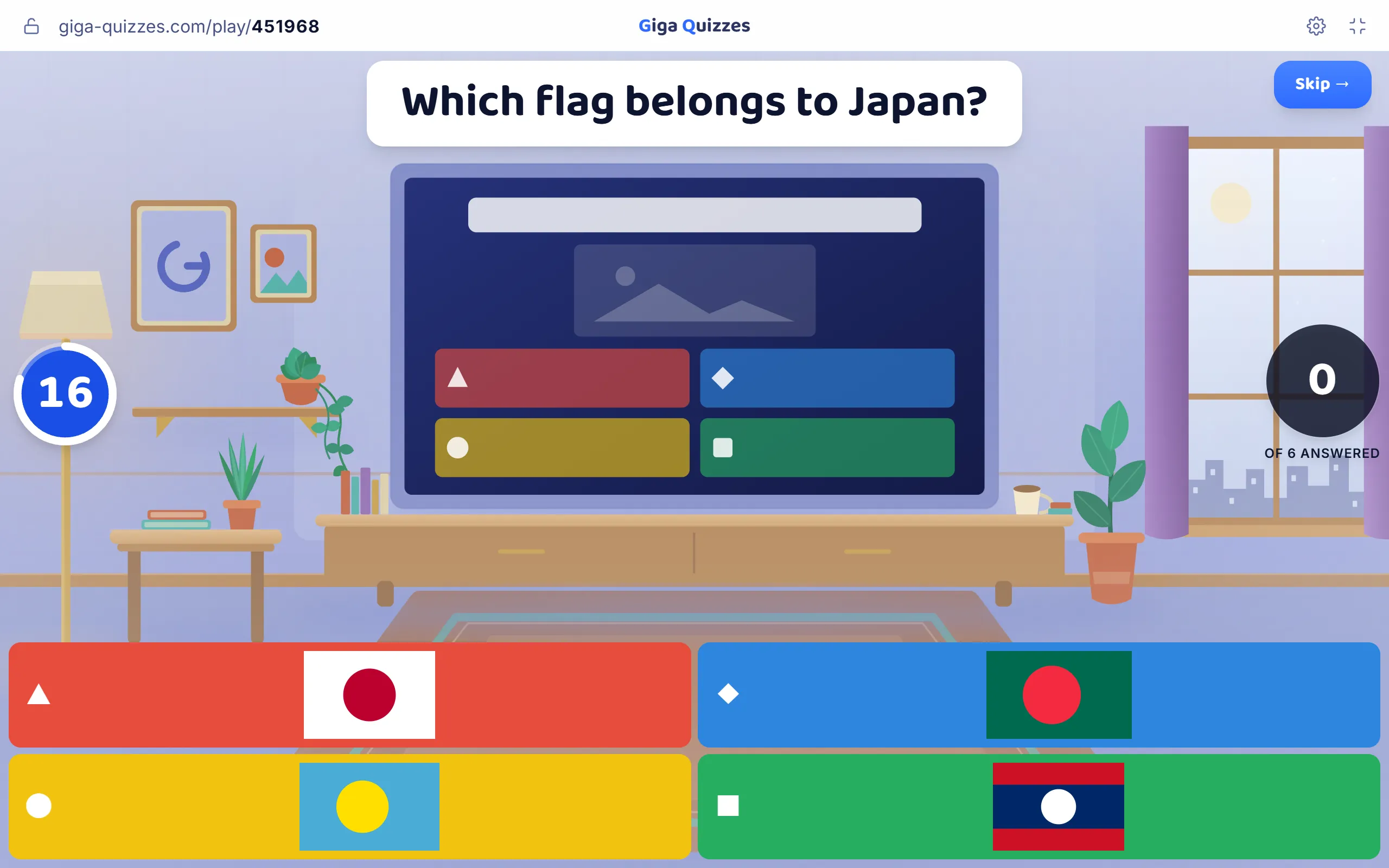
Keep the four pictures similar in style and size, so none stands out for the wrong reason, and choose wrong answers that genuinely look alike. Four flags with a circle in the middle make a real question. One red circle among three striped flags is a giveaway.
3. Tap the spot
When the answer is a place on a picture, a hotspot question asks students to tap it. It is ideal for labelling: the parts of a cell, the bones of the hand, a country on a map, the chamber of the heart that receives blood from the lungs. It tests whether a student knows where something is, which multiple choice cannot really do.
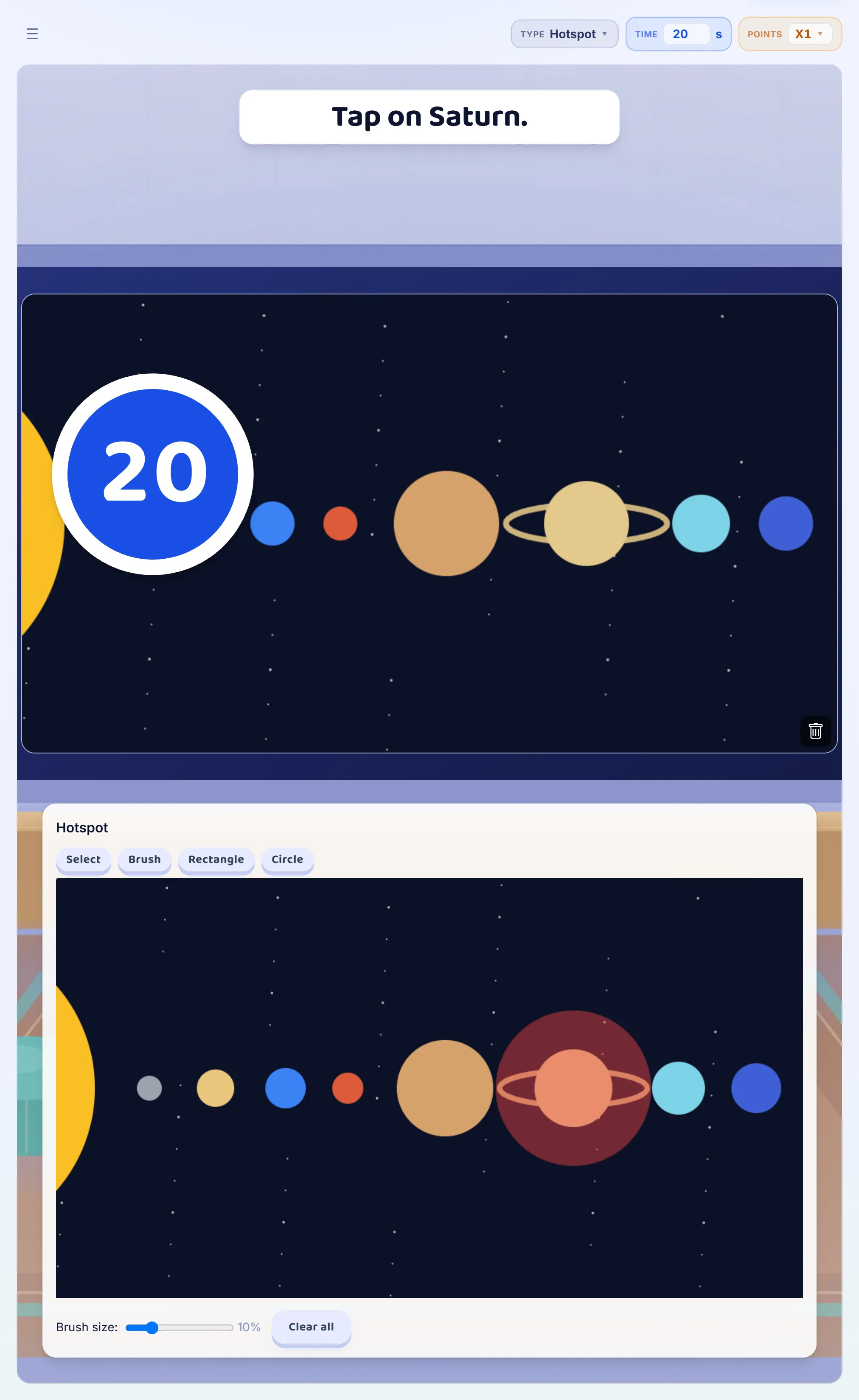
Choose a clean picture without labels, since labels give the answer away, and mark the right area a little generously. A student who taps the edge of the right organ knows the answer; the question should not punish an unsteady finger.
4. The slow reveal
The most popular picture format of all starts with the image hidden under tiles that clear one by one while the time runs. The class races to recognise it before everyone else, and attention on the screen is total.
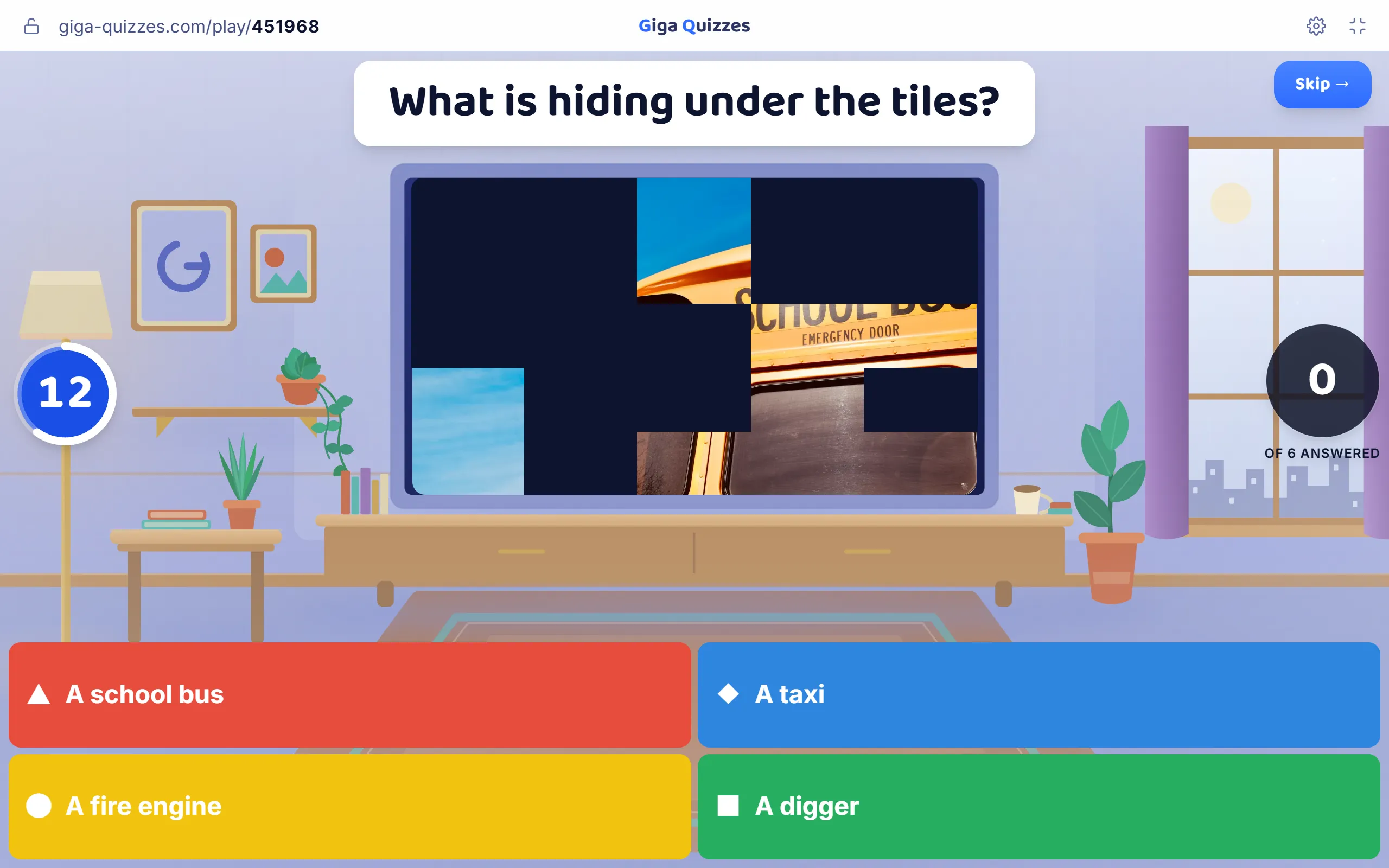
A slow reveal suits landmarks, animals, artworks, everyday objects photographed close up, and anything where one small detail gives the game away to a sharp eye. In Giga Quizzes it is Image reveal, on the picture in the editor: choose a grid of 3×3, 5×5 or 8×8 and a speed. A finer grid takes longer to make sense of, so 8×8 suits a hard picture and 3×3 suits younger classes.
Pictures you are allowed to use
A picture from a search engine is not automatically free to use, even in a classroom quiz, and especially not in one you share. These sources are safe when you follow their terms:
- Your own photos. Often the best of all: the school field, the local river, the experiment you ran last week.
- Public domain images, such as many works whose copyright has expired, which anyone may use.
- Creative Commons images, for example on Wikimedia Commons. Check each file’s licence; most ask you to credit the creator.
- Free photo libraries with their own licences, such as Unsplash, which allows free use without asking.
When a licence asks for credit, the easiest place for it is the question’s explanation or a final slide listing the sources. It takes a minute and models good habits for students who will one day make their own presentations.
Check it on the real screen
Before the lesson, put the quiz on the projector you will actually use and walk to the back of the room. The editor’s Preview plays a question as it will look in a game, which is a good first check, but nothing replaces standing where your students sit. If you cannot tell what a picture shows from there, neither can they. The guide to every question type shows each picture format, and making a quiz that teaches covers Image reveal in more detail.
Try it in Giga Quizzes
Free, in the browser, and nothing for your students to install. These guides show each step on the real screens.
New to Giga Quizzes?
Free live quizzes in the browser. Students join from any phone, with no app.
Make your first quiz →