What to Leave for a Substitute Teacher
A quiz is one of the easiest lessons to leave for cover. Three ways to hand it over, the note to leave on your desk, and how to choose a quiz that runs itself.
 By the Giga Quizzes team4 min read
In this post
Planning for a day when you will not be there is one of the more stressful parts of teaching. The lesson has to make sense to someone who does not know your class, keep thirty students busy, and ideally teach something. A quiz ticks all three. It has an obvious structure, students already know how to play, and you can see afterwards what was done. The only real question is how to hand it over, and there are three good ways, depending on the room and the substitute.
Pick the route first
| The substitute hosts a game | Homework in the class group | A printed worksheet | |
|---|---|---|---|
| Devices needed | A board, plus student phones or laptops | Student phones or laptops | None |
| What the substitute does | Runs the game from the board | Supervises | Hands out and collects |
| Account needed by the substitute | Yes, a free one | No | No |
| Results reach you | In their account, so ask them to save and send them | Automatically, student by student | On paper, to mark |
If the class has its own devices and a group already set up, homework is the least work for everyone. If the substitute is confident and the class enjoys live games, hosting is the most fun. Paper is the backup that never fails.
Option 1: send the quiz to the substitute
To let the substitute run the game on the classroom screen, send them a copy of the quiz. In Giga Quizzes, open the three-dot menu on a set in your Library and choose Send to someone, which opens the Share & export page. Choose Play only: they can host the quiz, but not change it or pass it on. Then either type their email address and press Send, so the quiz waits for them under the bell once they sign in with that address, or press Create share link and paste the link into a message.
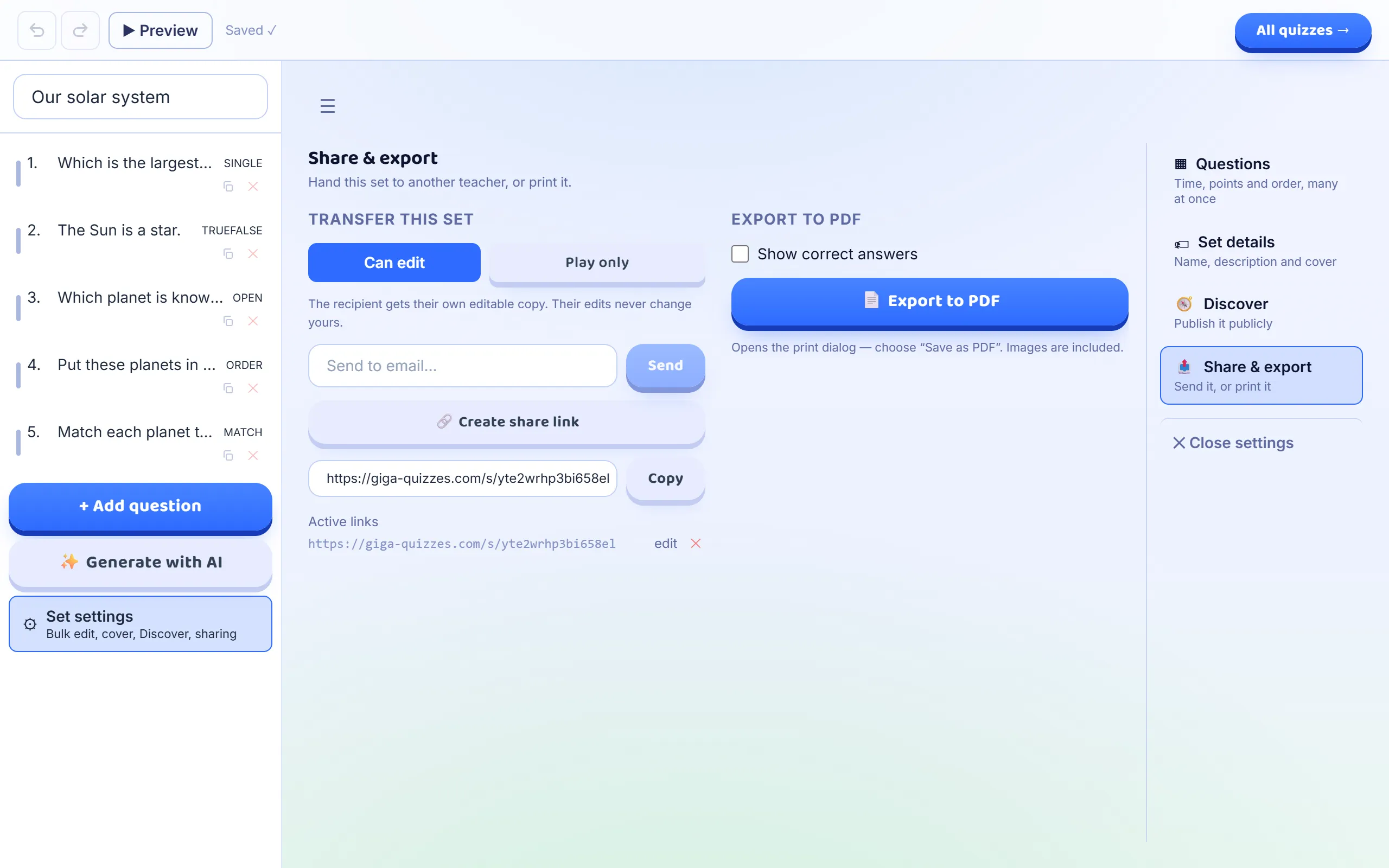
Either way the substitute needs a free account, so send it the day before. A substitute who meets the sign-in screen for the first time at 8:55 with a class lining up outside is not going to have a good morning.
The note to leave on your desk
Someone who has never used the site needs only a few steps. Print this, adapted to your room, and leave it on top of everything else.
Running the quiz: six steps
- 1. Go to giga-quizzes.com on the classroom computer and sign in.
- 2. Open the Library, find “Year 8: Forces review”, and press Host.
- 3. Press Start hosting. A room code and a QR code appear on the board.
- 4. Students join on their phones with the code. They know how.
- 5. When everyone is in, press Start. The space bar moves the game on after each answer.
- 6. At the end, type “8B” under Who played? and press Save name.
Add one line about anything specific to your class, such as two students who should not sit together, and what to do if the quiz finishes early.
Option 2: set it as homework in the class group
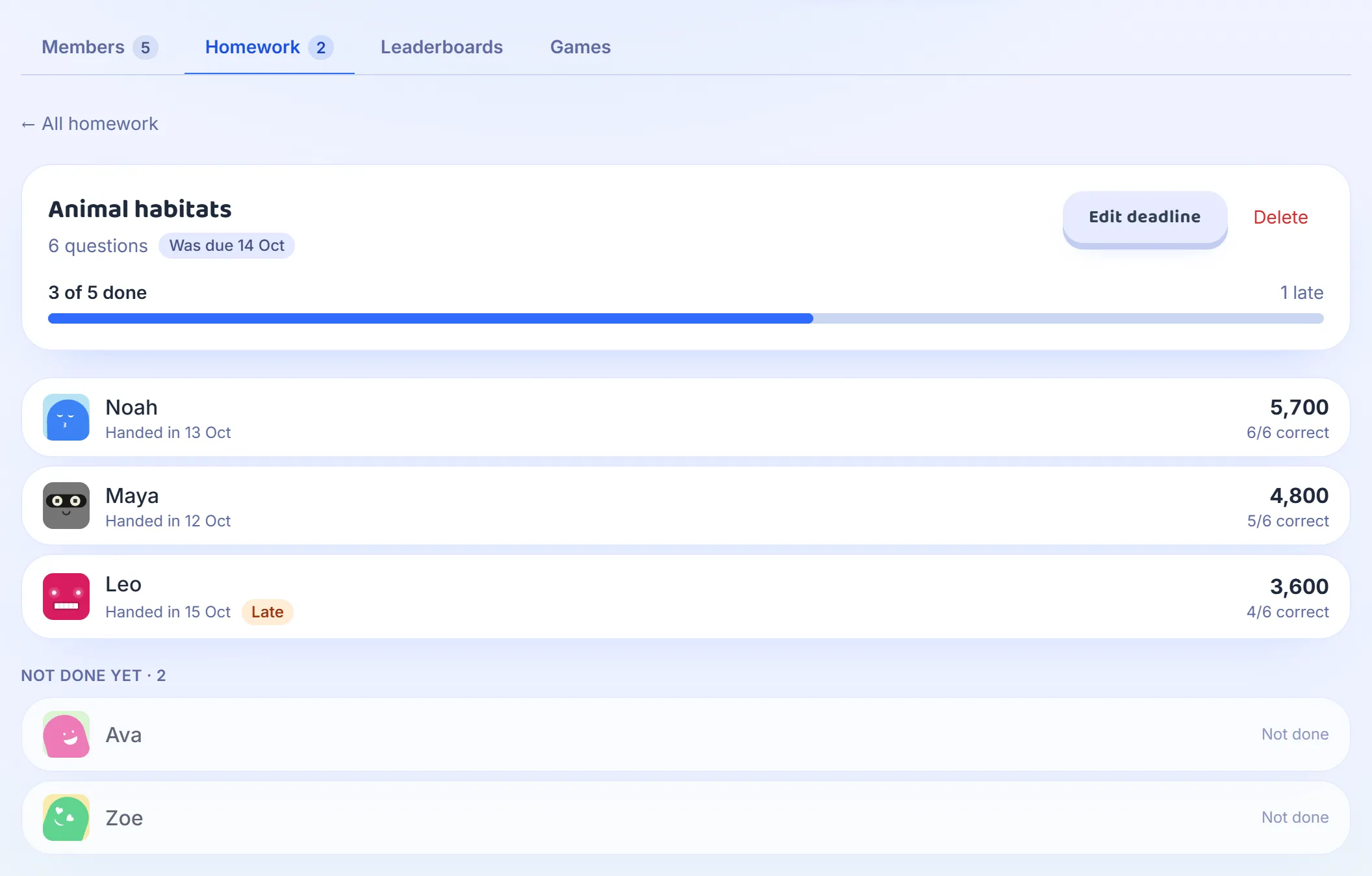
If your class has a group, you can skip the hosting entirely. Set the quiz as homework with a deadline at the end of the lesson. Students open the group on their own devices, play the quiz alone at their own pace, and the substitute only has to supervise.
The results come straight to you. The homework shows how many students have done it, each student’s score and when they finished, and a list of who has not done it yet. When you are back, you know exactly who did the work, without asking the substitute for anything.
Option 3: the paper backup
For a class without devices, or as a plan B if the network goes down, print the quiz. On the same Share & export page, Export to PDF lays the quiz out as a worksheet, with every question, its answers to choose from, and lines to write on for typed answers. Tick Show correct answers first to print an answer key for the substitute as well.
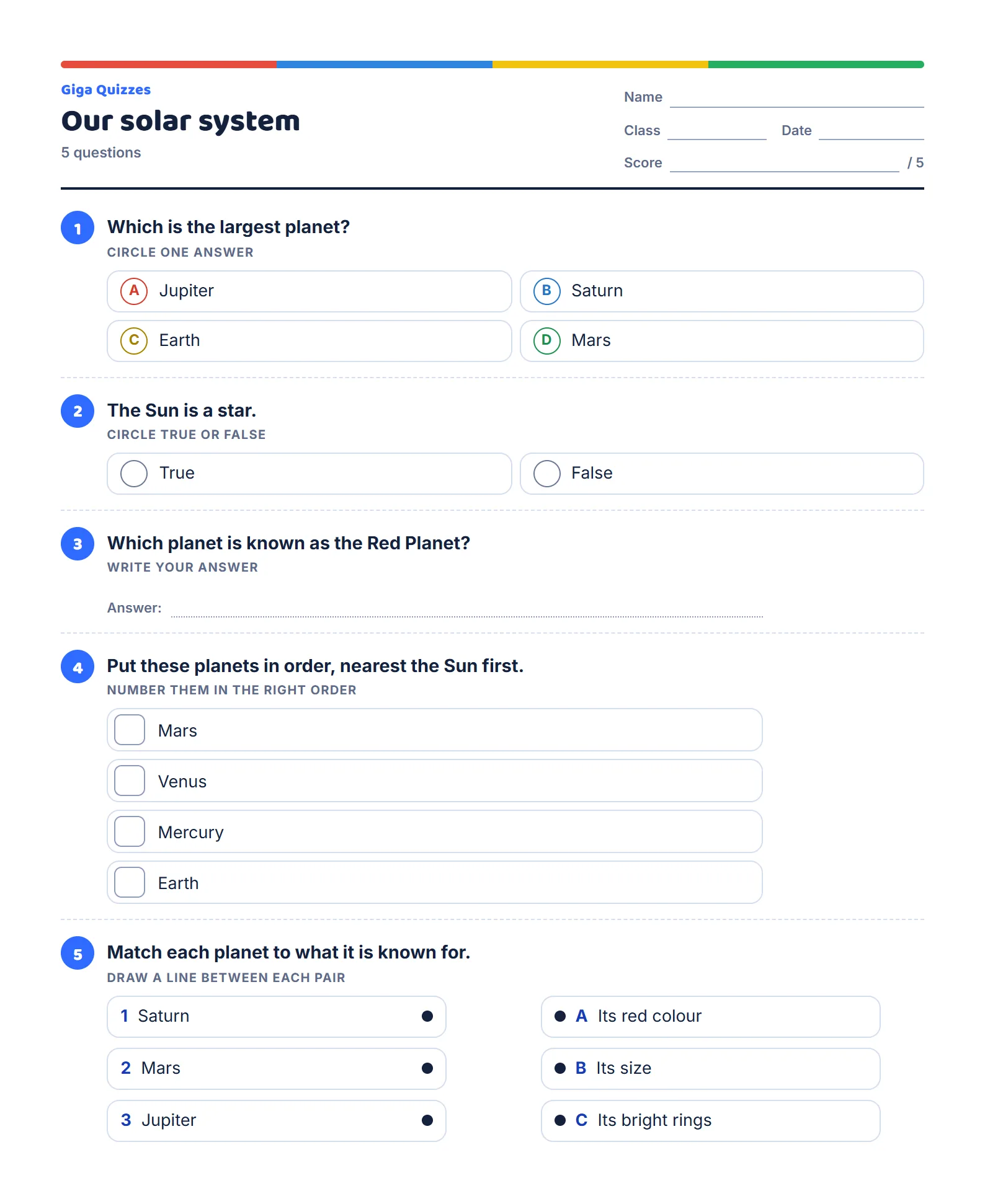
Leave both in the same folder: the worksheet for the class, the key face down underneath. Even if you plan a live game, a printed copy costs nothing and saves the lesson if anything goes wrong.
Choose a quiz that runs itself
A cover lesson is not the time for a quiz you plan to talk through. Choose one that teaches without you:
- Explanations on every question, so students learn why at each reveal without needing someone to explain it.
- A slide at the start that sums up the topic in three lines.
- Review, not new material. A substitute cannot teach a new idea from a quiz, but a quiz can strengthen one the class already met.
- Twenty minutes of play, not fifty. Leave a second, shorter activity for the rest of the lesson.
A well-built review with explanations can carry most of a cover lesson, and you come back to a class that did real work, and to results that tell you how it went.
Try it in Giga Quizzes
Free, in the browser, and nothing for your students to install. These guides show each step on the real screens.
New to Giga Quizzes?
Free live quizzes in the browser. Students join from any phone, with no app.
Make your first quiz →